
You are leaving girlscouts.org for a website opened by an external party. You will be subjected to the privacy and security policies of the website

Online Cookie Systems Guide for Volunteers
In this guide, you will find instructions on how to complete the basic tasks needed to to successfully utilize the Smart Cookies and Digital Cookie platforms.
Smart Cookies
Account Registration and Troop Set Up 
- You will receive an email invitation from noreply@abcsmartcookies.com.
- Follow the link in the email to complete your Volunteer Profile.
- After this is complete, you will receive a registration confirmation email.
Note: User information is deleted from Smart Cookies each year, so you must register your account every year.
Enter Troop Banking Information and Number of Girl Scouts Selling
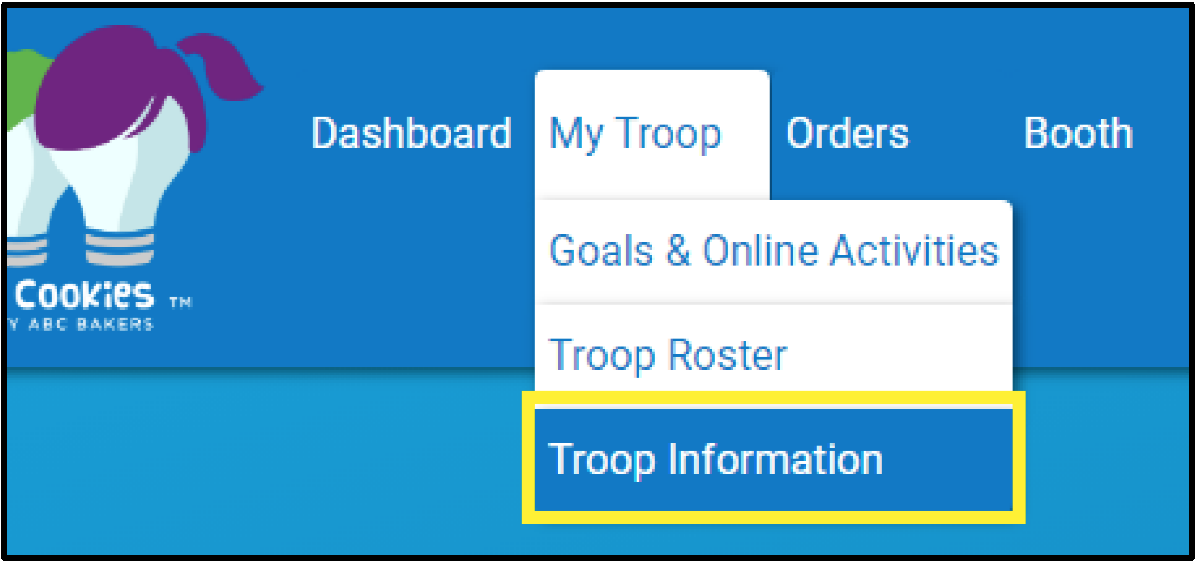
- Go to the My Troop tab, and select Troop Information.
- Enter the expected number of Girl Scouts selling.
- If missing, enter your troop's Bank Account and Routing Numbers.
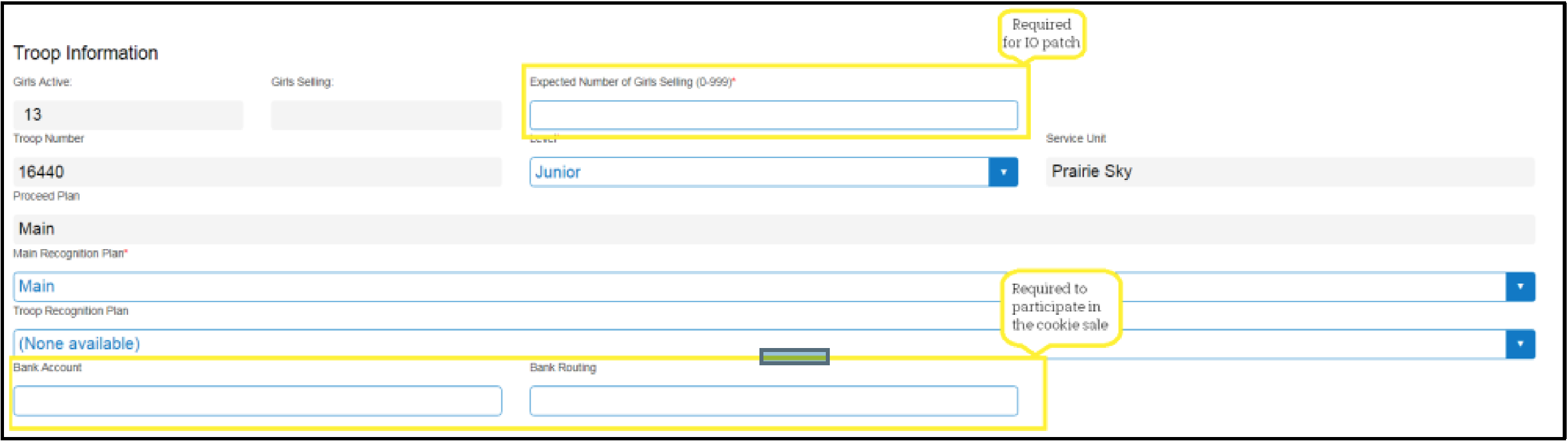
- Click Update Information to save.
Confirm Girl Scouts Information
Note: Girl Scouts will not be visible in Smart Cookies until online/pre-sales begin.
- Go to the My Troop tab, and select Troop Roster.
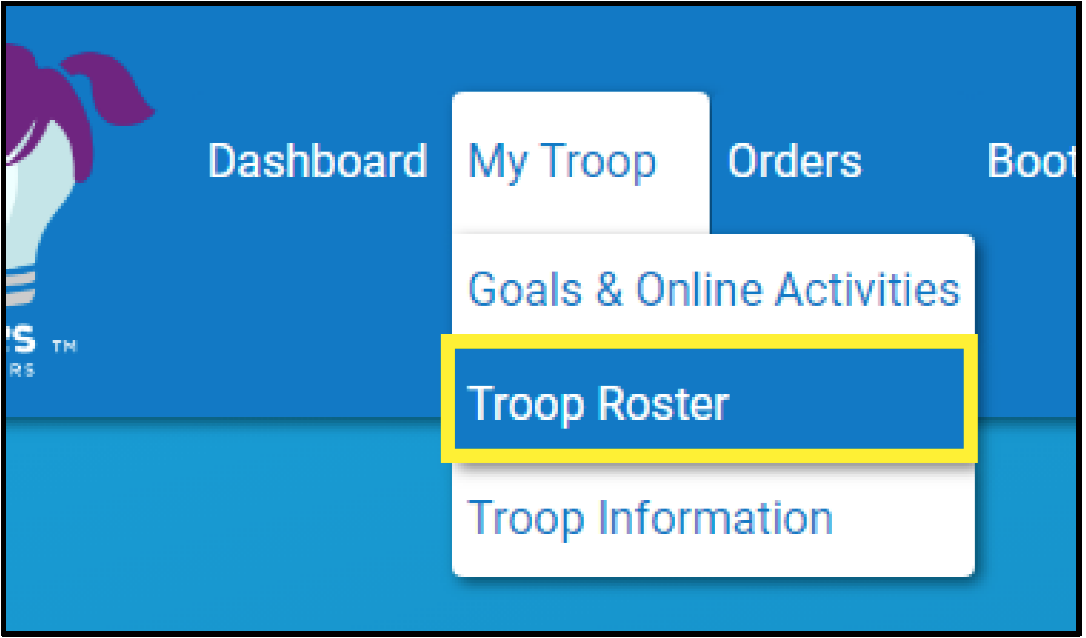
- Confirm all Girl Scouts in your troop are listed.
Digital Cookie Connection: All registered Girl Scouts will be added into Digital Cookie which they use to engage in online cookie sales.. If you notice any troop member is missing, please email us at girlscouts@girlscoutsrv.org. Once added to Smart Cookied, the Girl Scout will appearin Digital Cookie the next day.

You are now ready for your troop to start selling cookies!
Video Instructions: How Volunteers Register to Use Smart Cookies
Navigating the Dashboard
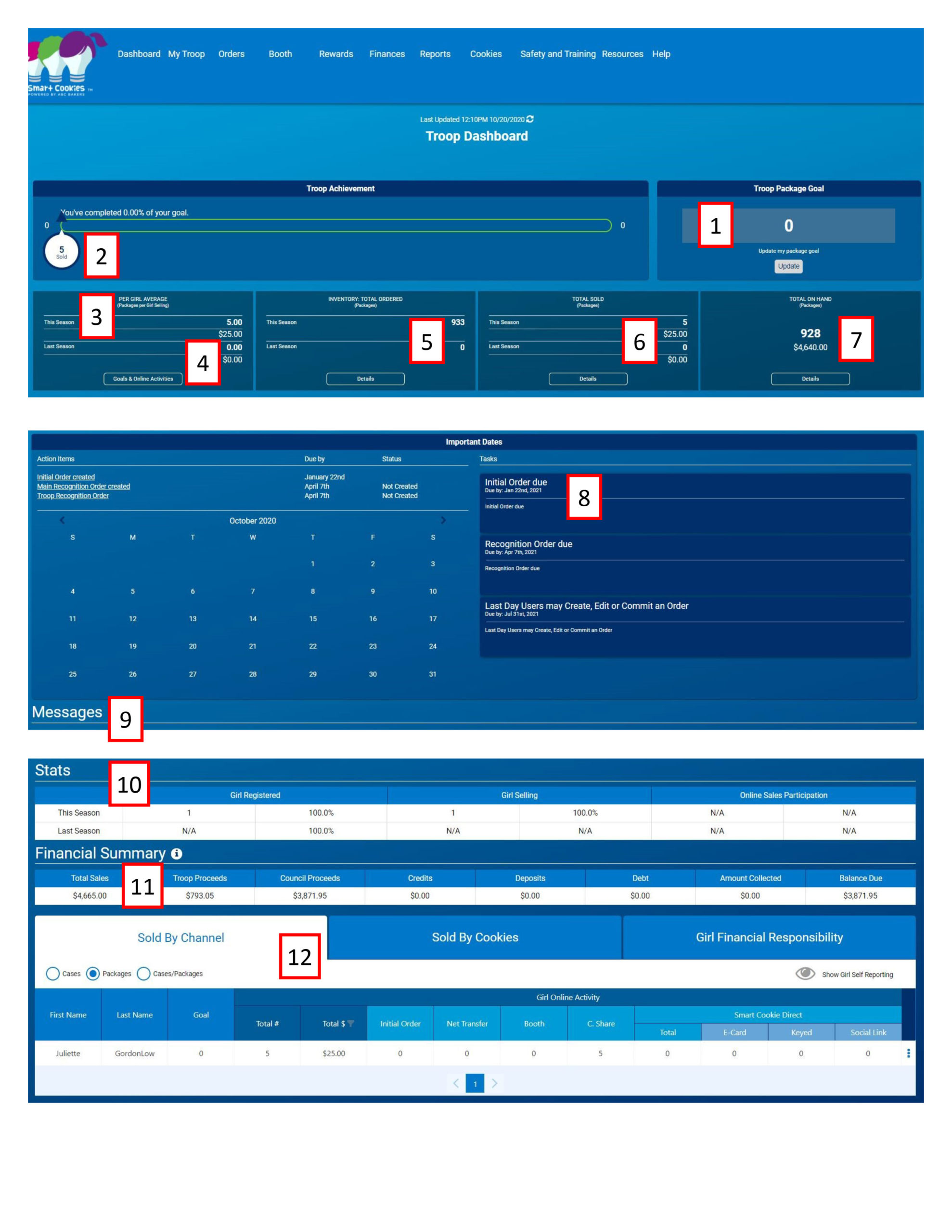
The Troop Dashboard provides an overview of all activity for your troop. Set a troop goal and watch the troop achievement bar progress as cookies are assigned to Girl Scouts in the troop. Key stats include:
- Per Girl Average (selling) – this year vs. last year
- Inventory Ordered (in packages) – this year vs. last year
- Total Sold (in packages) – this year vs. last year (sold indicates cookies assigned to girls)
- Total On Hand (in packages) – number of packages still left to be assigned to Girl Scouts
- Calendar with important dates and tasks associated with them
- Messages – either from Council or your Community (if applicable)
- Girls Registered and Selling – this year vs. last year
- Financial Summary – Total Sales, Troop Proceeds, Council Proceeds (total amount due to Council), Credits, Deposits, Debt, Amount Collected (by Council) or Online, and Balance Due (to Council)
- Girl Sale Details by Channel (cookies transferred to them; shipped, booth credit); by Cookies (varieties), Financial Responsibility (showing amounts due, paid and balance)
Important Note: The dashboard is a great place to get a quick snapshot of your sale, but sometimes it experiences lags in keeping up! If you don’t think your dashboard is accurately reflecting your sales numbers, then:
- Click refresh at the top of the page.

- Check your reports, which will always give you the most accurate and up to date information.
Mimic a Smart Cookies User (for Community/Area Volunteers only)
When using the ‘Mimic a User’ feature in Smart Cookies, you can view a person’s account from their perspective. Community product leaders and community (service unit) leaders users can mimic troops in their community (service unit). To mimic a user:
- Log into Smart Cookies
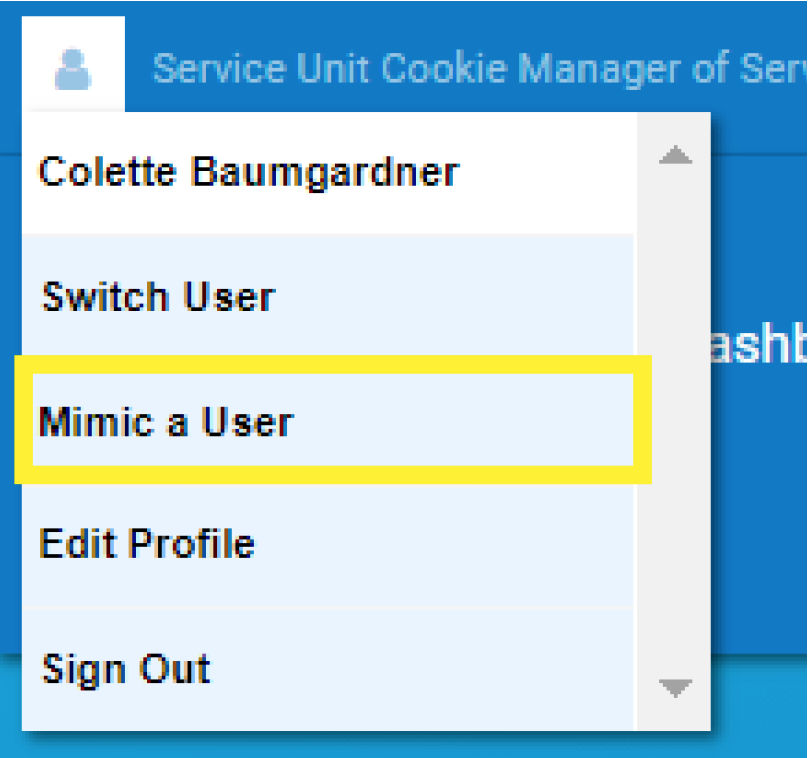
- Click on the person outline on the top left of your screen, and click Mimic a User.
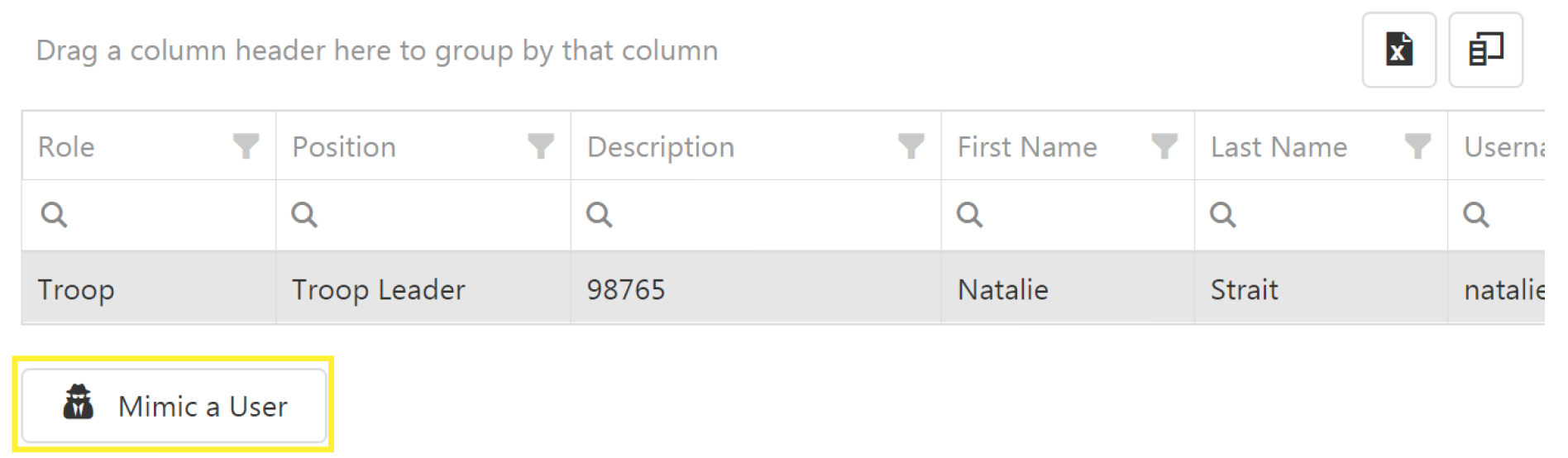
- Click on the appropriate user.
- Click on Mimic a User.
- Review the account as needed.
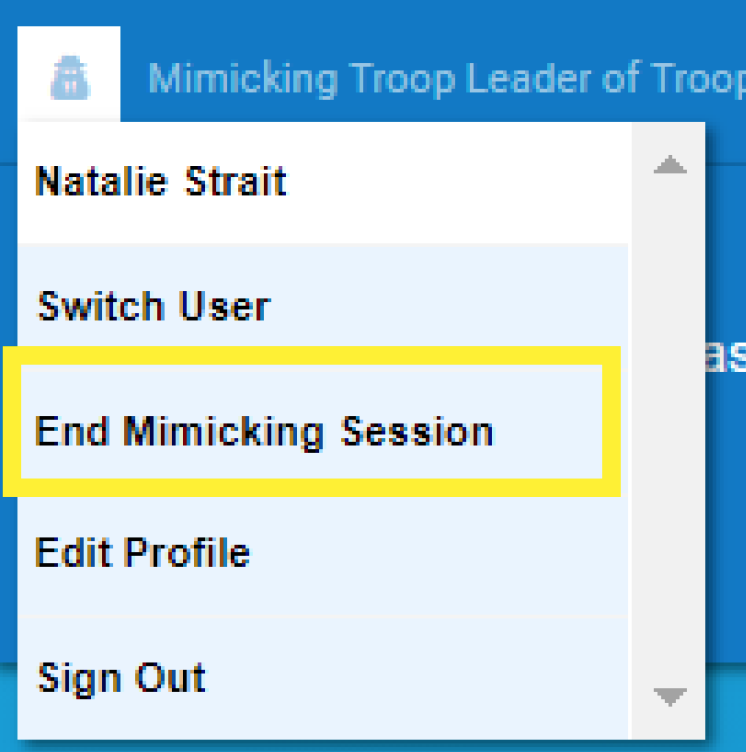
- Once finished, click on the person outline again, and click End Mimicking Session.
Digital Cookie
Account Registration
- Watch for your registration email* from the Girl Scout Cookie Program (email@email.girlscouts.org). Be sure to add that email address to your safe senders list so you don’t miss any emails.
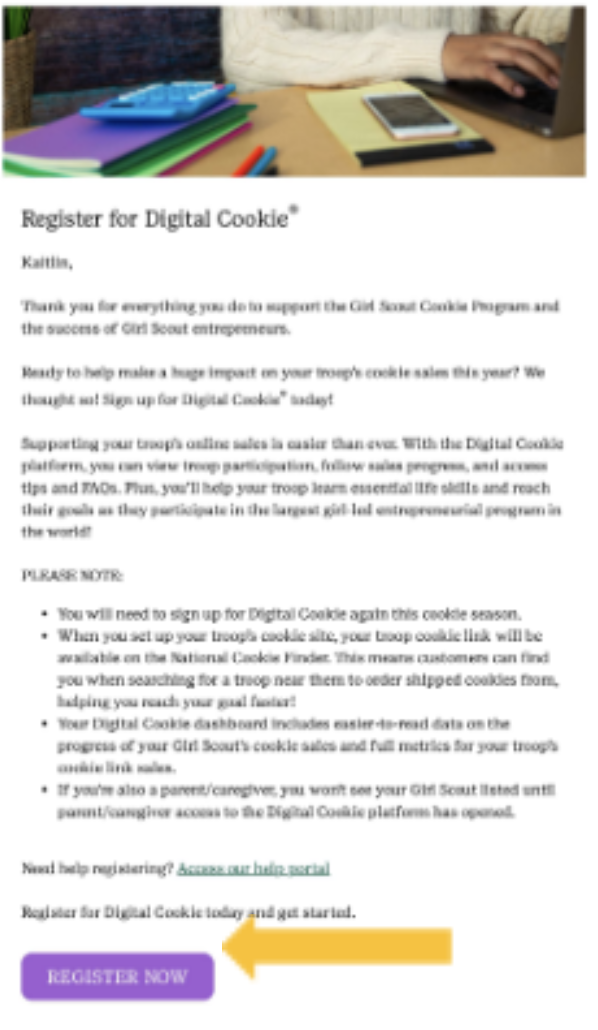
- Click on the “Register Now” button to take you to the Digital Cookie registration site.
- Once you click the link you’ll be on the Digital Cookie platform. Create your password.
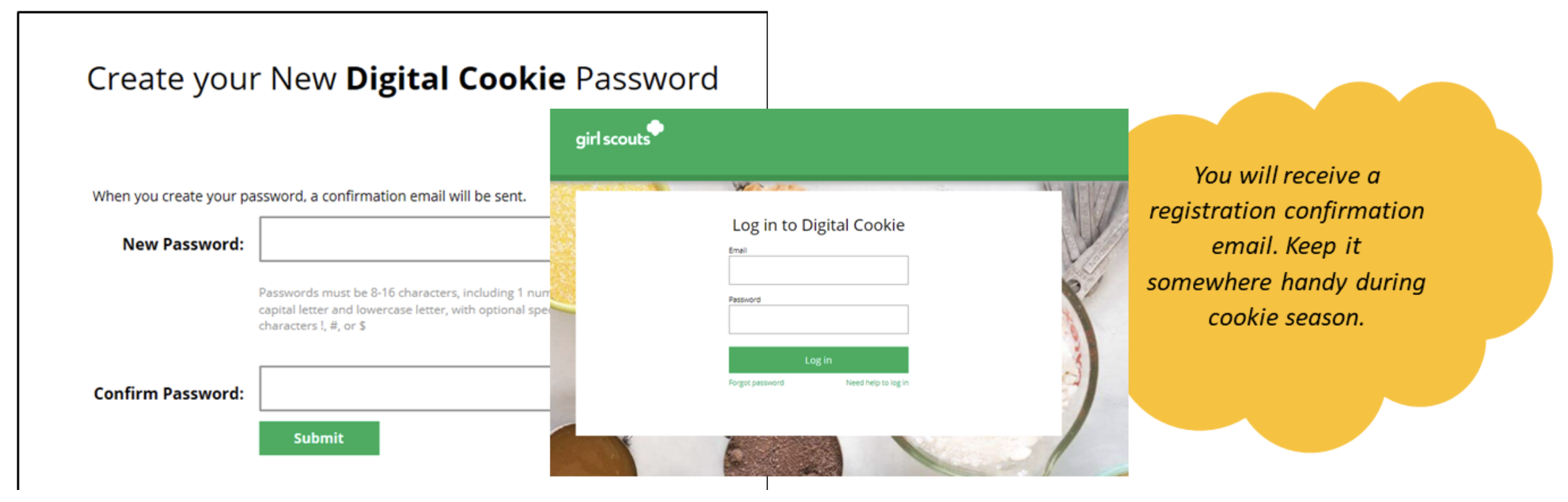
- Use your new password to log in.
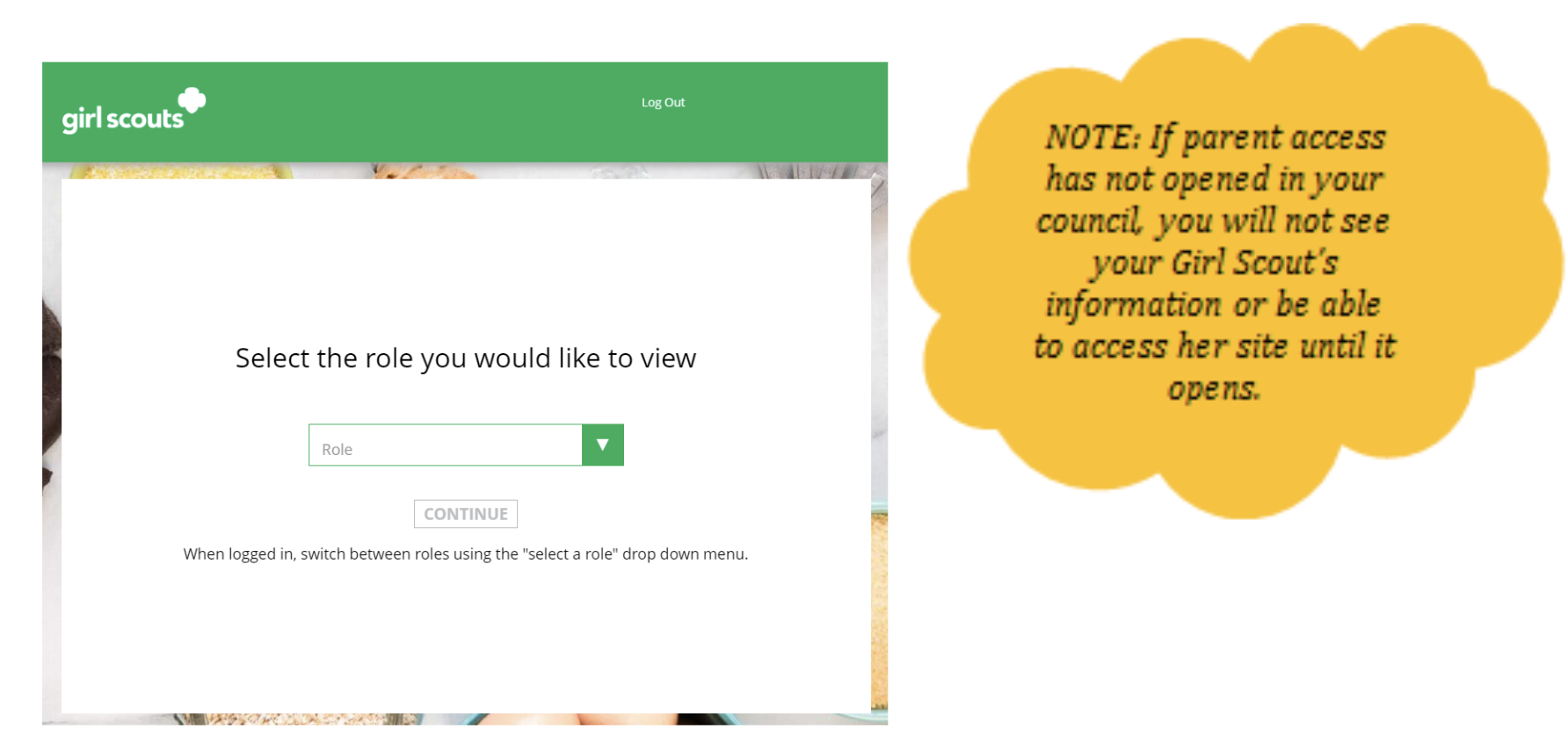
If you have roles in addition to Troop Volunteer, you will be taken to a “role selector” screen once parent access opens, which may be after your volunteer access. 
Once parent access has begun, if you have additional roles and aren’t taken to this screen OR all your roles do not show up on the drop down, contact River Valleys for assistance. Each time you login you can indicate what role you want to get to the correct homepage. You can also navigate to your other roles at the top of all your screens by using the drop down.
Navigating the Dashboard & Tabs
You will see see nine tabs on your dashboard: Dashboard, My Troop, Cheers, Site Setup, Customers, Troop Orders, Booth Pickup, My Cookies, Orders Search.
Dashboard
The dashboard has six sections.
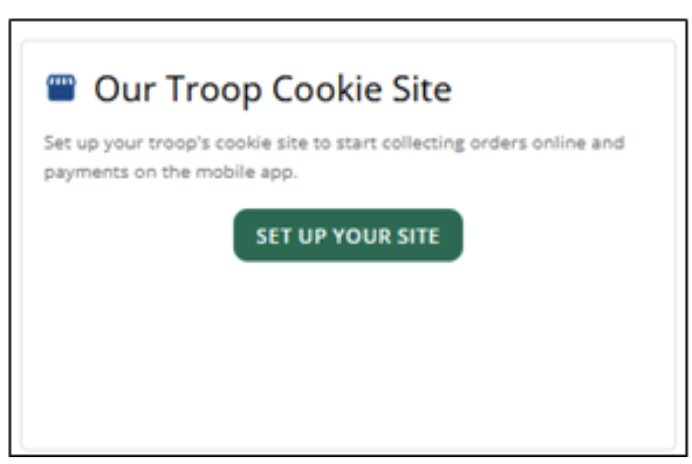
#1 Our Troop Cookie Site
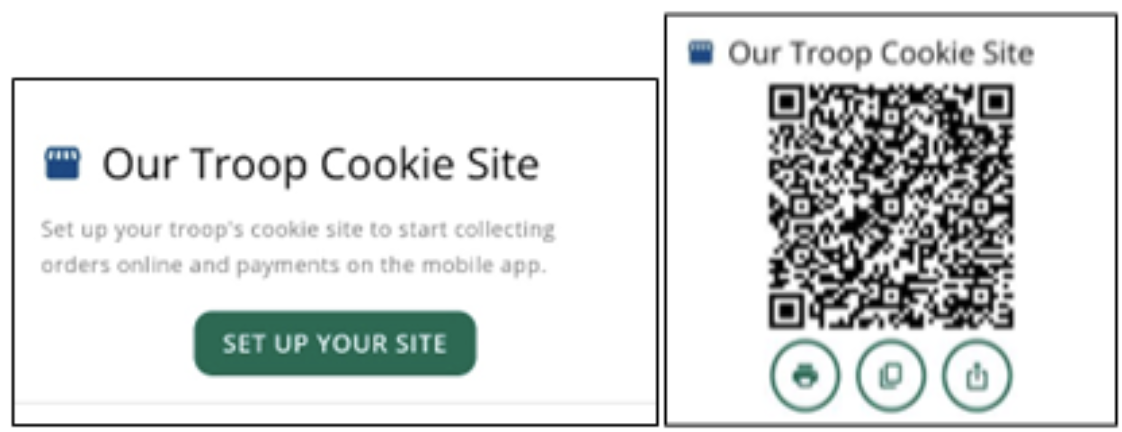
For more details about this section and setting up your Troop Cookie Link, please see Troop Cookie Links section of this guide.
#2 Pending Orders
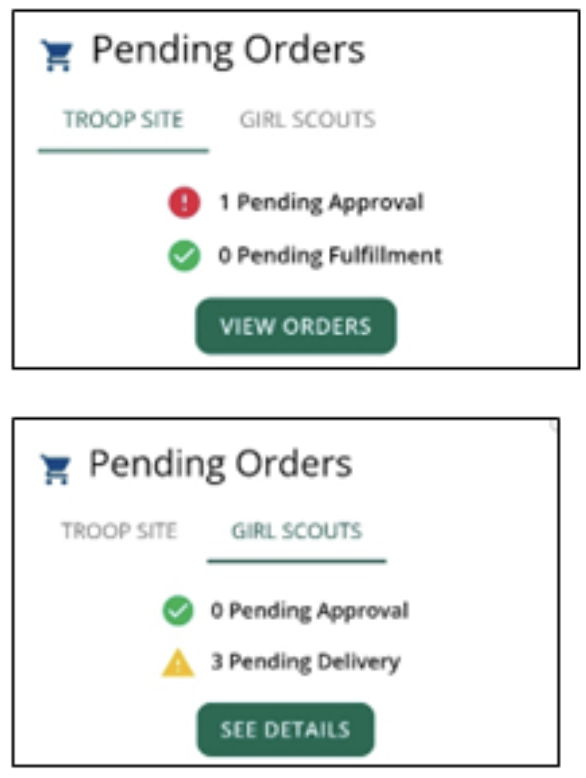
You can view if the Troop Cookie Site or Girl Scouts in your troop have orders to approve or deliver.
#3 Troop Site Sales
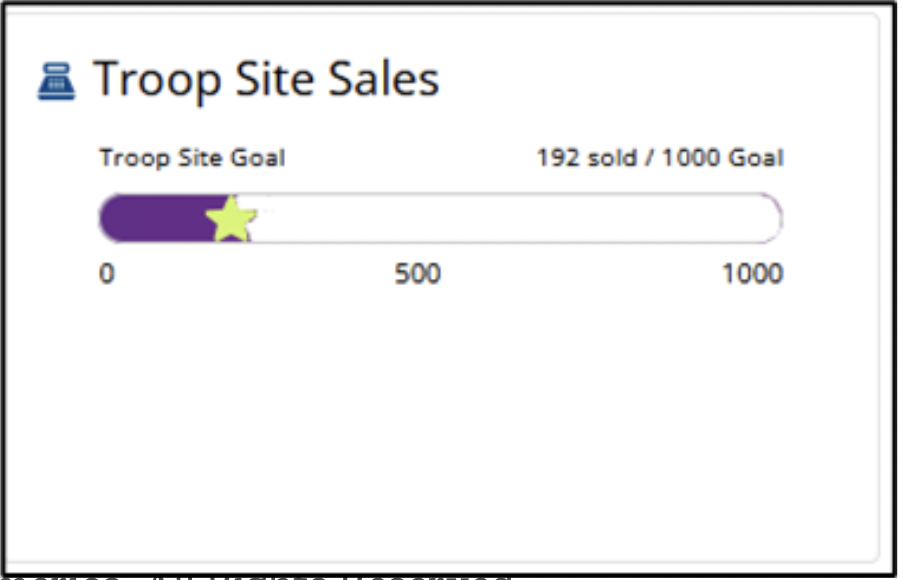
Track the Troop Cookie Site sales. This progress bar is for the troop site orders only and does not include Girl Scout orders.
#4 Cheers
Quick access to the Cheers page where you can cheer on members of the troop.
#5 Troop Online Sales and Marketing
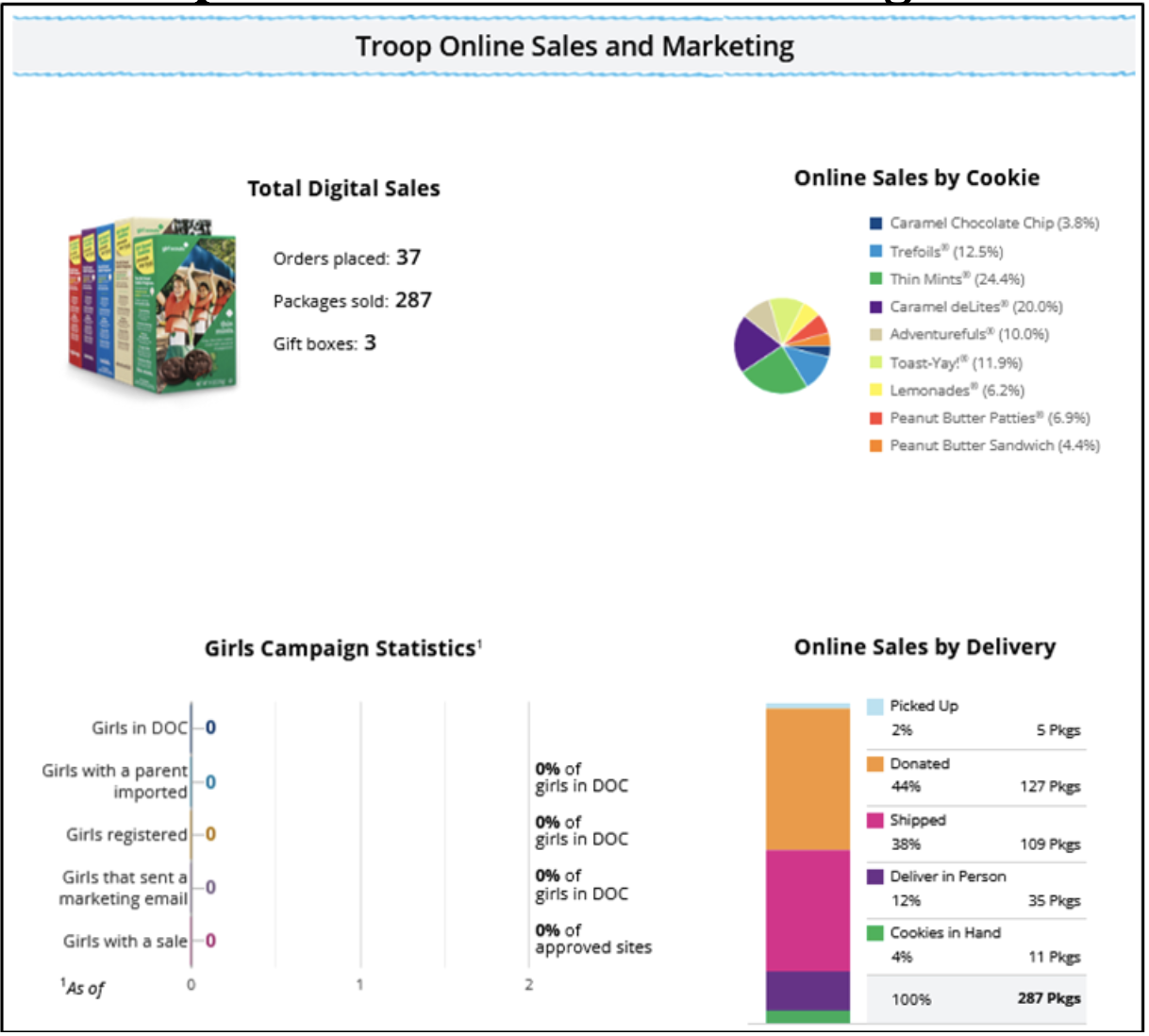
Monitor troop site sales and Girl Scout’s progress.
#6 Reports
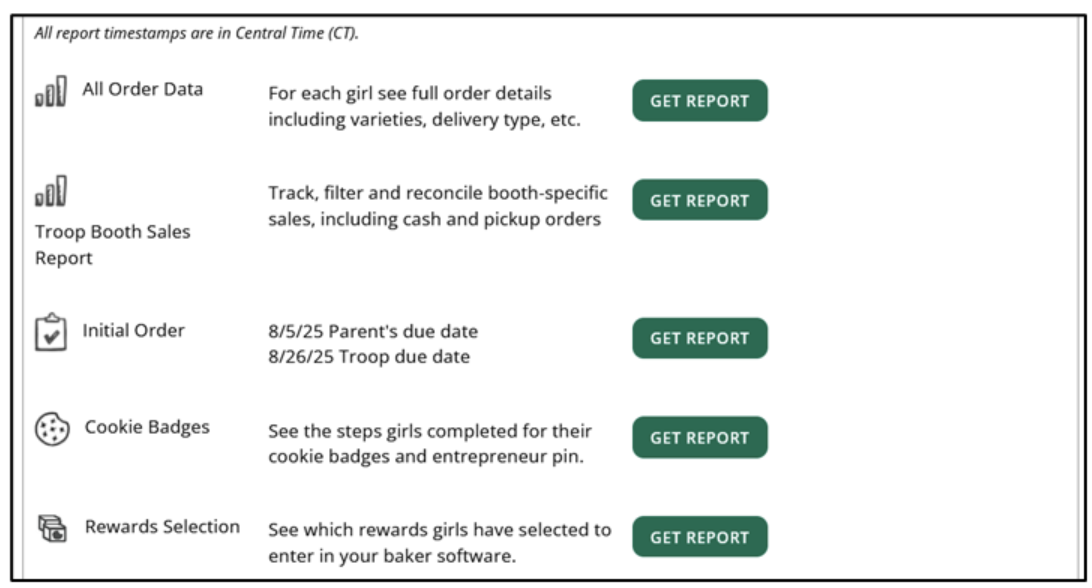
View reports that help you manage activity for your troop. The following reports are applicable to our council:
- All Order Data: shows details on every order for the troop and troop members.
- Troop Booth Sales Report: Track, filter, and reconcile booth specific sales including cash and pickup orders.
- Cookie Badges: View progress towards Girl Scouts completing cookie badges or the Family Entrepreneur Pins.
Orders
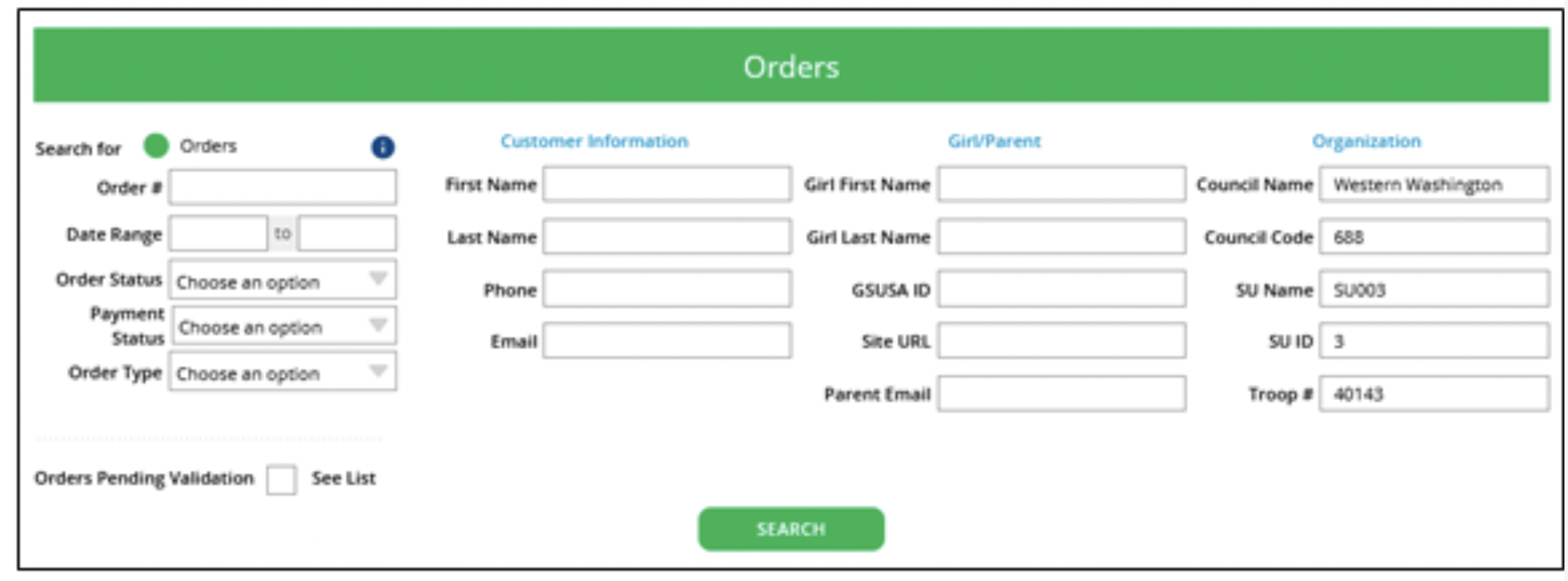
You will see the information you need to look up order details for any order in your troop. You can then refund an order if necessary. For more information, please see the Troop Refunding Orders section of this guide.
My Troop
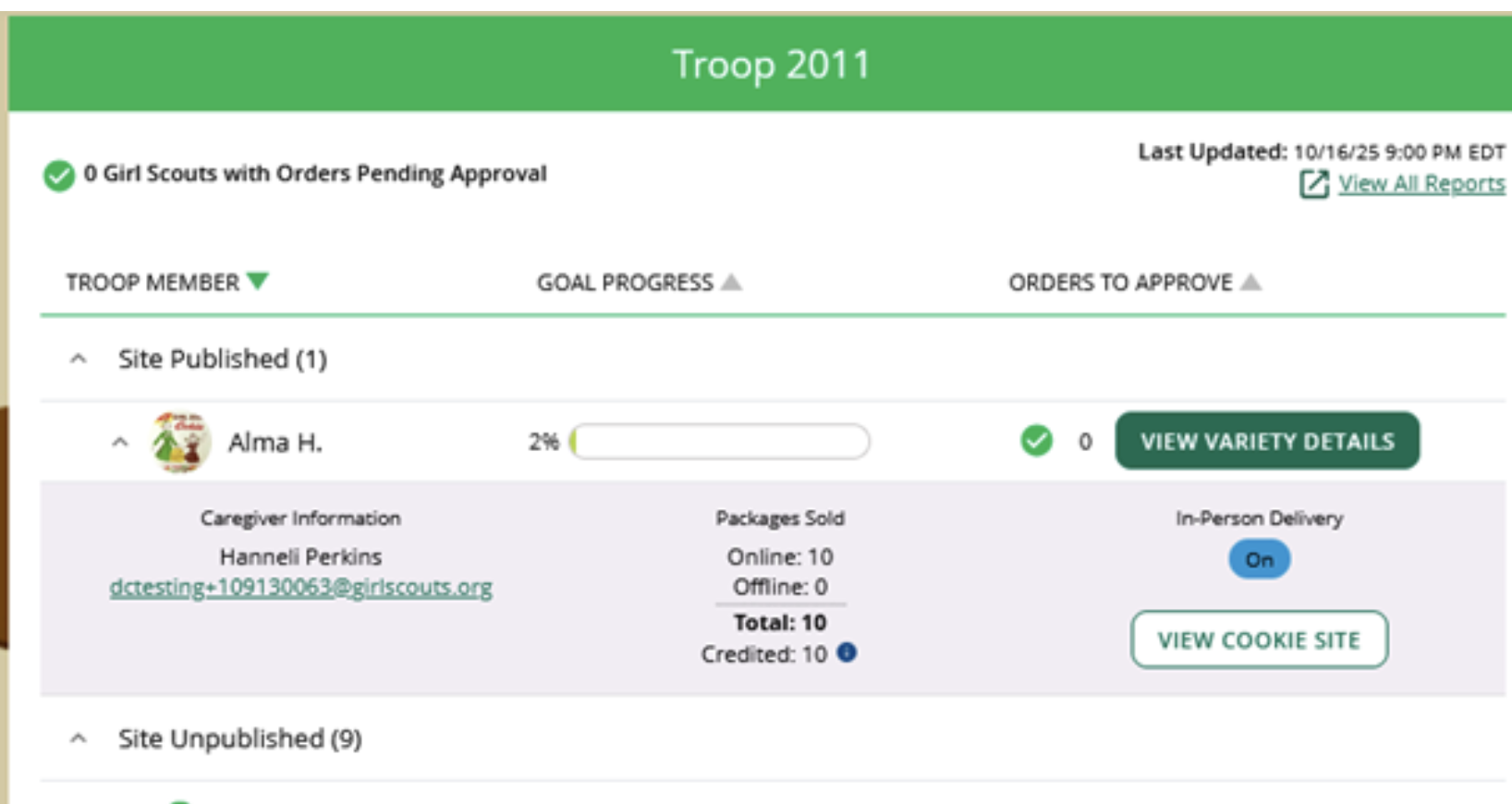
Use this tab to see sale details for each Girl Scout in the troop. Note: Girl Scouts will not be visible in Digital Cookie until online & pre-sales begin. Click on View Variety Details to see how many packages may be pending approval and if cookie varieties have been turned off
Site Setup
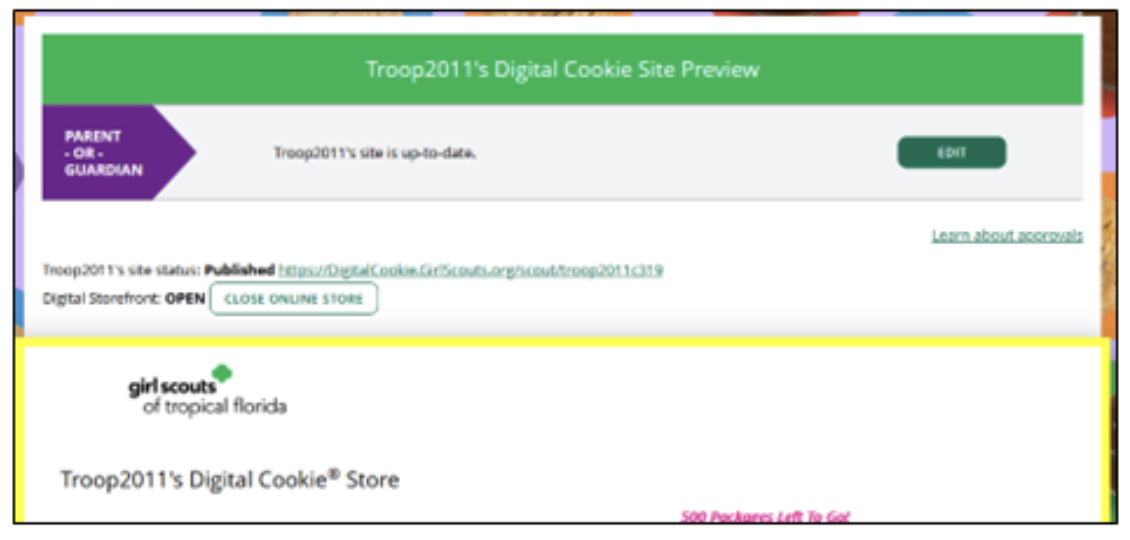
To edit the troop cookie site, use the Site Setup page. Click on edit to review the goal, story, picture, and zip code to make changes. You can also close the cookie site when you are done taking orders for the season. See the Activating Your Troop Site Links section of this guide for more details. Troop sites must be set up in a web browser before the troop can use the Digital Cookie Mobile App to process in-person and booth sales.
Customers
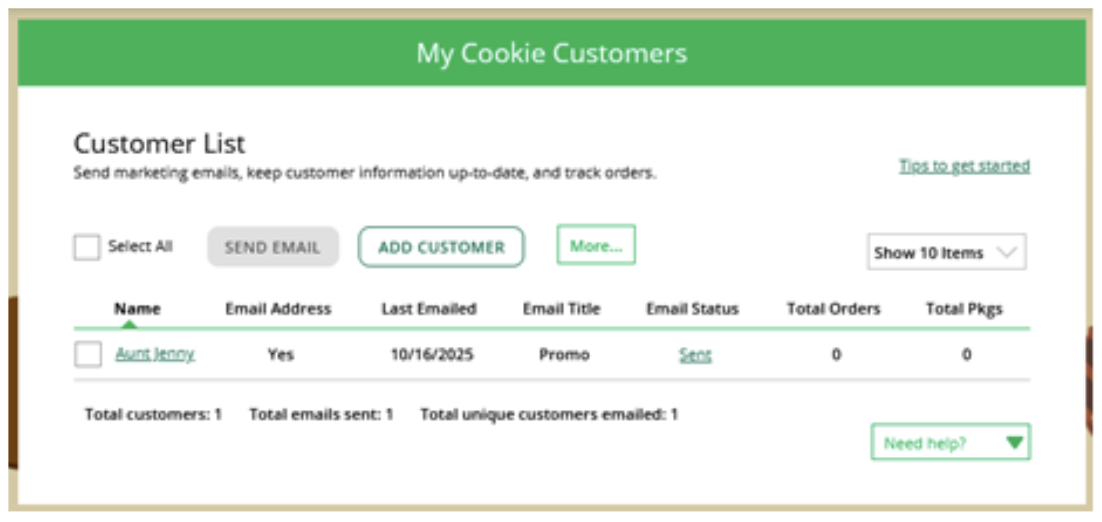
Troops have the option to add customer information and send emails for your troop’s cookie site. Add emails individually or import customers using the More button.
Troop Orders
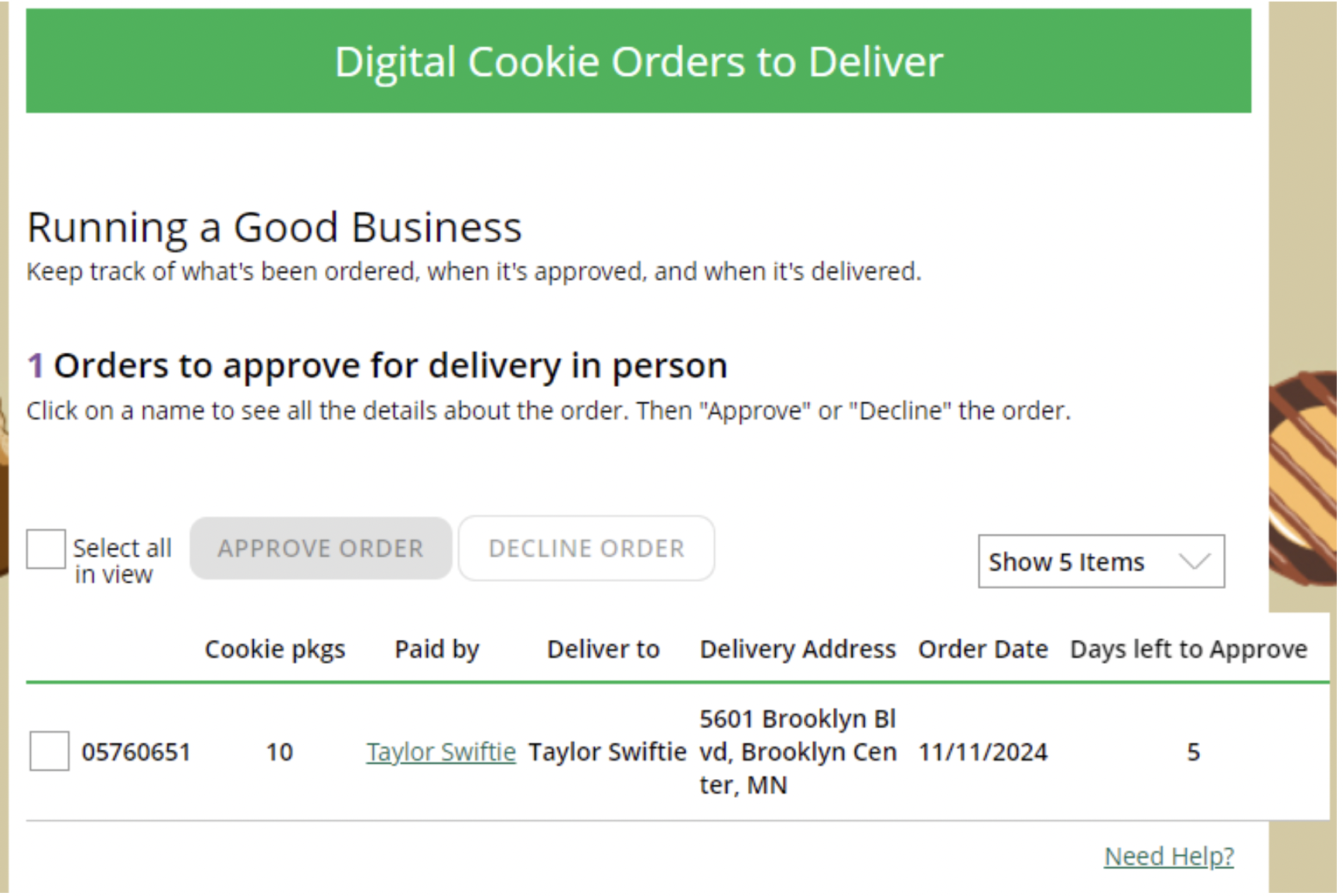
This page works the same as the Girl Scout orders page. Troop volunteers can approve/decline delivery and pickup orders, export a list to find additional details to prepare orders, review order details, and mark orders as delivered.
Booth Pickup
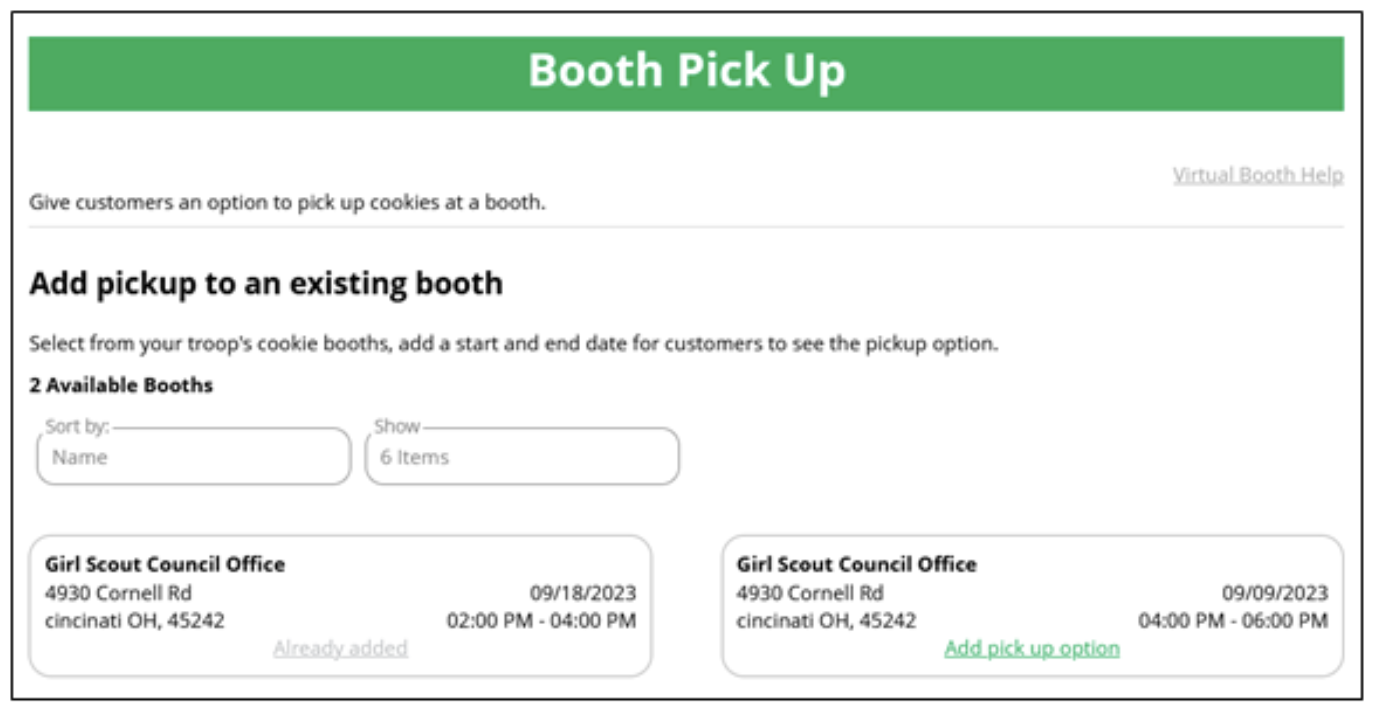
You will only use this page if you add the option for customers to place an order online and pick it up at an upcoming cookie booth. The booths that are approved in Smart Cookies will be visible on this page. Follow the prompts on the page to set the timeframe that your troop will accept orders. If you need to cancel the booth, you must delete the booth pickup option here too.
My Cookies
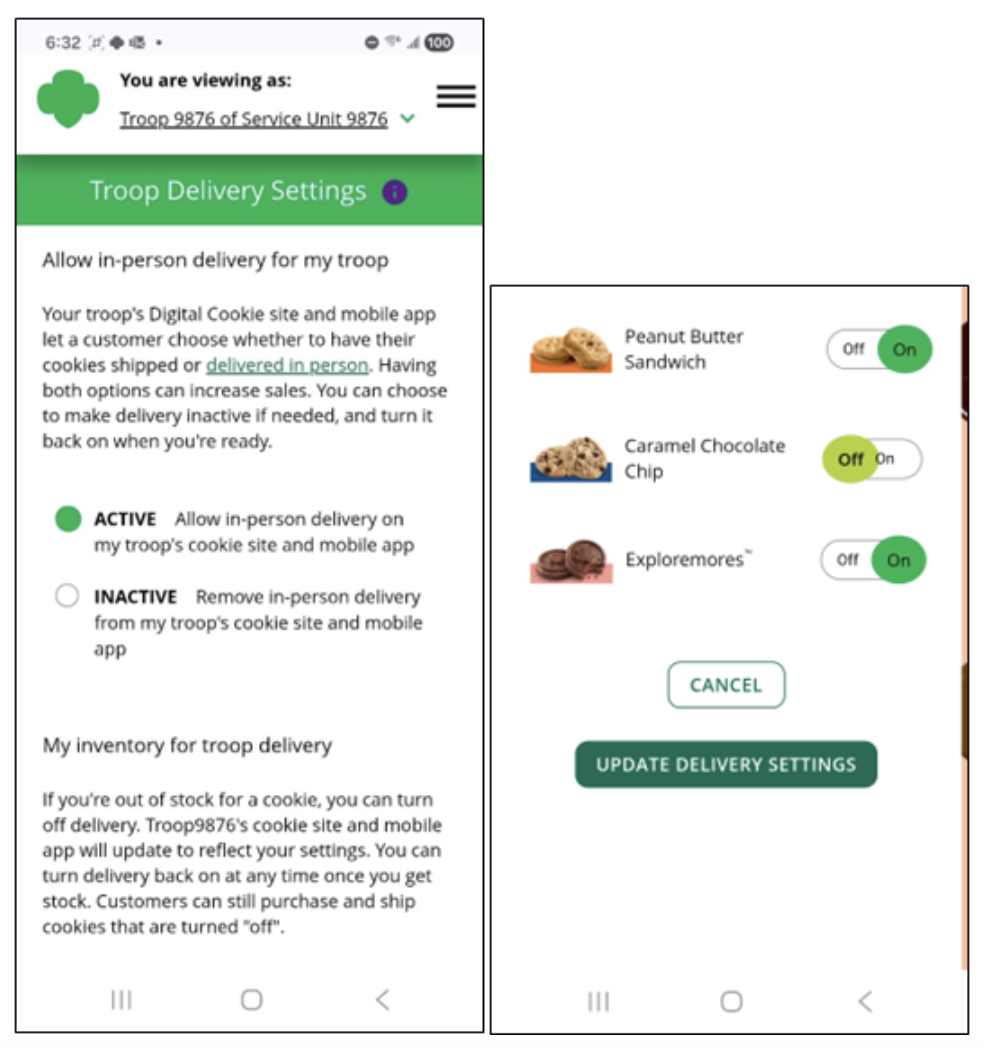
This page is where you can set the in-person delivery option to active or inactive plus, turn on/off varieties of cookies.
Orders Search
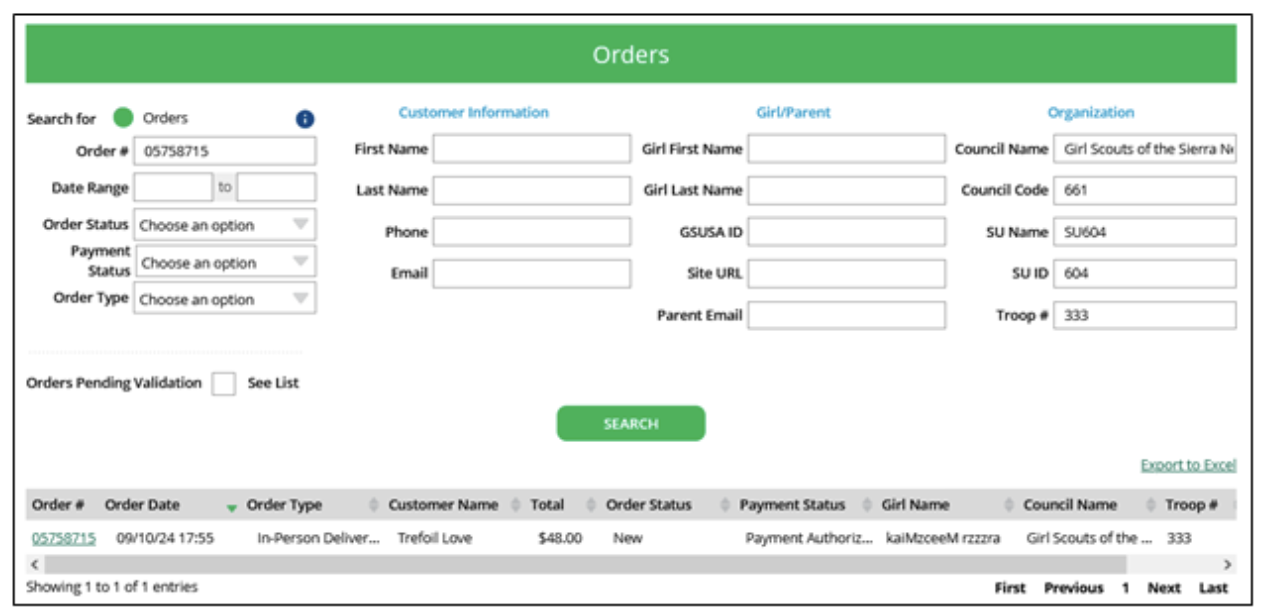
Look up orders that were placed for all the Girl Scouts in your troop, including customer information. Troop volunteers can also refund orders if needed from this page.
Video Instructions: Troop Dashboard
Printable Instructions: Troop Dashboard Printable
Activating Your Troop Site Links for Shipped Cookie Sales, Delivery, and to Take Booth Payments With the Digital Cookie Mobile App
Your troop site links will help your troop make sales online in addition to, or instead of, your regular in-person cookie booths. When you set up your troop site, there are two links: Troop Site Link for local sales and the Troop Ship Only Link. Once the troop site is activated and published, this will activate the troop site links and complete the first step for the troop to accept credit cards/Venmo/PayPal payments at cookie booths with the Digital Cookie Mobile App. Any troop volunteer can start site set up.
Setting Up Your Troop Site
Click the Set Up Your Site button on Troop Dashboard. View screenshot.
Activate the Site
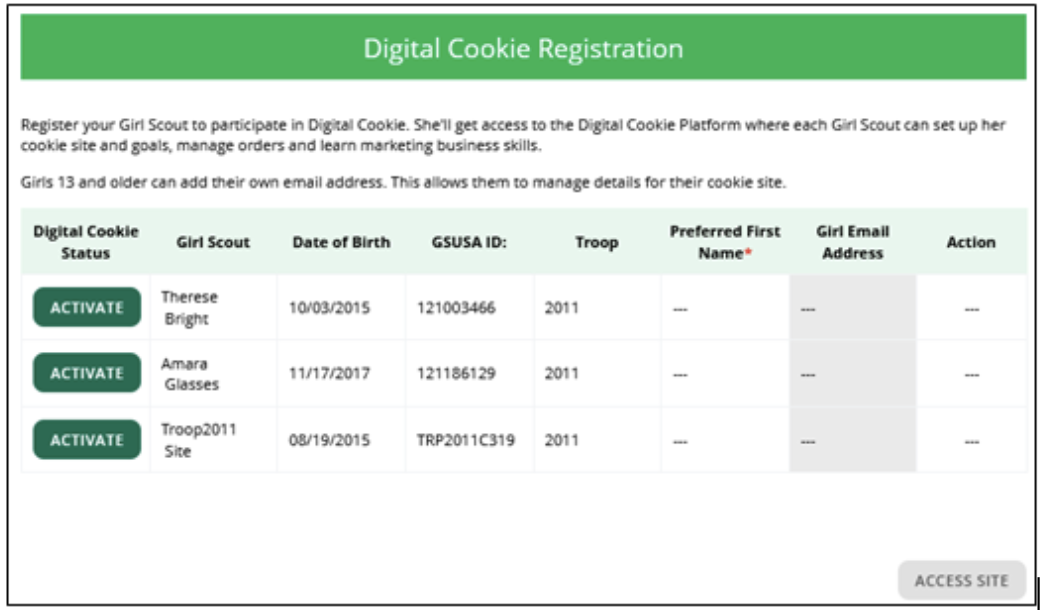
Find your troop site (Troop, followed by your troop #, Site) and click ACTIVATE. Once the troop has been activated, the ACCESS SITE button will turn green.
Set up Site
When you click the ACCESS SITE button, you are taken to the site setup page to set up the troop’s cookie site.
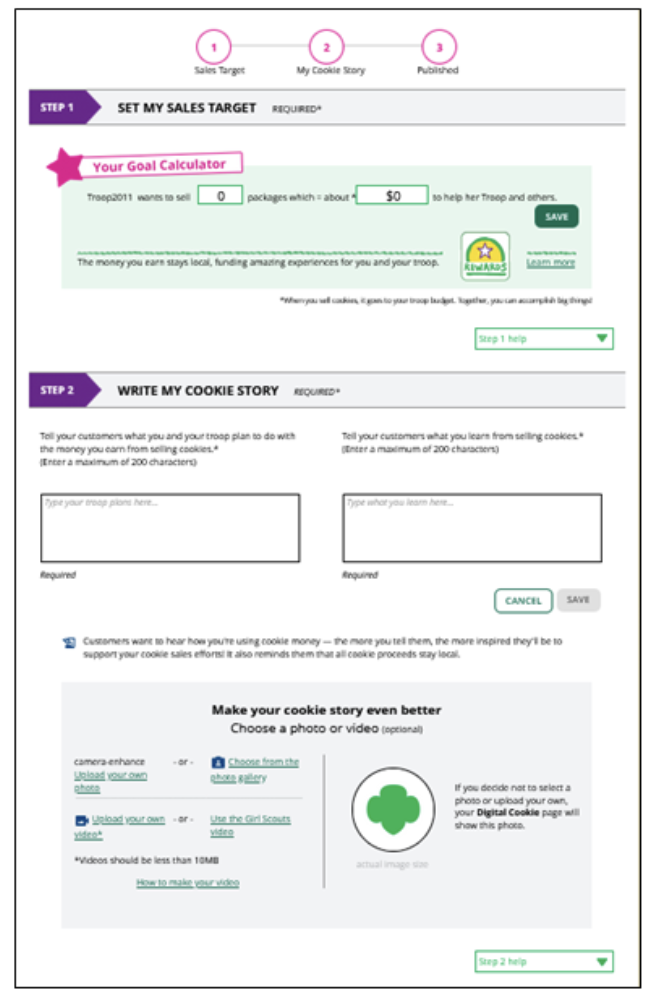
You will enter a goal, write the troop’s story, upload a picture or video, and confirm or edit the troop zip code.
Once complete, click SEE YOUR SITE AND PUBLISH.
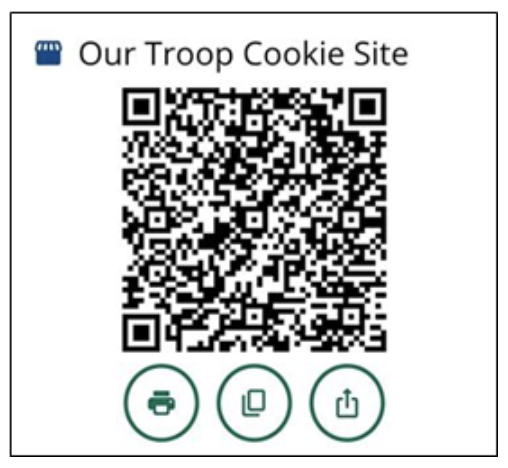
Once the site is published, you will see a QR Code and have access to share the troop links from the dashboard. The troop can share these links for shipped sales and local delivery sales or copy the QR code to use on flyers at businesses. Also, volunteers/families can download the Digital Cookie Mobile app to take credit card/Venmo/PayPal payments at cookie booths. See the Taking Booth Credit Card/Venmo/PayPal Payments & Recording Cash Sales with the Mobile App section for step-by-step instructions. The Troop volunteer will use the same email and password from their Digital Cookie account to access the mobile app.
Troop Site Links
From your troop dashboard, you can access your troop site links:
Troop Site Link (In-person Delivery)
This link will function the same as any Girl Scout’s link with Shipping, Donation, Delivery and In Hand (on the app) as options for customers. You can turn delivery off for the troop link the same way a caregiver can turn delivery off for their Girl Scout in the My Cookies tab.
This link will enable customers to select pickup orders as a delivery type. See the Adding Pre-Paid Pick-up Orders at an existing Cookie Booth and/or the Managing Troop Site Orders for In-Person Delivery sections for more details.
Troop Ship Only Link
This link will only allow customers to purchase shipped and donated orders. This link will be sent to the National Girl Scout Cookie Finder.
Once your site is set up and published, there is nothing additional you will need to do. The Troop Ship Only link will automatically be visible to customers using the cookie finder to locate a troop nearby for purchasing shipped cookies.
All purchases on either of your links will appear in your troop records in Smart Cookies. You will distribute sales from these sales links to participating Girl Scouts in Smart Cookies.
Video Instructions: Troop Site Links
Printable instructions: Troop Cookie Links Desktop
Access for Community/Area Product Leaders
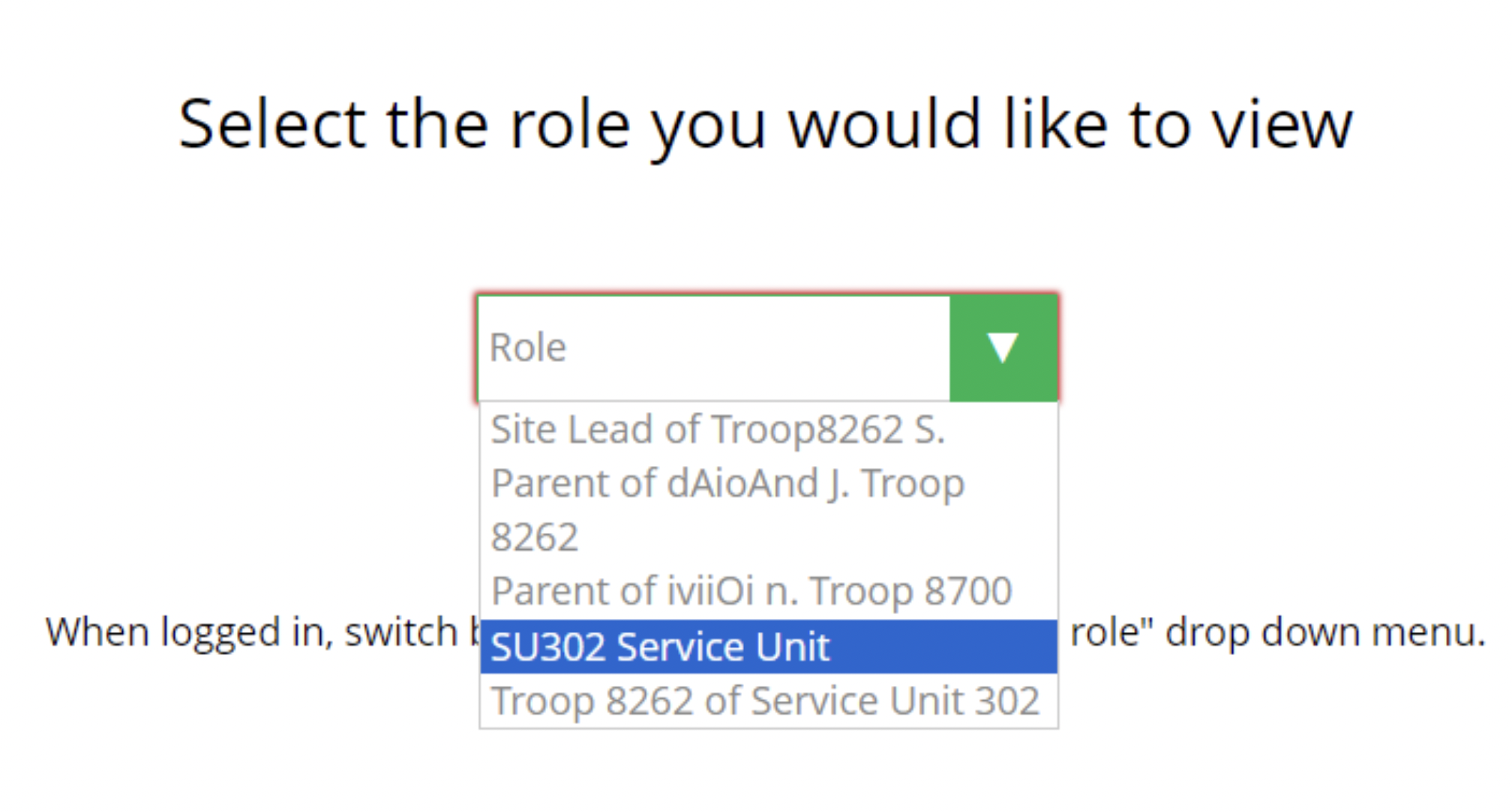
Community/Area Product Leaders have the option to use Digital Cookie to monitor digital sales, as well as run Order Data reports for troops. This access will appear as a Service Unit role. If you hold multiple roles, you can select the Service Unit role after you login:
Online Sales and Marketing
The online sales and marketing section represents a rollup of data from the troops in your Community (service unit). It is a great way to see how troops are progressing through the season.
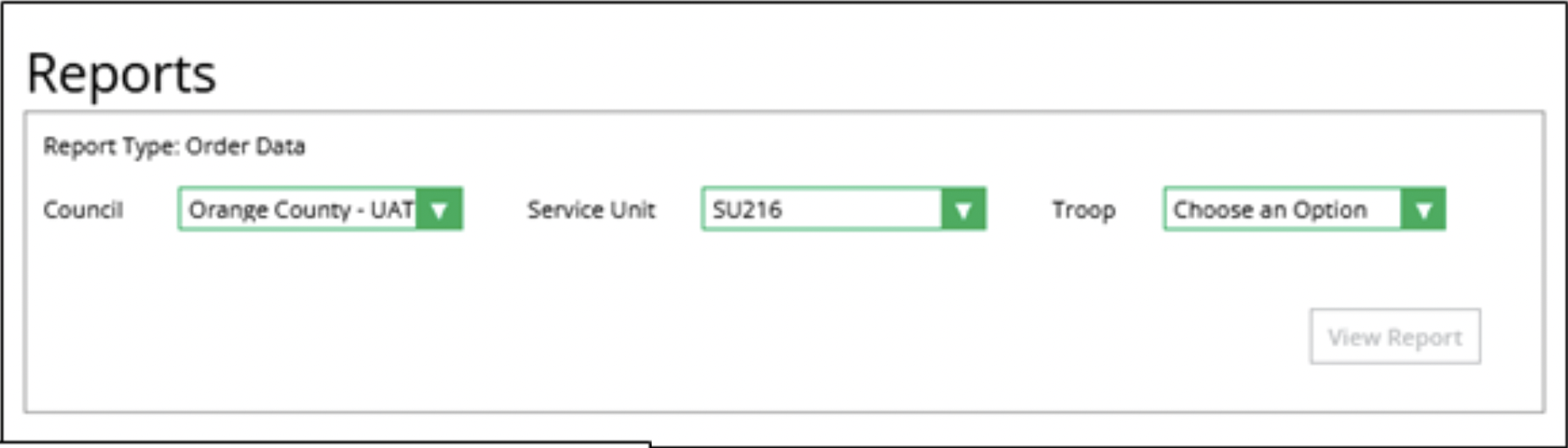
Troop Reports
Volunteers can pull a report of orders by troop.
Girl Scouts
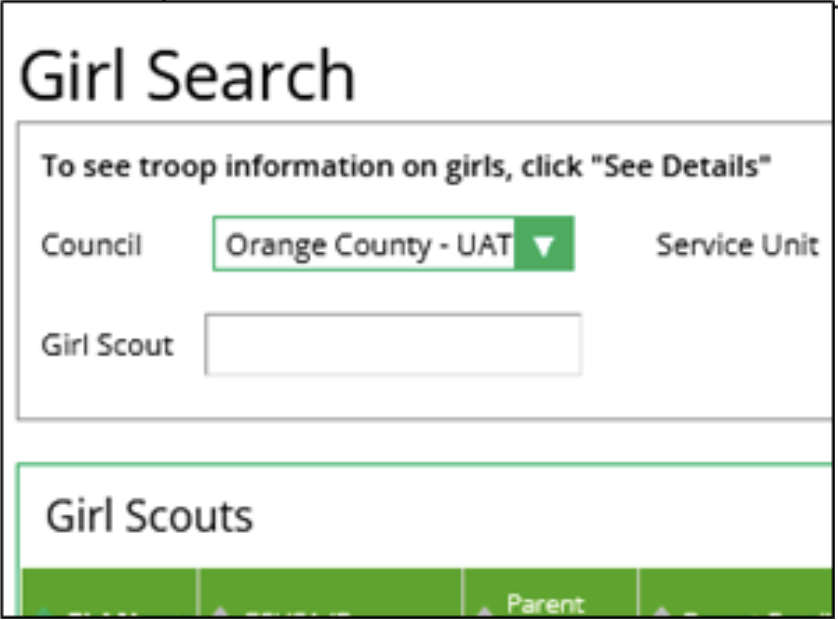
Search for all Girl Scouts in a troop or a specific Girl Scout in your community to view online activity.
Smart Cookies
Placing Your Initial Cookie Order
Placing an initial order ensures that your Girl Scouts have the cookies they need to get started on Cookie Go Day. For additional help on calculating your troops initial order, check out the Cookie Calculator, and remember to place your initial order by the designated due date.
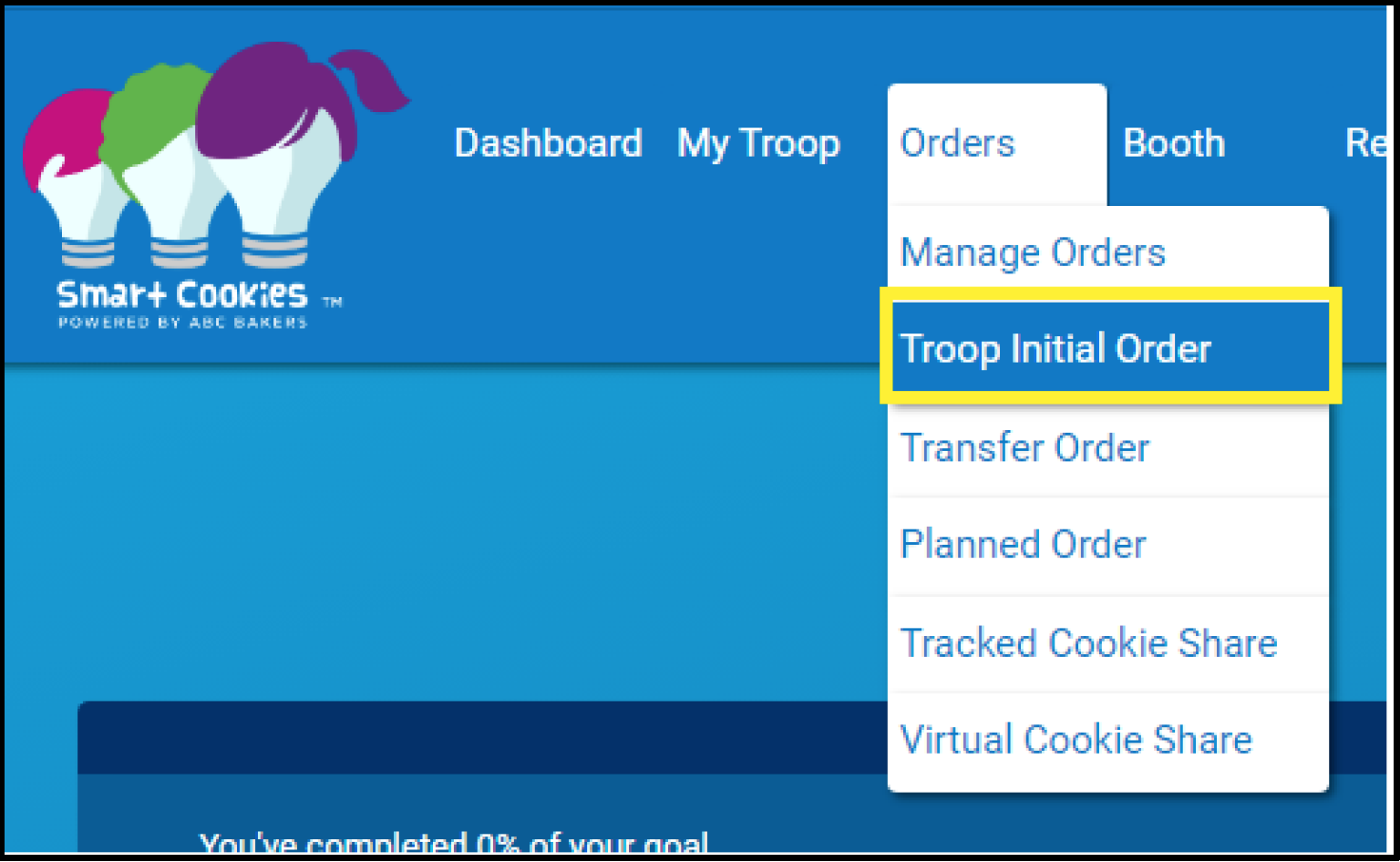
- Log into Smart Cookies, go to the Orders tab, and select
Troop Initial Order.
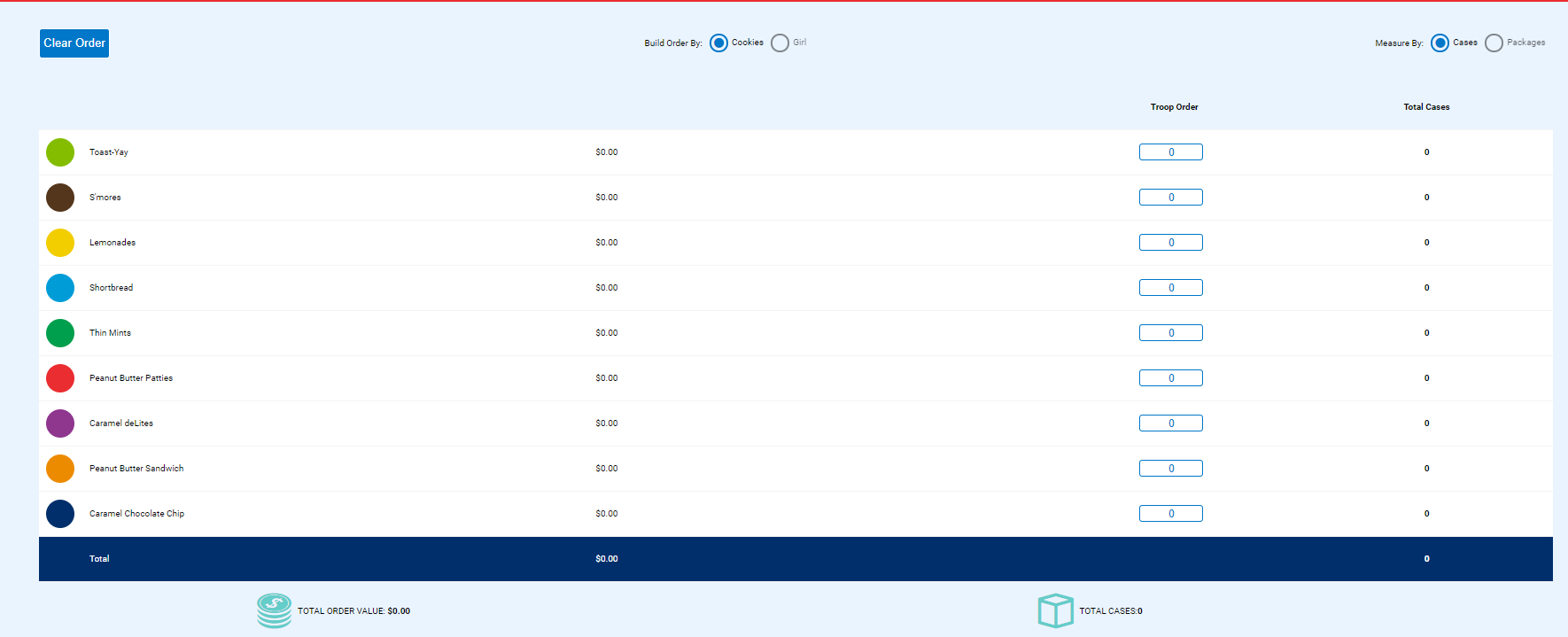
- Enter your quantities in CASES by
variety.
- Click Save.
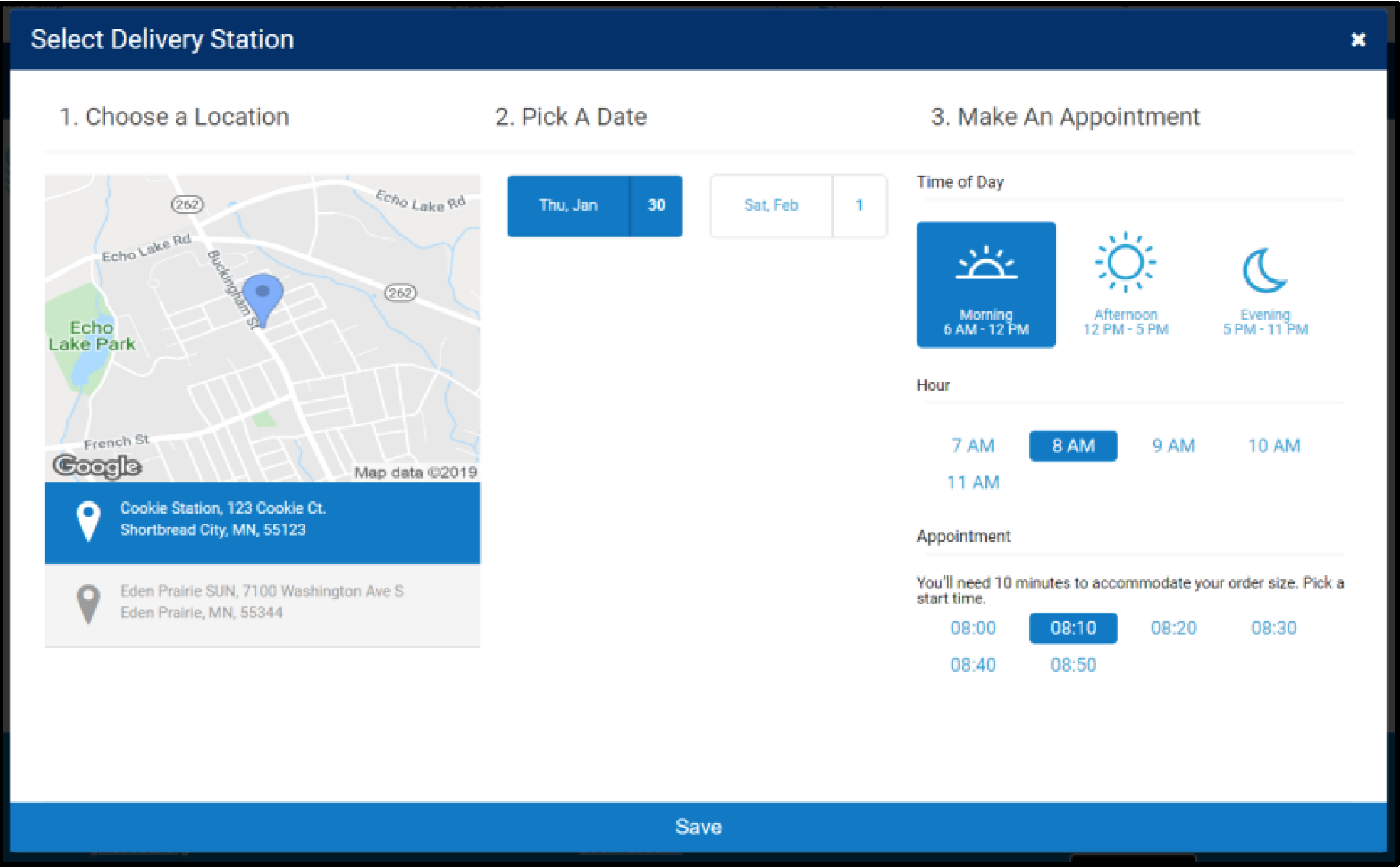
- Select your
delivery station and time.
- Click Save.
If your troop is assigned to a Mini Drop delivery, only one delivery station will appear for you.
Video instructions: Troop Initial Order with Gluten-Free
Transferring Cookies to Girls/Troops
Troops can complete Troop to Girl (T2G), Girl to Troop (G2T) and Troop to Troop (T2T) cookie transfers in Smart Cookies. All other transfers are done at the council or cupboard level. Whenever cookies are transferred, it is important to have a printed receipt for the Troop records. Comparing printed receipts to transfers in Smart Cookies can help to identify any inventory discrepancies. You’ll be able to view your transfers in the Manage Orders tab and in your reports. If you have made an error in your transfers you can delete the transfer transactions.
Troop to Girl Transfer (T2G)
Transferring cookies from the troop to the girl is called a Troop to Girl (T2G) transfer. This is the way Girl Scouts get credit for their sales and must be done for girls and troops to earn rewards. This transfer is commonly referred to as "allocating packages to girls."
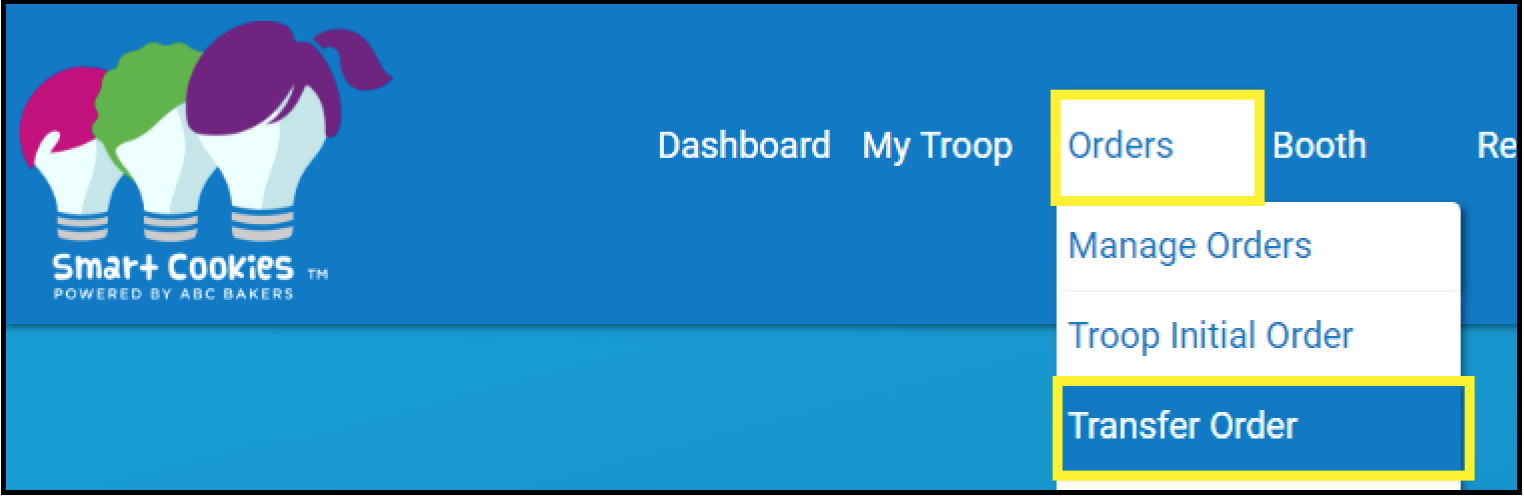
- Log into Smart Cookies, go to the Orders tab, and select Transfer Order.
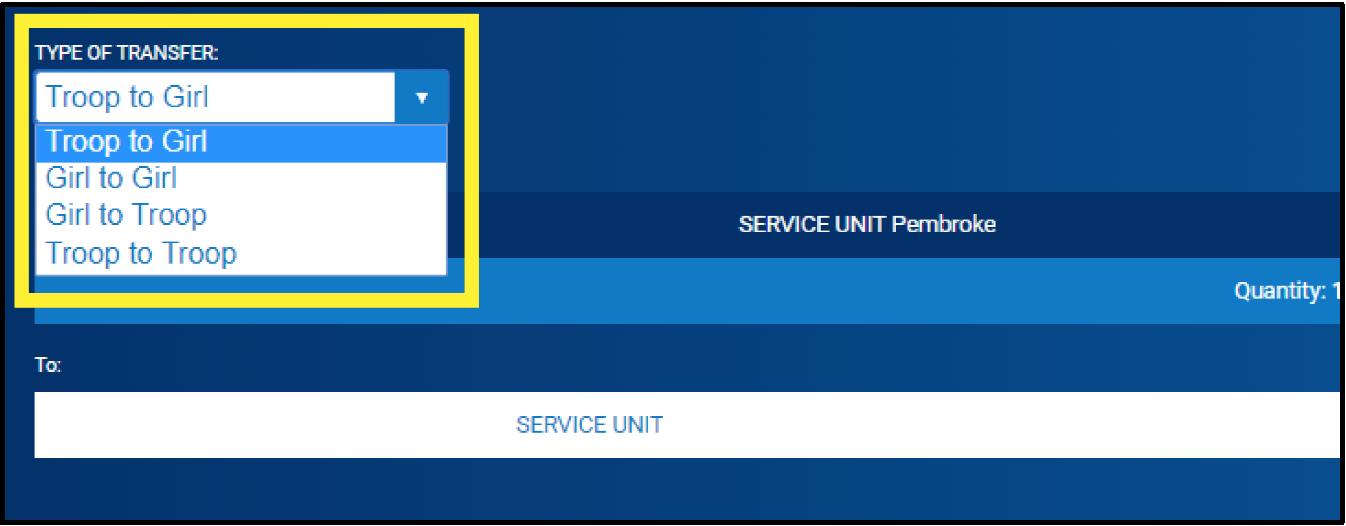
- In the Type of Transfer dropdown, select Troop to Girl.
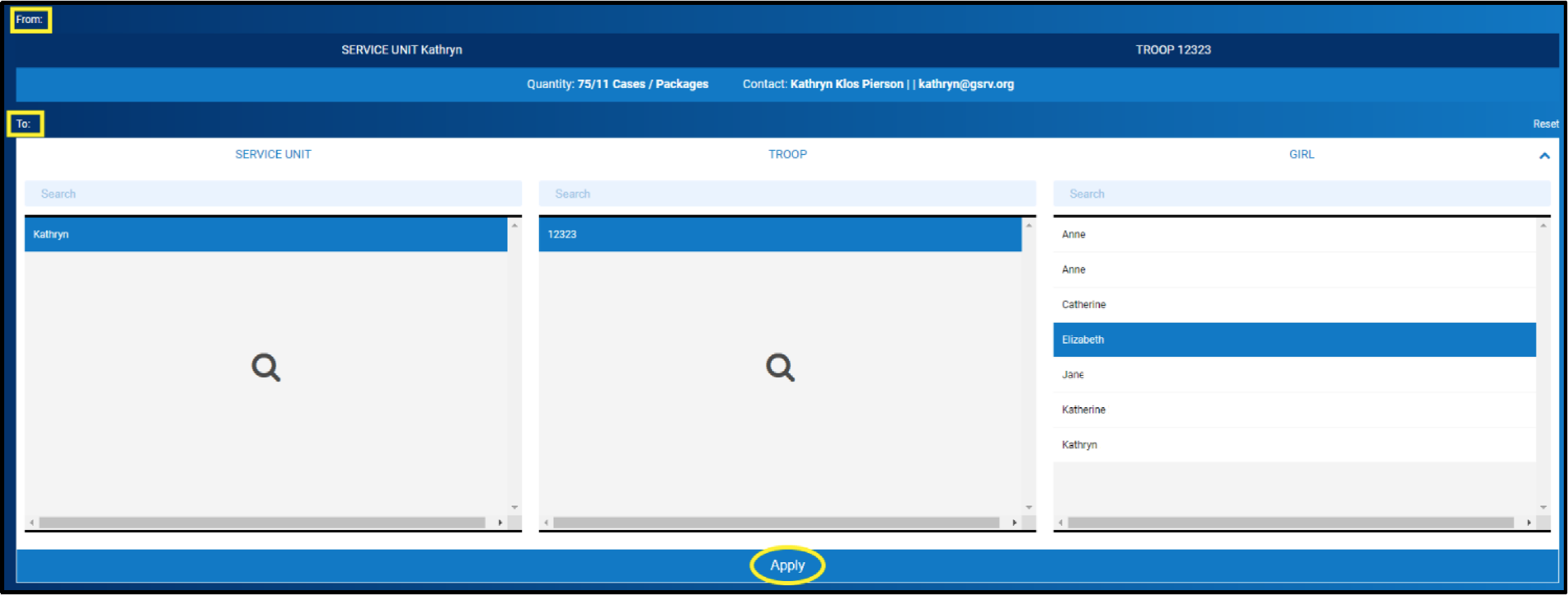
- The troop will appear in the From: line. In the To: line, select the Girl Scout receiving the cookies by clicking the down arrow on the far-right side.

- Select the girl name and click Apply.
- Use the Cases/Packages column to enter the cookie amounts to transfer:
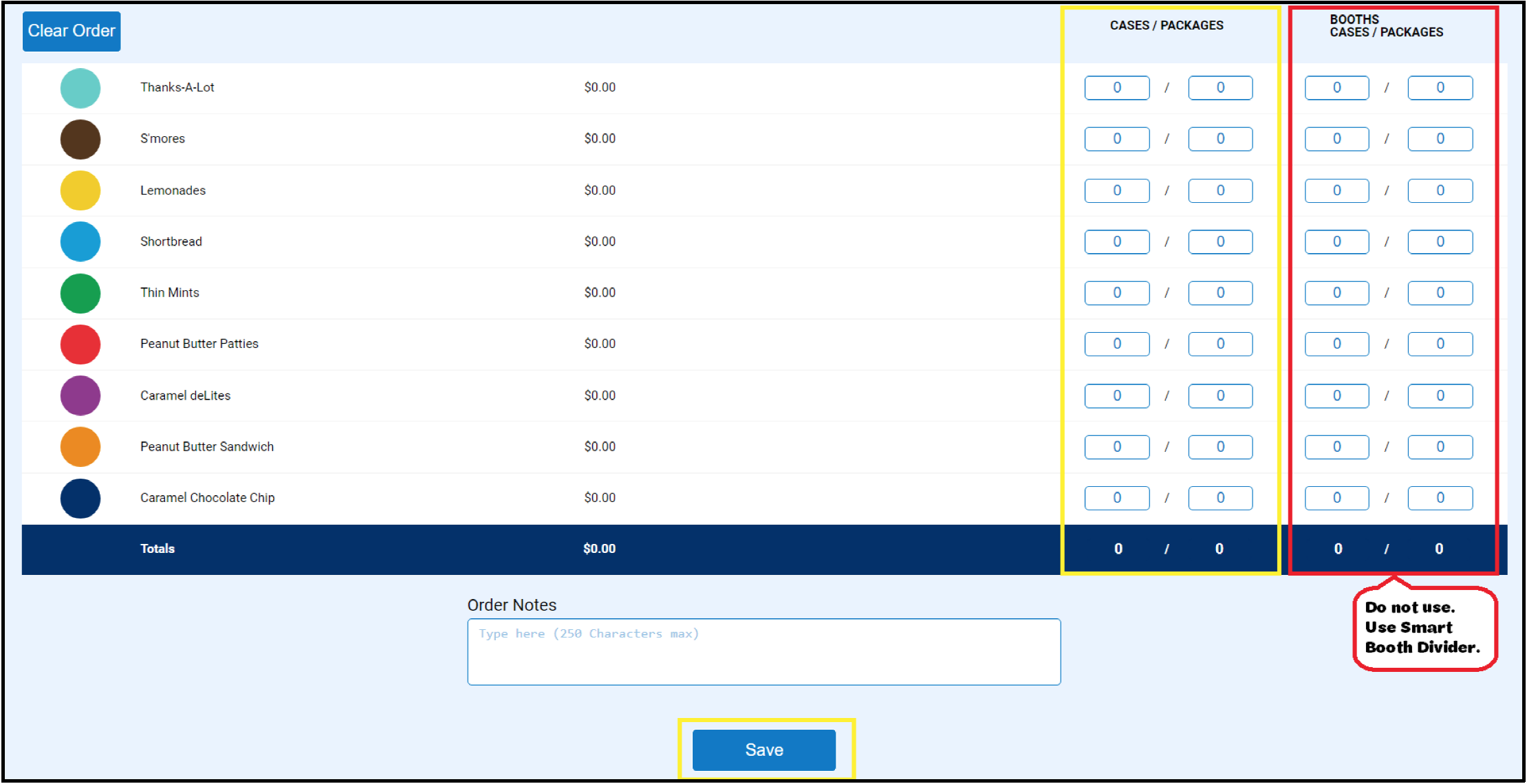
Note: For booth sales, it is best to use the Smart Booth Divider to record booth sales, rather than entering them as Booth Packages on the Transfer Order page. - Click Save.
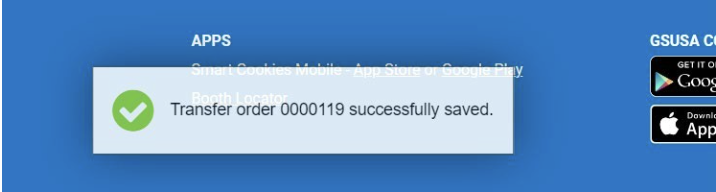
- A confirmation box with a green check should appear saying the transfer order was successfully saved.
- You can print a copy of the receipt.
Girl to Troop Transfer (G2T)
These transfers are used when Girl Scouts return packages to the troop. This process is almost the same as troop to girl transfers (above).
- Log into Smart Cookies, go to the Orders tab, and select Transfer Order.
- In the Type of Transfer dropdown, select Girl to Troop.
- Select the girl returning the cookies to the troop by clicking the down arrow by Girl in the From: bar.
- Select the girl name and click Apply.
- Use the Case/Packages column to enter the transfer.
- Click Save.
Troop to Troop Transfer (T2T)
These transfers are used when cookies are transferred between two troops. It is recommended the troop receiving the cookies completes this transfer as they are the ones assuming financial responsibility for the cookies. Be sure to verify with the other troop about who will be completing the transfer.
Pro Tip: With your smartphone, complete the transfer in the Smart Cookies while both Troops are present to ensure accuracy.
- Log into Smart Cookies, go to the Orders tab, and select Transfer Order.
- In the Type of Transfer dropdown, select Troop to Troop.
- Select the community/area and troop number of the troop you are receiving cookies from.
- Your community/area and troop number will automatically populate in the To: bar.
- Use the Cases/Packages column to enter the transfer.
- Click Save.
Digital Cookie Connection: Packages credited to the Girl Scout for individual sales will appear in total on their Digital Cookie dashboard. Each time a family picks up inventory from the troop to fill customer orders, you will complete a Troop to Girl transfer to give credit for the sale.
Deleting Incorrect Cookie Transfers
To delete incorrect Troop to Girl, Girl to Troop, or Troop to Troop transfers, go to Orders>Manage Orders. You can either filter for the transaction you wish to delete or, if you know the transfer order #, you can search for it using the Keyword search bar. Once you’ve located the incorrect transfer, click on the three dots on the far right side of the page. You’ll see two options: View Order and Delete Order. Select Delete Order, then Delete Forever to remove the transfer.
Reviewing Cookie Transfers with the Manage Orders Tab
Any movement of inventory is done through transfers in Smart Cookies. While transfers are logged in many different ways, they can all be viewed using the following steps:
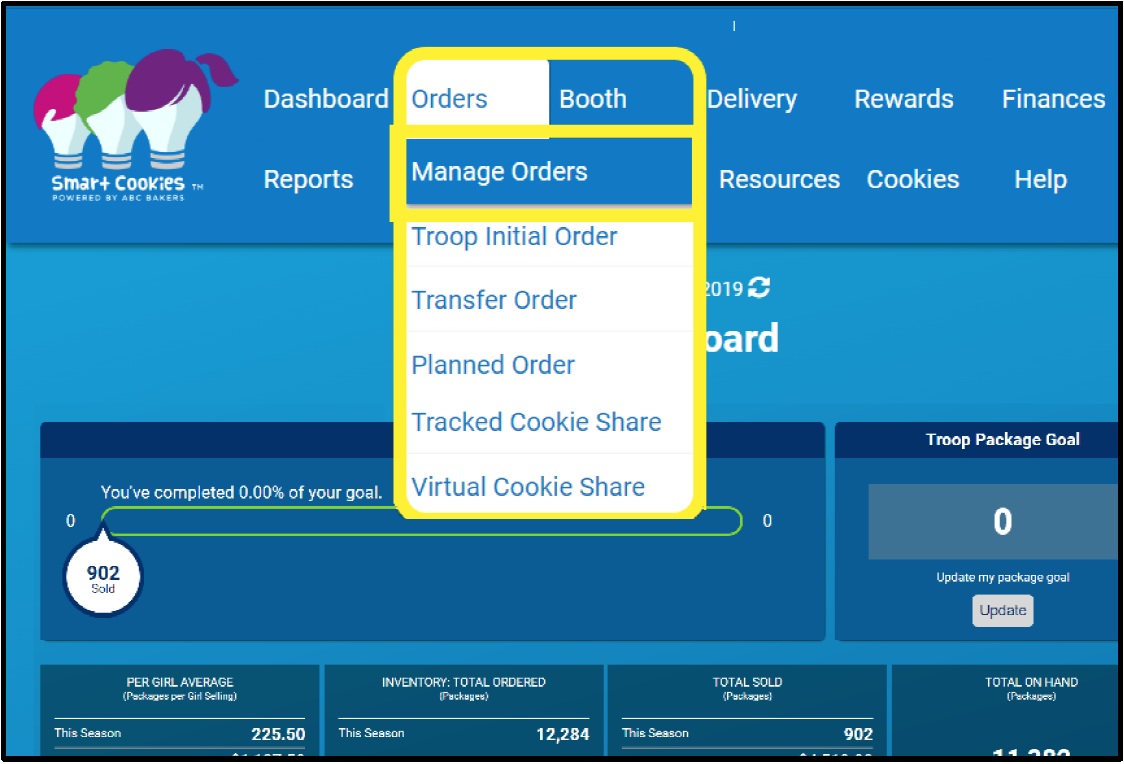
- Log into Smart Cookies, go to the Orders tab, and select Manage Orders.
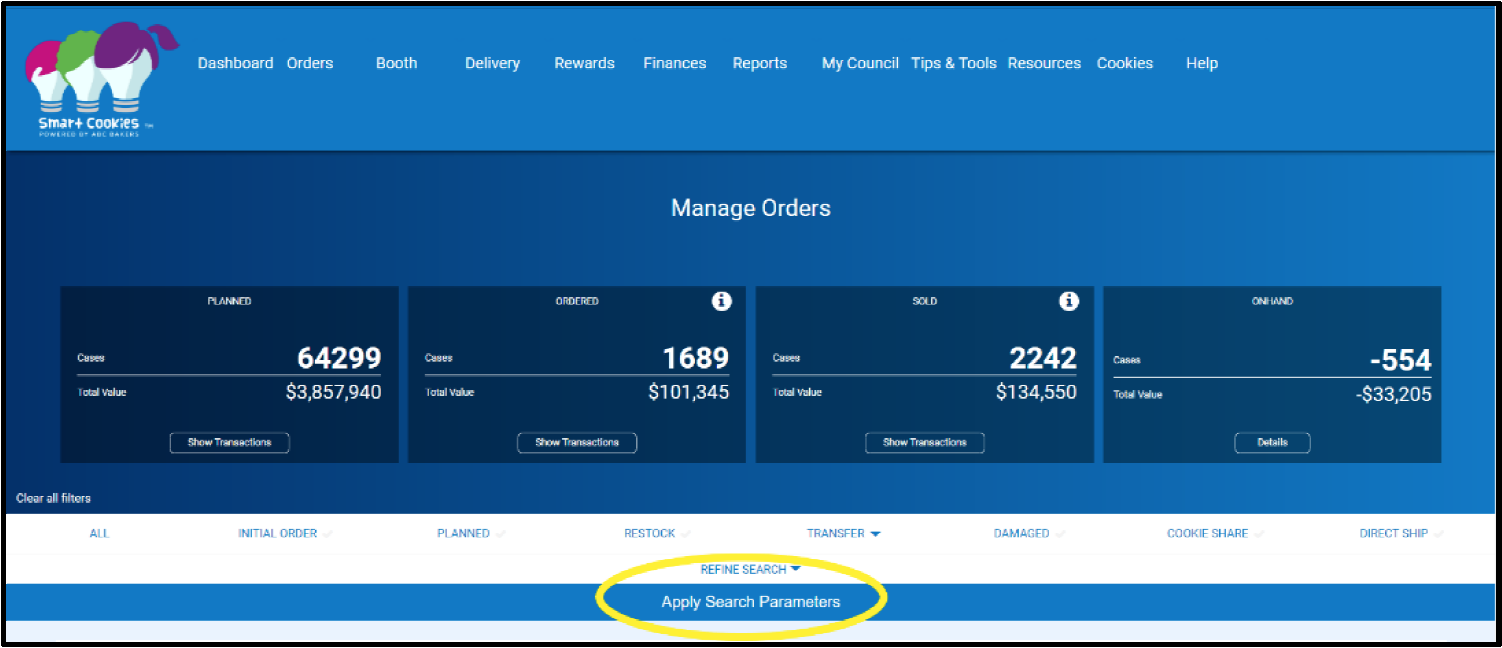
- View all your troop sale activity by selecting Apply Search Parameters.
- You will see all the transfers into and out of your troop’s account, categorized by Cookie variety.
Note: The default units of measurement are packages, but you can also view your transfers by Cases or Cases/Packages. It is recommended that you view by Packages or Cases/Packages only, as the Cases view will round up all your inventory to the nearest case, which is not the most accurate way to view.
- Organize the transfers by the headings in blue by clicking Date, Order #, Type, To, From, CSHARE or a cookie variety.
- If you would prefer to view your transfers in excel, you may download them by pressing Export to Excel in the bottom-right corner of the Manage Orders page. Keep in mind that this will need to be re-downlaoded to see any future changes made.

If you would like, add a filter for a specific type of transfer. Select any of the options including Initial Order, Planned, Restock, Transfer, Damage, Cookie Share, and Direct Ship. Then select Apply Search Parameters.
Note: If you filter by Cookie Share, you will only see donations for River Valleys Inventory Donations (Virtual Cookie Share), not Troop Inventory Donations (Tracked Cookie Share).
COOKIE_SHARE (D) is a donation only order from a girl’s Digital Cookie Site link. No action needed from the troop volunteer.
COOKIE_SHARE (B) is a cookie share donation from a booth.
COOKIE_SHARE (VB) is a donation credited to a girl from the troop’s Digital Cookie Site Link for delivery. 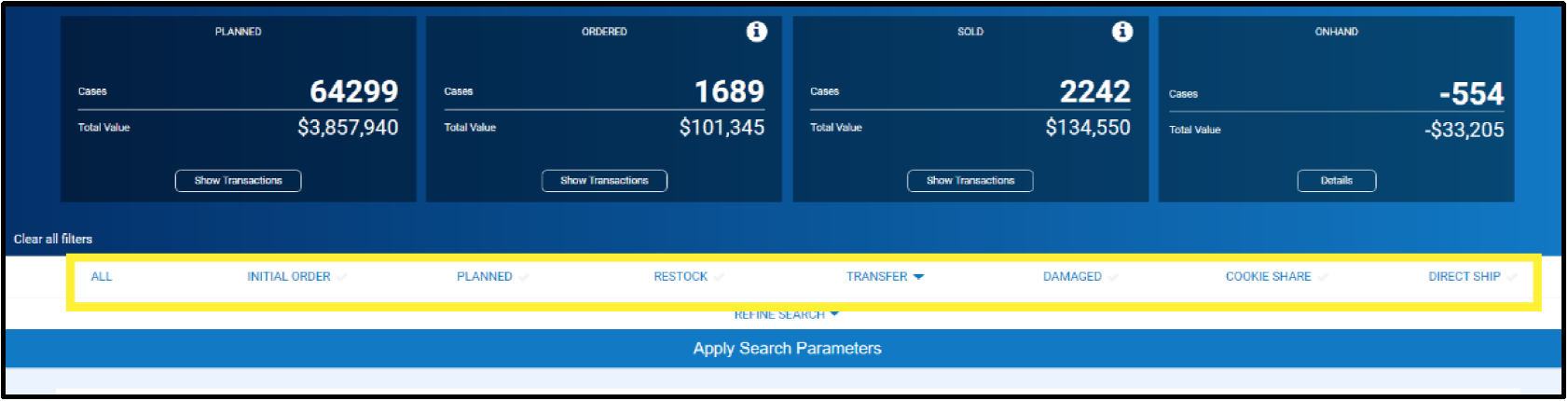
Placing a Planned Order (for Regional and Regional Express Cupboards only)
Troops that use Regional and Regional Express Cookie Cupboards place a planned order to pre-order cookies each week. View additional information on Cookie Cupboards.
To enter a planned order in Smart Cookies:
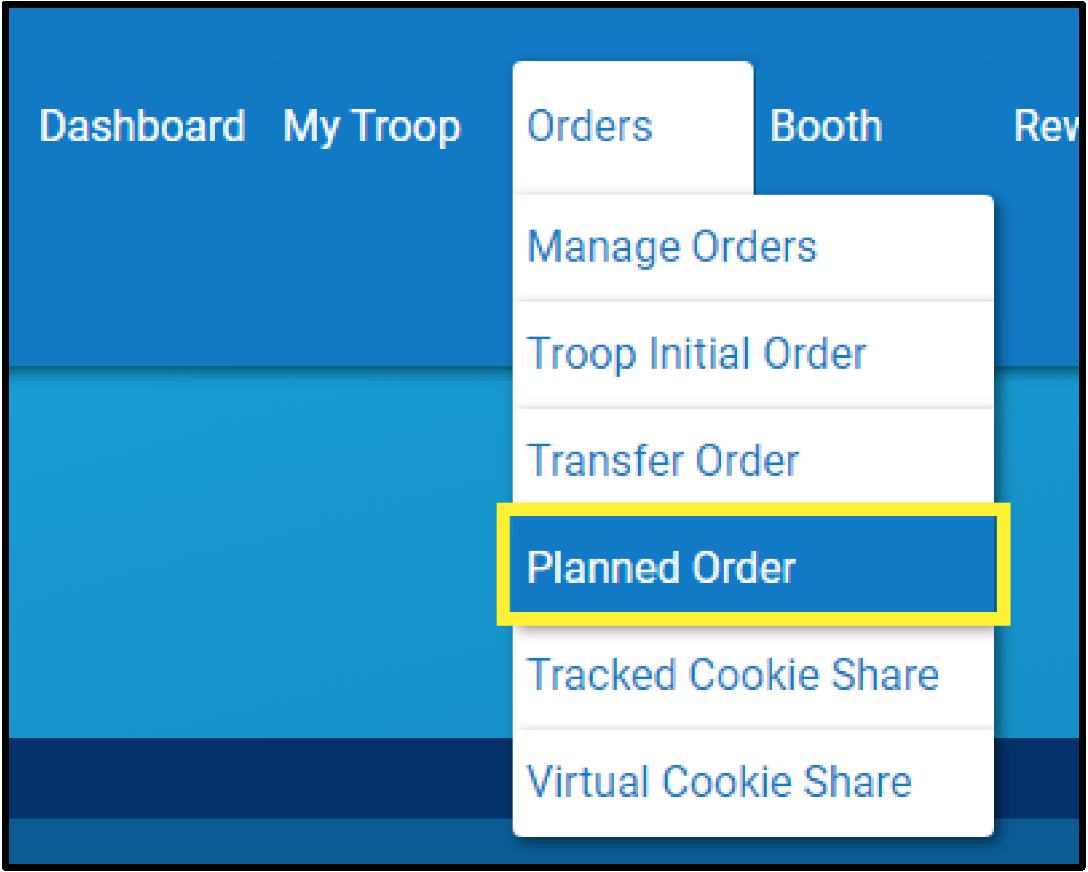
- Log into Smart Cookies, go to the Orders tab, and select Planned Order.
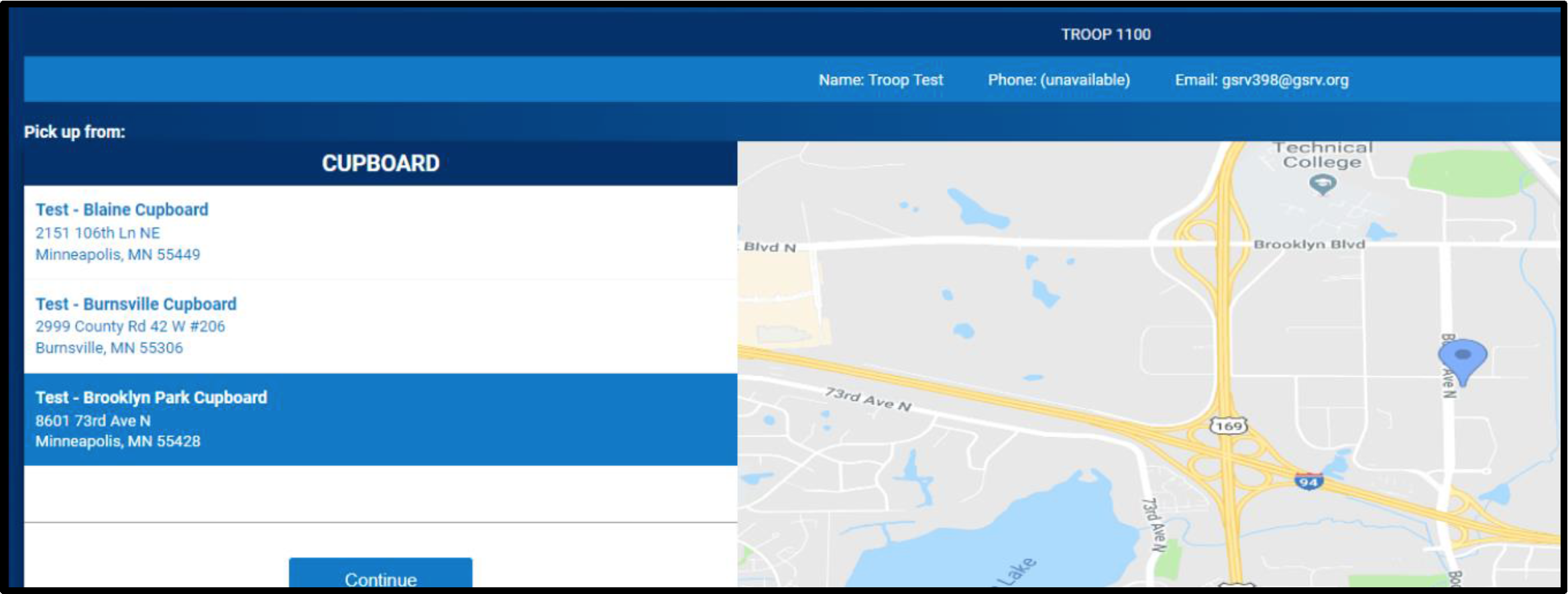
- Enter the cupboard location and click Continue (Troops that use a Regional/Regional Express cupboard will see their assigned cupboard on this list).
- Select the date and time, and click Save.
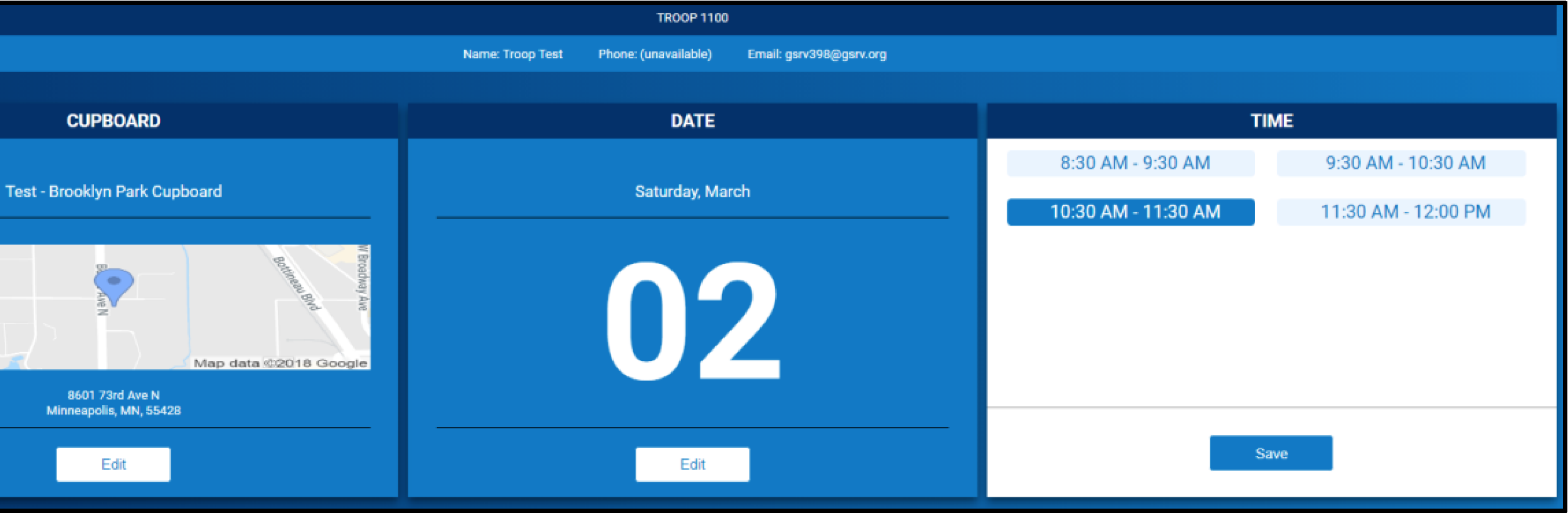
Note: Regional/Regional Express cupboards will have default time of 7:30 am. This is not the actual pick up time, and you should refer to your cupboard hours of operations on the Smart Cookies Dashboard. Connect with your cupboard manager with questions.
Note: Avoid using special character such as &, !, %, etc. in the order notes. This may prevent you from submitting the order.
- Click Save.
How to Edit Your Order After It Has Been Placed
If you need to edit your planned order after you have returned to the dashboard:
- Go to the Manage Orders tab.
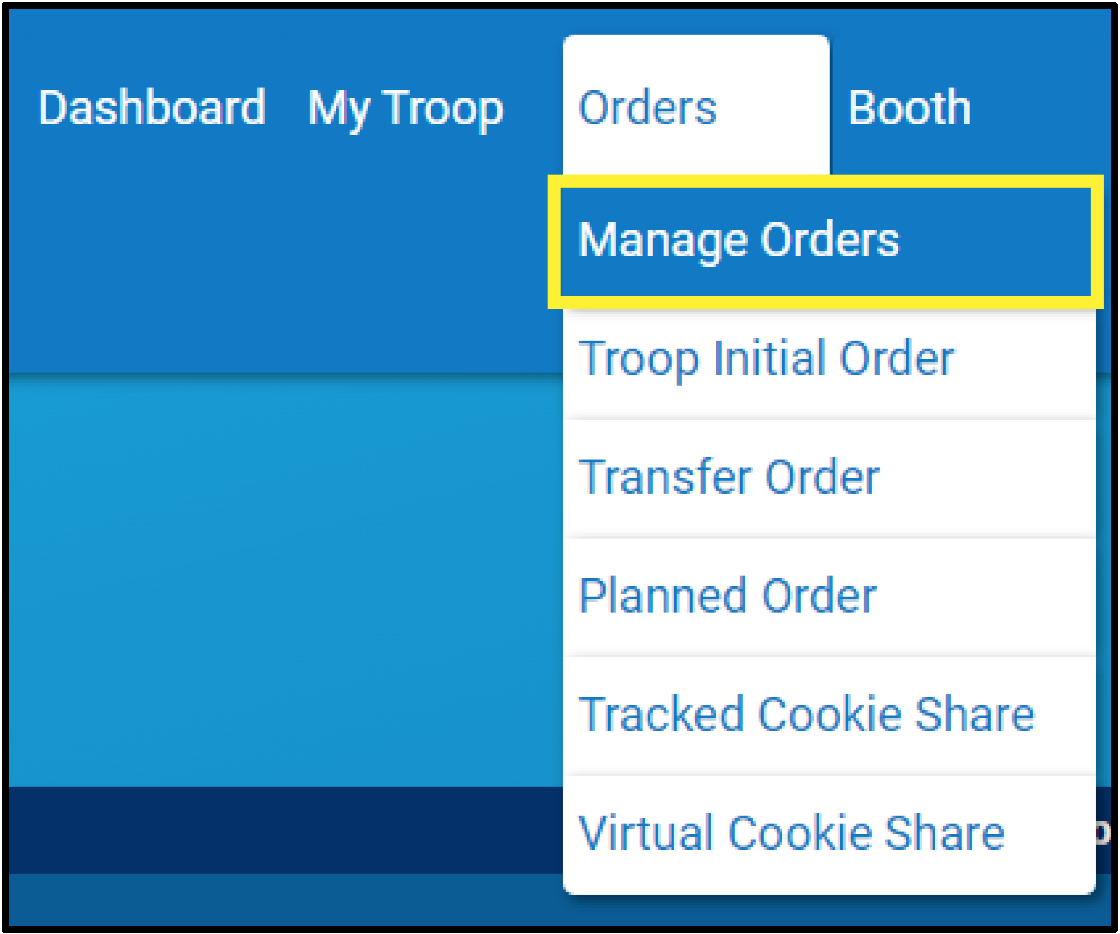
- Filter for Planned Orders.
- Click Apply Search Parameters.
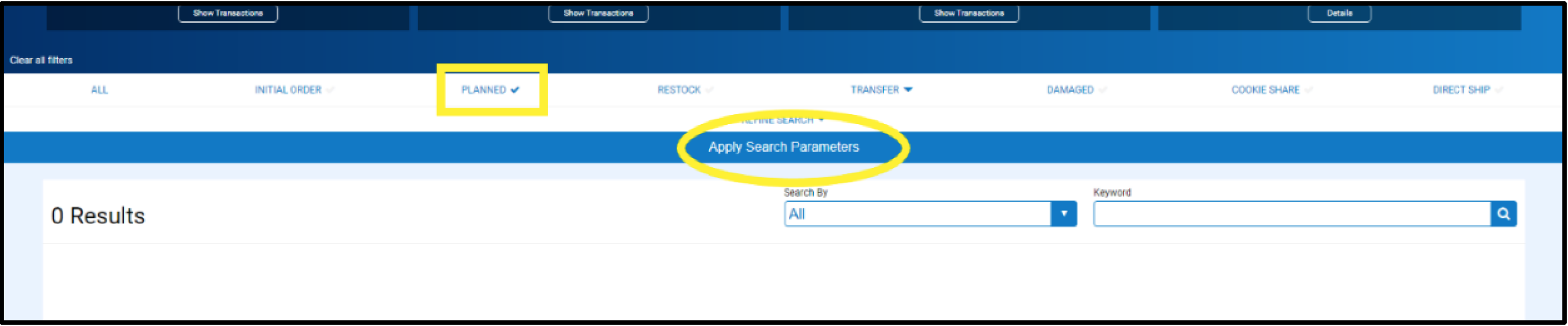
- To edit, scroll over to the far right-hand side of the screen, and click Edit Order.

- Repeat steps as shown above and save after making the necessary changes.
Note: Planned orders are due each Monday by 7am. You will not be able to edit your planned order after that deadline has passed
Video Instructions: Creating a Planned Order in Smart Cookies
Digital Cookie
Viewing Troop Ship Only Sales from the Troop Site
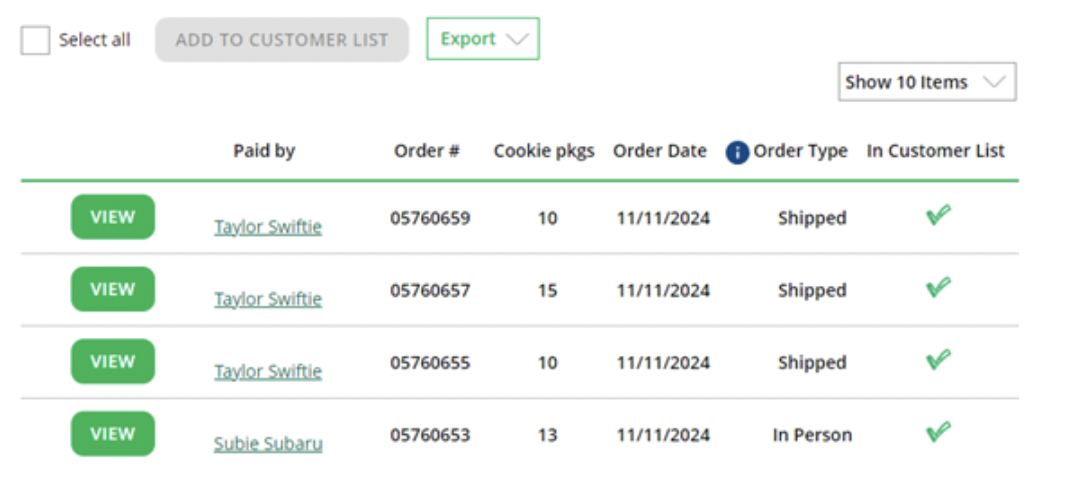
If your troop shares their Ship Only Link or receives orders from customers that use the Cookie Finder, you can view these sales in your Troop Orders tab. The order type will be Shipped.
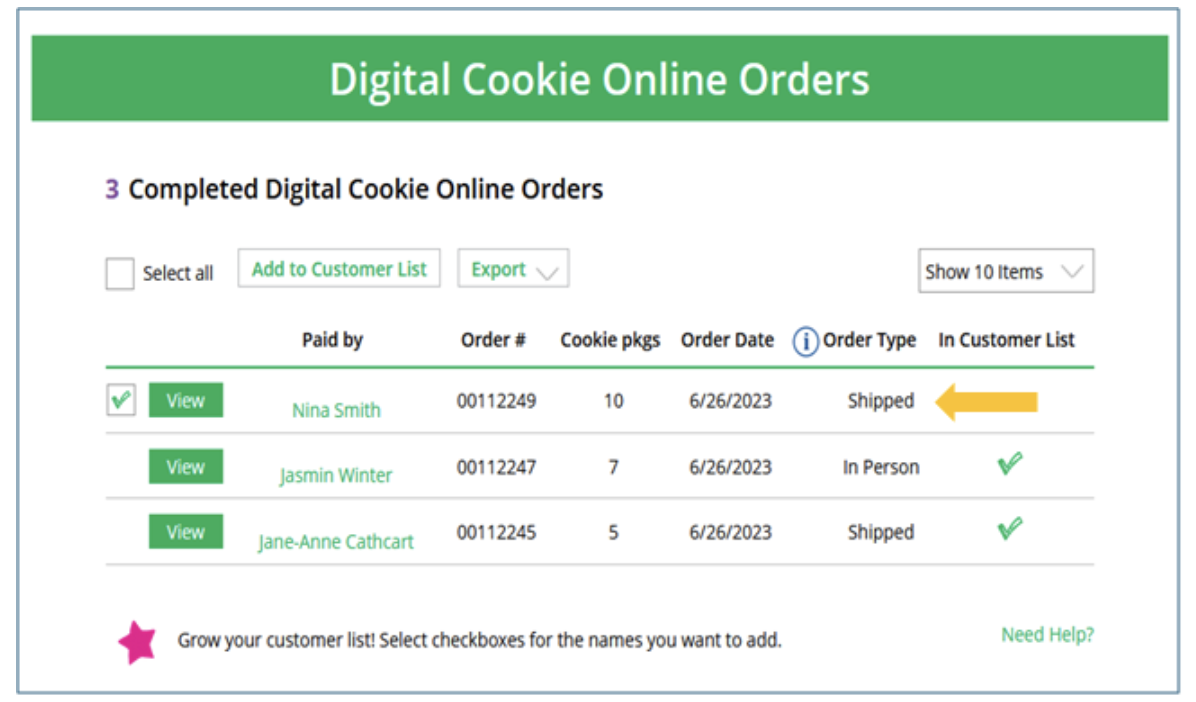
You can also export a list of all shipped orders from the Troop Ship Only Link:
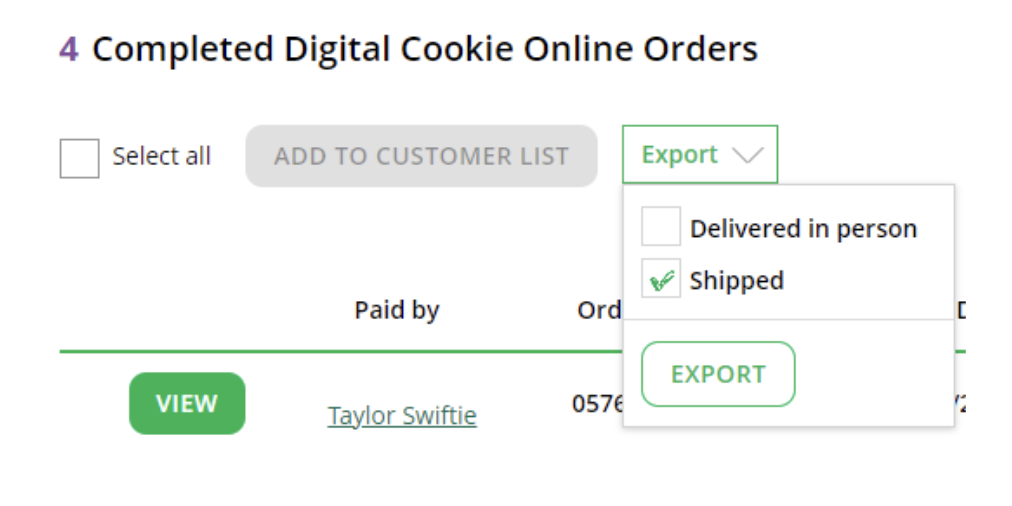
No further action is needed from the Troop for ship-only orders in Digital Cookie. These sales will appear in Smart Cookies in the Orders tab > Troop Ship Orders. View the instructions for Credit Girl Scouts for Troop Ship-Only Orders section in Smart Cookies.
Assisting with Customer Shipped Cookie Order Questions
Girl Scout families may turn to you for guidance if a cookie customer has questions on their shipped cookie order. Here are a few options on how to troubleshoot issues:
Inform the family that it takes 2-15 business days for shipped orders to arrive. The customer credit card or Venmo/PayPal account is not charged until the cookies are on their way.
If there are any delays in shipping the order, the customer will receive an update by email.
Direct the family to have the customer refer to their order confirmation email. From that email, they visit the link to Check Order Status Online. The customer will enter their name, order #, email or phone to pull up the order details. If the customer needs a copy of their confirmation email, contact Girl Scouts River Valleys. Our staff can resend the email to the customer.
Customers can submit a Help Request to report an order issue.
Allow time for a response from Digital Cookie. During peak season, it can take 48 hours or more to receive a response.
All shipped cookie sales are final, no refunds can be issued.
Shipped cookie orders cannot be changed to girl-delivered orders.
Managing Troop Site Orders for In-Person Delivery (optional)
Troops have the option to share their Troop Site Link for in-person delivery. This option is rarely used. Any sales from the Troop Site for in-person delivery are credited to Girl Scouts in Smart Cookies. Just like a Girl Scout must approve their in-person delivery order requests within 5 days, troop volunteers also must approve the orders within that timeframe. If your troop has engaged in this sales option, here’s how you manage the orders:
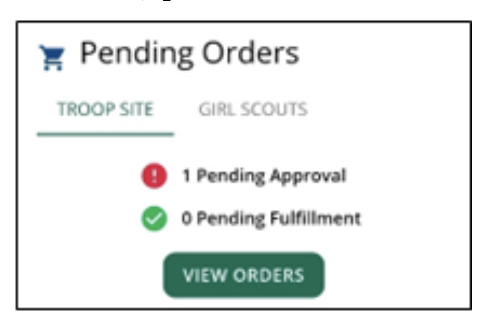
Troop volunteers will see any pending orders on the Digital Cookie dashboard. There are multiple ways to see the orders: Click on View Orders, go to Troop Orders:
Click on the customer name to view order details. The delivery address and # of days left to approve the order are listed. Check the box by the order to either Approve or Decline the order:
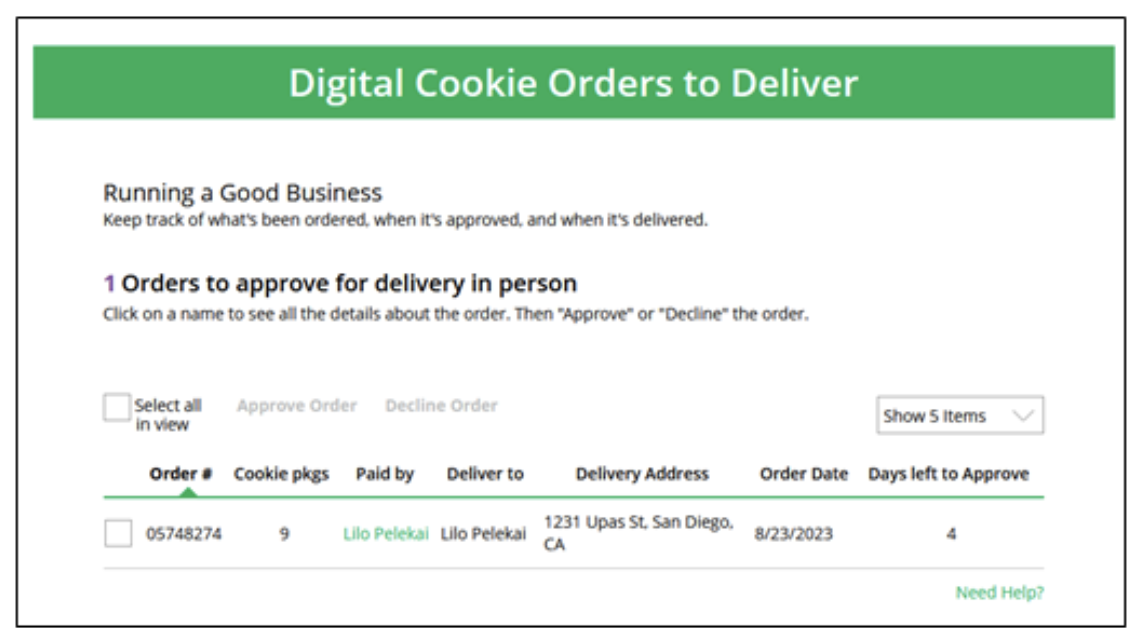
Customers are charged for the cookies once the order is approved. They’ll receive an email to confirm cookies will be delivered with an estimated delivery date. If needed, you have contact information if you need to connect with the customer. A report can be exported with all orders to deliver. Once the order is delivered, check the box near the order and select Order Delivered. This will move the order to the list of completed orders at the bottom of the page.
Credit Girl Scouts for these sales in Smart Cookies. View the Distributing Troop Site Sales (from Digital Cookie) section for instructions.
You can export a report from Digital Cookie of all the orders to deliver:
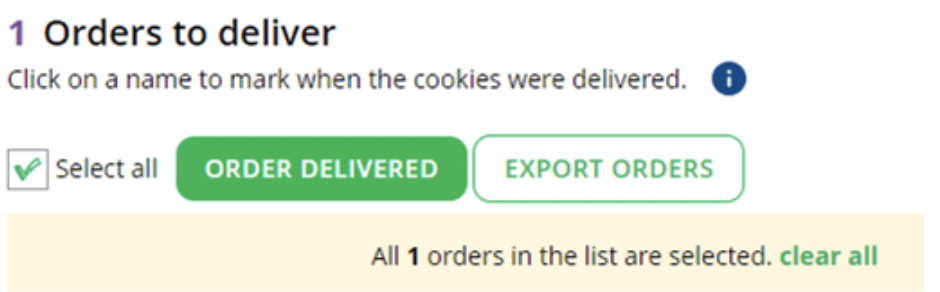
Once the order is delivered, check the box near the order and select Order Delivered. This will move the order to the list of completed orders at the bottom of the page:
You will credit Girl Scouts for these sales in Smart Cookies. View the Distributing Troop Site Sales (from Digital Cookie) section for instructions.
Smart Cookies
Entering Virtual Cookie Share Donation Orders (Council Inventory Donations)
Girl Scouts River Valleys Inventory Donations (Virtual Cookie Share) allows Girl Scouts to collect money from customers for cookies that are donated from council inventory by Girl Scouts River Valleys. They get credit for sales, the transaction increases their financial responsibility, but there are no changes to their physical inventory. These transactions are entered in Smart Cookies on the Virtual Cookie Share tab. If you mistakenly enter a transaction, connect with Girl Scouts River Valleys to have the transaction deleted.
To log these donations:
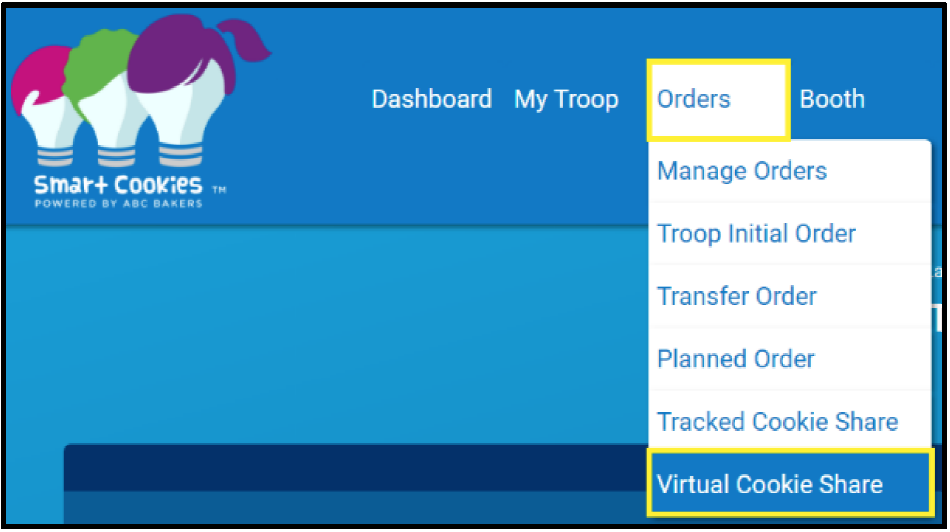
- Log into Smart Cookies, go to the Orders tab and select Virtual Cookie Share.
- Enter the package quantities by Girl Scout and click Save.
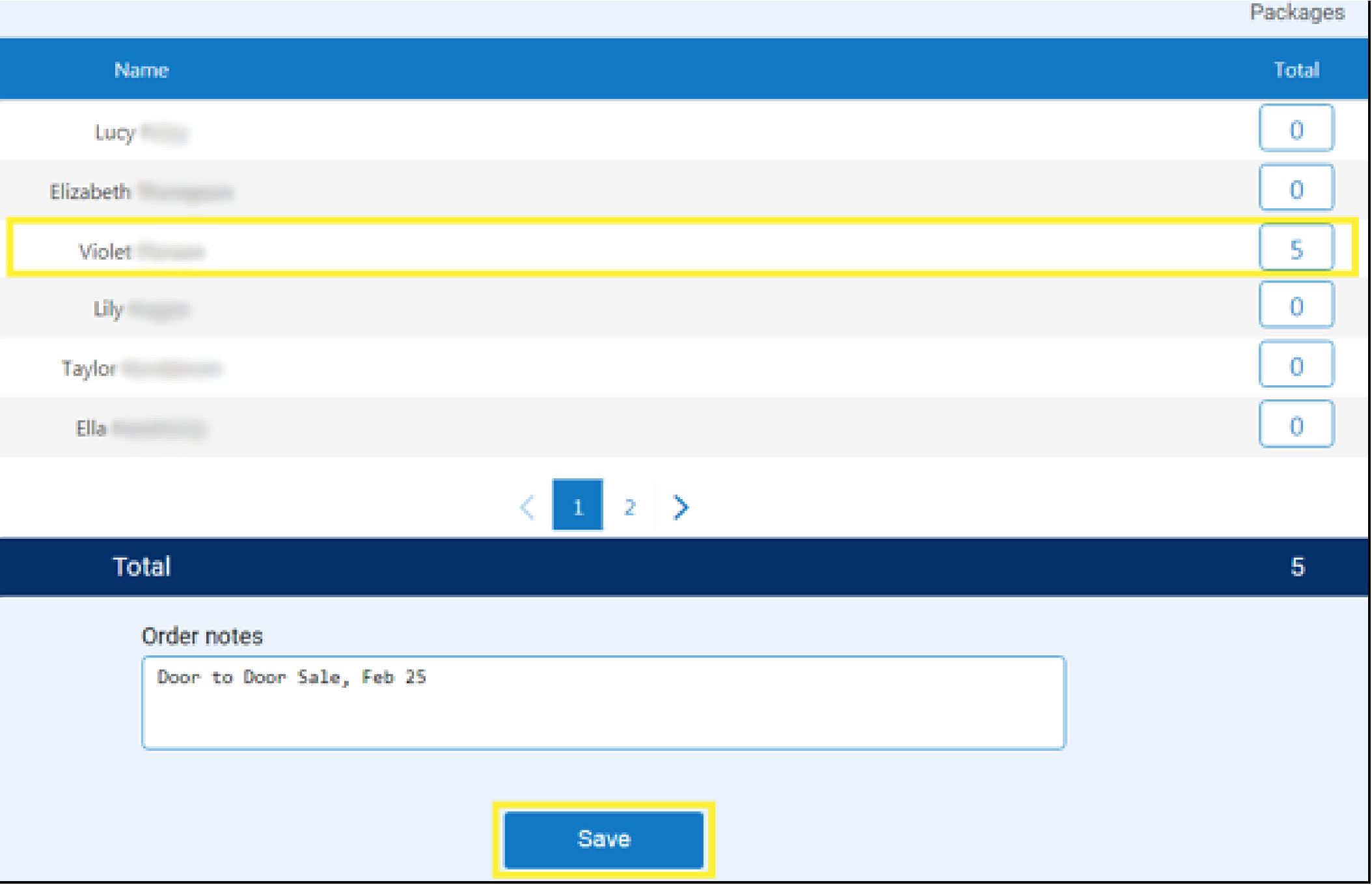
This credits Violet with 5 packages sold as a CSHARE donation. She will become financially responsible for these packages and receive credit for the sale, but her and her troop’s inventory will not be affected.
Digital Cookie Connection: For Girl Scouts that receive a donation order that is part of a Digital Cookie shipped only sale or a Digital Cookie donation-only order, no action is necessary from the troop. This donation will be automatically credited in Smart Cookies.
Entering Tracked Cookie Share Donation Orders (Troop Inventory Donations)
Troop Inventory Donations (Tracked Cookie Share) allow Girl Scout Troops to donate cookies to a local organization. Girl Scouts collect money from supporters and distribute the cookies from the Troop inventory. The Tracked Cookie Share tab in Smart Cookies is where Troops account for the donations they will be making with their own inventory. This page is a running tally and can be updated at any time with the current totals for donations.
To Log Tracked Cookie Share Donations:
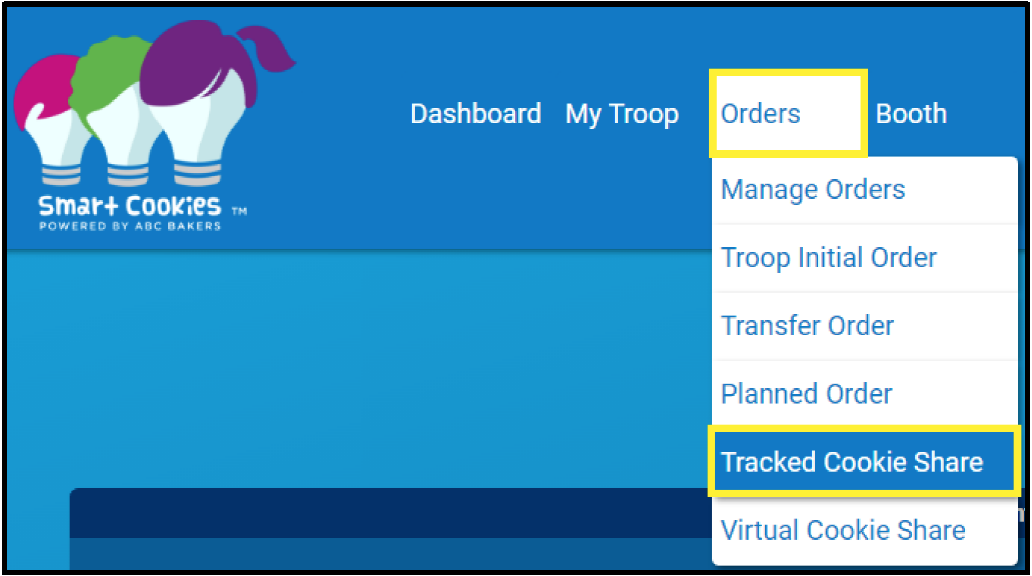
- Log into Smart Cookies, go to the Orders tab and select Tracked Cookie Share.
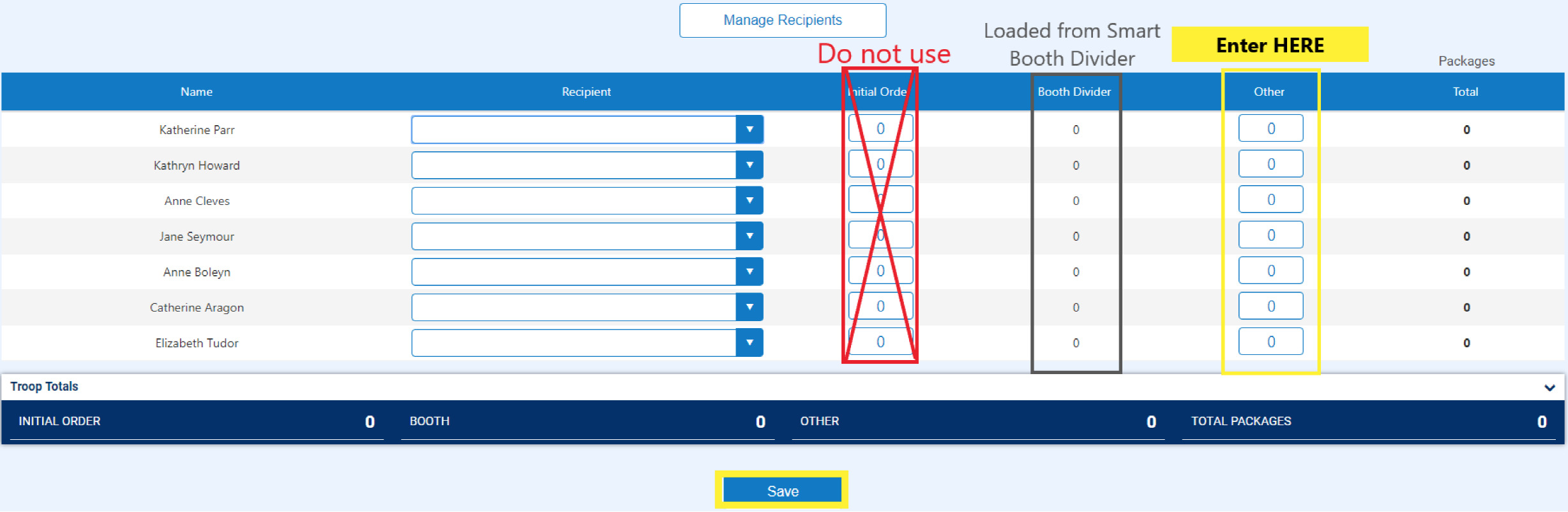
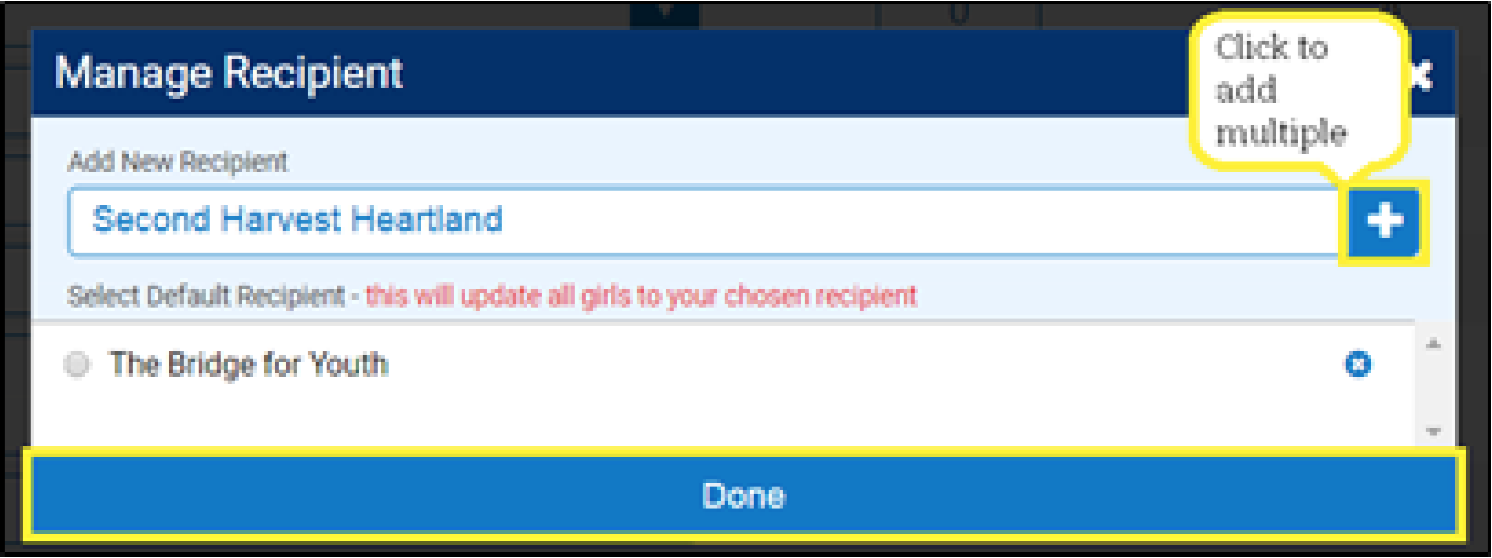
- Click Manage Recipients above the list of Girl Scout names.
- Enter the name of the organization in the text box. To add multiple at one time, click the “+” button at the end of the text box. Click Done.
Select the Donation recipient by clicking the arrow in the dropdown box. One Girl Scout can only donate packages to one recipient in Smart Cookies.
Enter the number of packages to be donated by the Girl Scout in the Other column. Click Save.
Entering packages on this page does not impact a Girl Scout’s inventory or financial responsibility but does positively impact her donation rewards.
If a Girl Scout has adequate inventory to cover their tracked cookie share donations, no additional transfers need to be created. The Girl Scout would give the physical boxes of cookies back to the troop volunteer to be donated. If the Girl Scout does not have any cookies in her inventory for donation, the troop should create a troop-to-girl transfer to transfer the number of packages credited for track cookie share. This will insure the Girl Scout has proper incentive credit. This will assign financial responsibility to the Girl Scout and the troop should collect for these cookies. The troop would retain the physical boxes for donation.
Note: If you do not yet know where the cookies will be donated, you can proceed with tracking the packages without a recipient listed.
Digital Cookie Connection: If Girl Scouts receive donation sales made by customers via Digital Cookie, these donations will appear in the Girl Cookie Order Detail Report in Smart Cookies. If the donation is part of a shipped cookie order, no action is needed. If the donation is part of a girl-delivery order, the troop can choose either option, virtual or tracked Cookie Share.
Need more help? Check out our Managing Cookie Donations Tip Sheet (PDF).
Digital Cookie
Viewing Cookie Donation Sales Made Through Digital Cookie
Smart Cookies
Entering Selections for the Cookie Booth Lottery
As part of the booth sign-up process, your troop can enter the booth lottery. For more information on cookie booths, including specifics on the lottery and First Come, First Served process, visit Cookie Central.
How to Sign Up for a Cookie Booth:
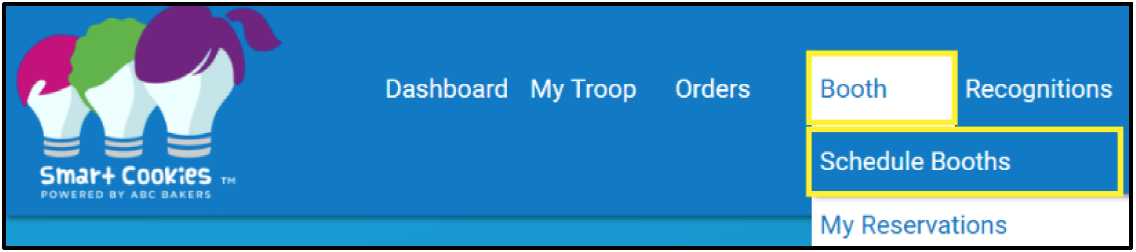
- Go to the Booths tab and select Schedule Booths.
- See the dates at the top for the lottery deadline, and when First-Come, First-Served booths will start.

- Once on the Schedule Booths page, there are several ways to find a booth:
- Search by Date, Time, Zipcode, and/or Type by clicking on the down arrow to the right of the text.
- Type in the location name by using the Search feature.
- Search by using the map. You can zoom in and out on the map and select the booth you would like by clicking on the location’s icon.
- Lottery booths will appear in purple.
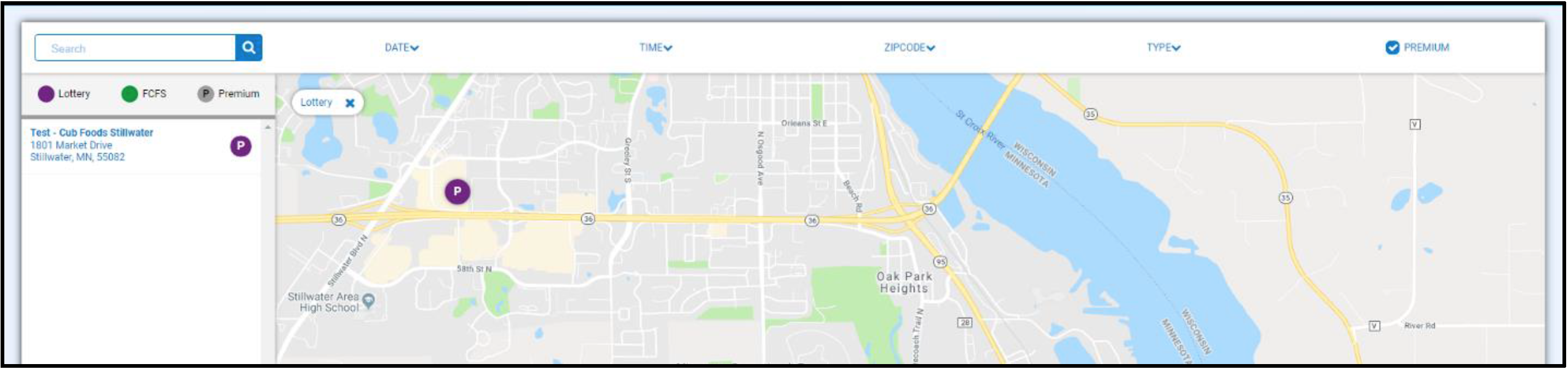
- When you find a location you would like, select it on the list on the left side of the screen.
- Select an available date and time. You can select multiple booth appointments before pressing Save.
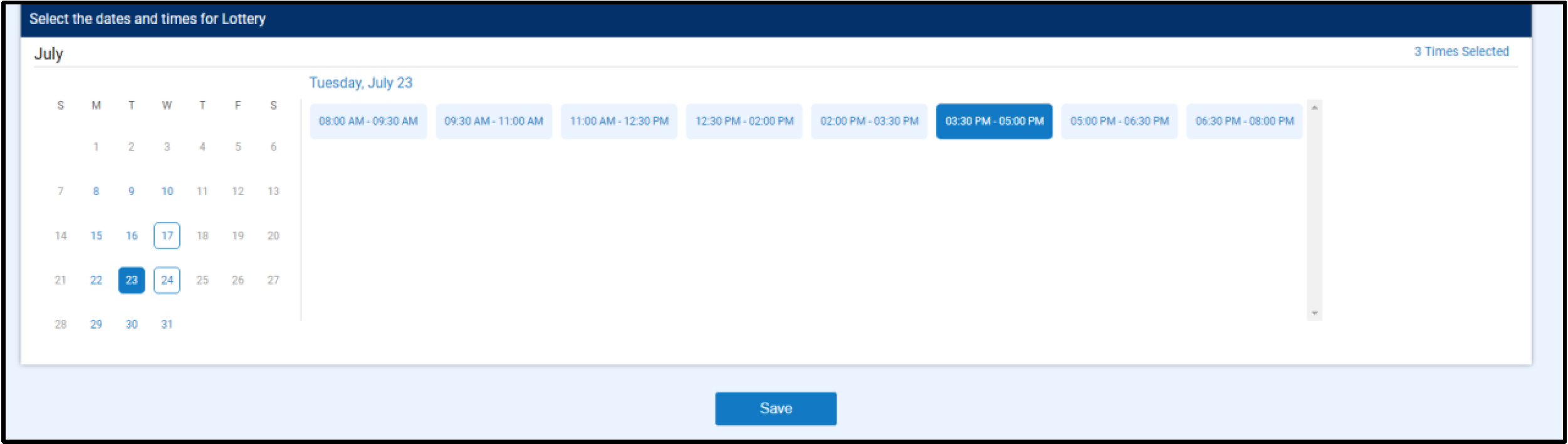
- Select no more than the maximum number allowed. If you select more than the max, you will not be able to proceed.
- You will be emailed with your booth location the date the lottery runs.
Do not select booths you would not want or be able to attend. You can select less than the maximum.
Video Instructions: Scheduling a Booth in a Lottery on Smart Cookies
Reserving a Council-Secured Booth (First-Come, First Served)
A council-secured booth is a cookie booth that Girl Scouts River Valleys has secured for troops to sign up for in Smart Cookies. They are initially available through the booth lottery. Following the lottery, they are available on a first come, first serve basis. To reserve these booths in Smart Cookies, follow the steps below..
- Log into Smart Cookies, go to the Booth tab, and select Schedule Booths.
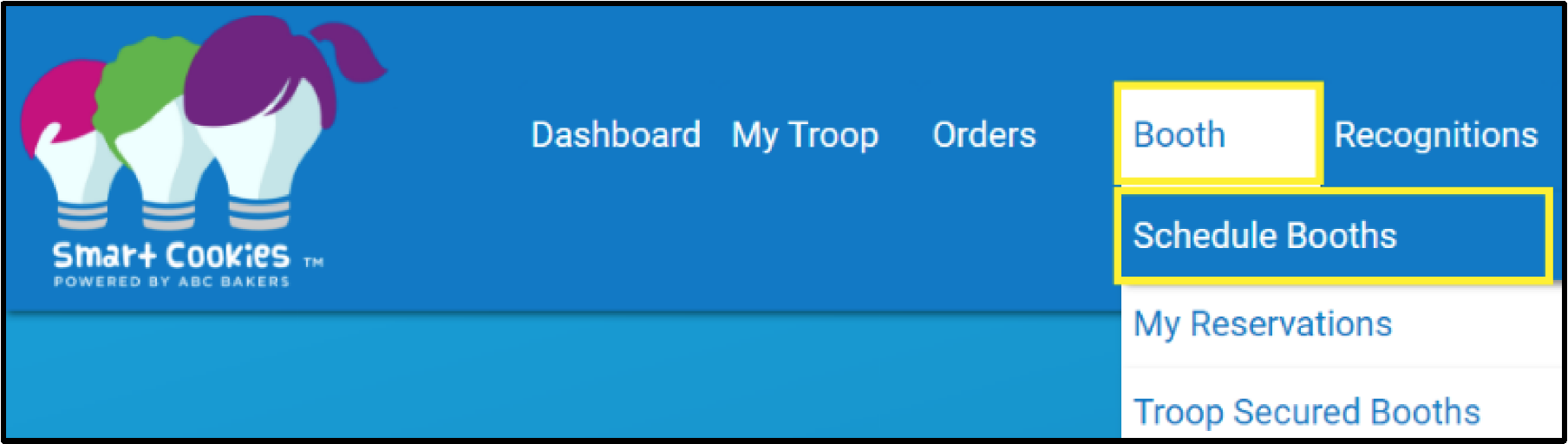
- Once on the Scheduled Booths page, there are several ways to find a booth:
- Search by Date, Time, Zipcode, and/or Type by clicking on the down arrow to the right of the text.
- Type in the location name by using the Search feature.
- Search by using the map. You can zoom in and out on the map and select the booth you would like by clicking on the location’s icon.
- First-come, first-served (FCFS) Booths will appear in green.
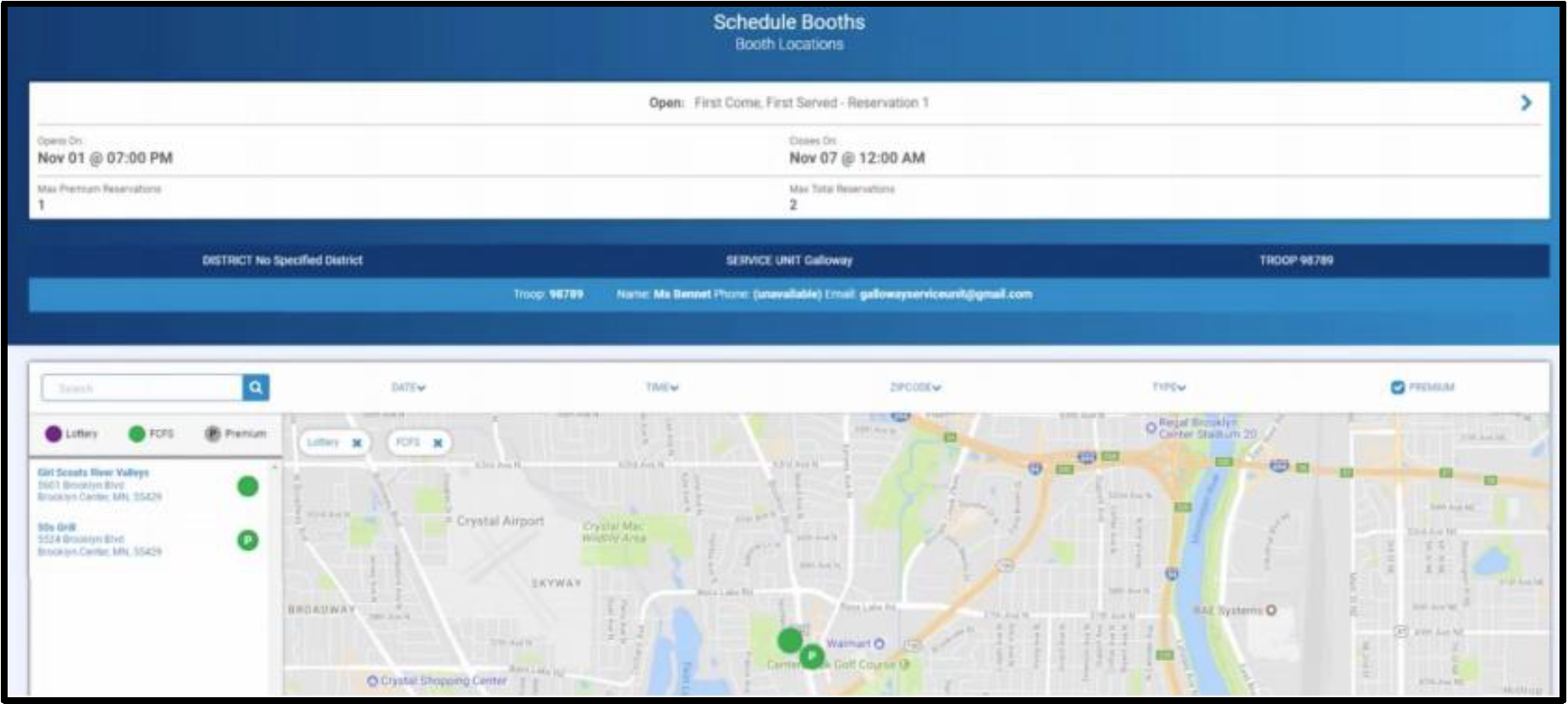
- Once you have selected a cookie booth, a calendar will appear.
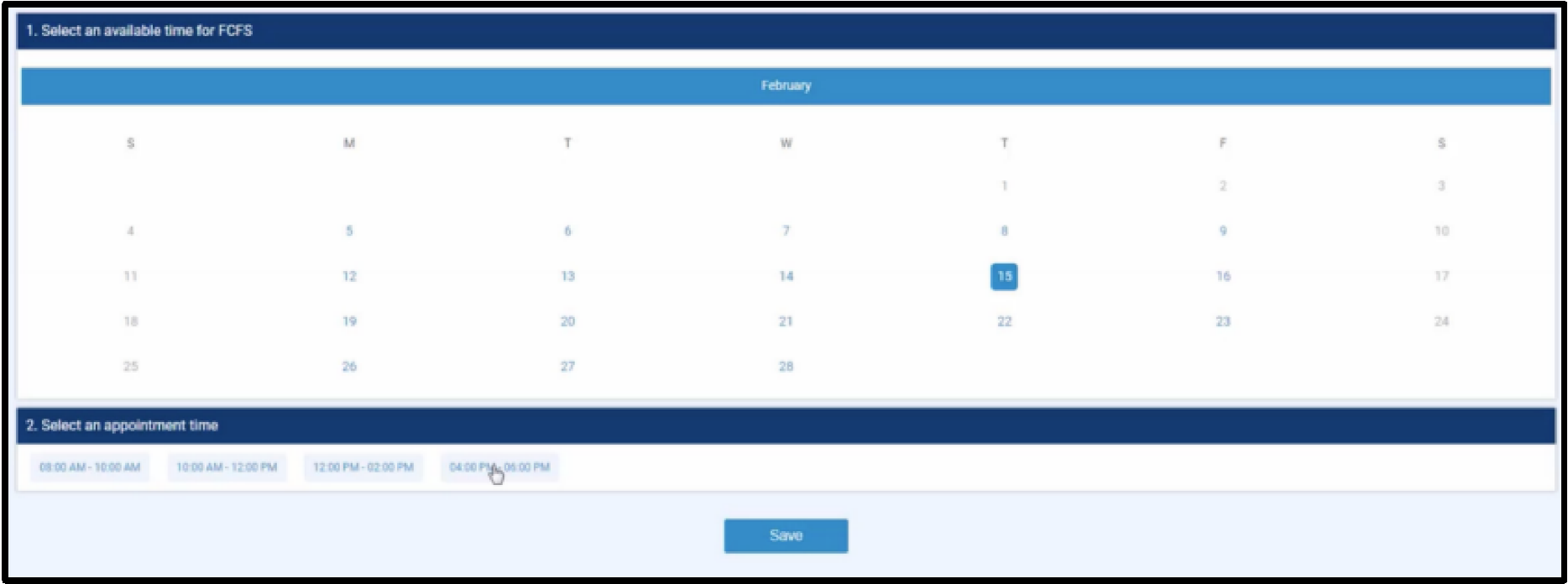
- Select the desired date and time.
- Press Save. Your troop will immediately be assigned to this location, and you will receive an email confirmation from the Smart Cookies system if your troop was successful in securing this timeslot.
- You will see the booth appear under My Reservations under the Booth tab.
Video Instructions: Scheduling a First Come First Serve Booth in Smart Cookies
Reserving a Troop-Secured Booth
Troop-secured booths are located at stores that Troops have contacted and requested to sell. These booths must be requested in Smart Cookies at least 3 days in advance for River Valleys staff to review. You will receive an email once your booth request has been approved or denied. Once it is approved, your booth's location will be included in the GSUSA Cookie Finder feature which is linked from Cookie Central.

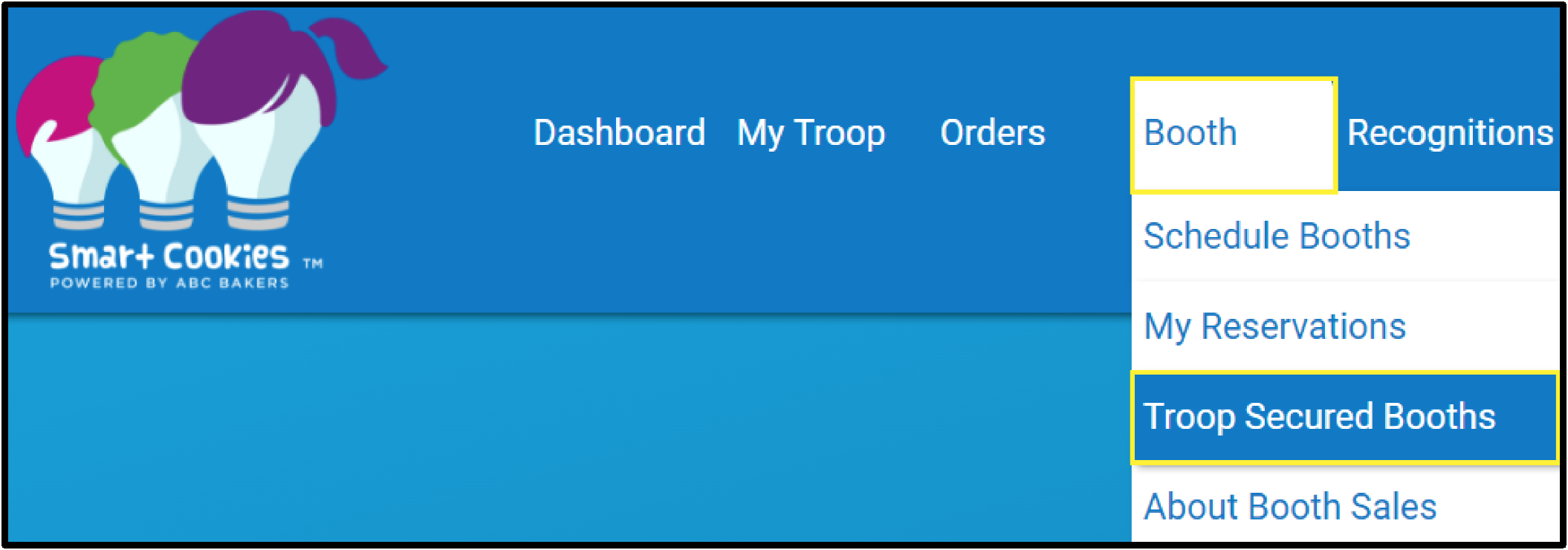
- Log into Smart Cookies, go to the Booth tab, and select Troop Secured Booths.
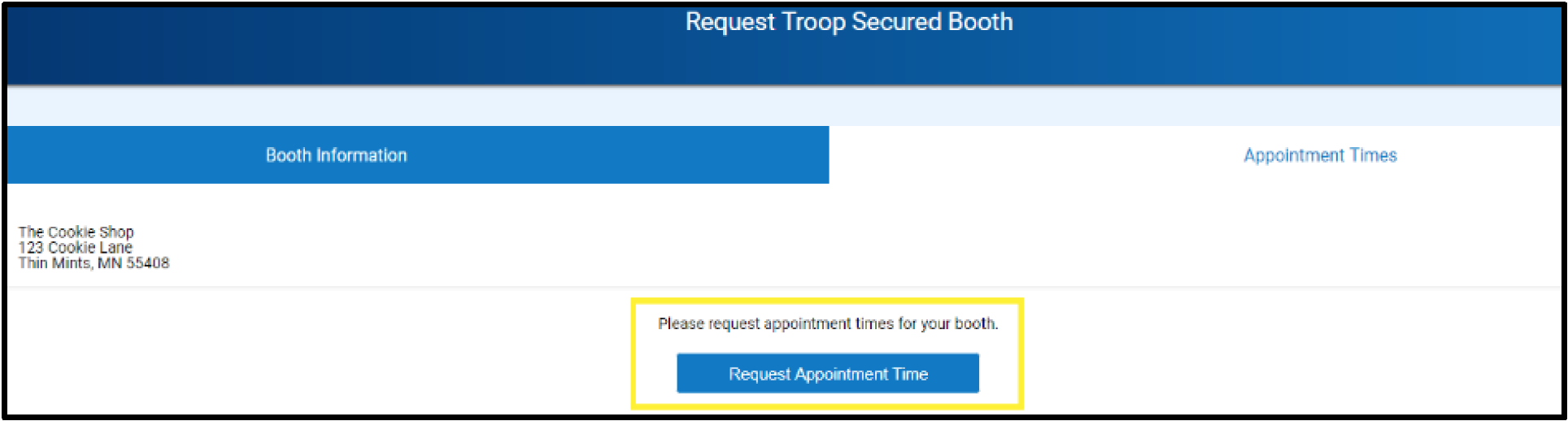
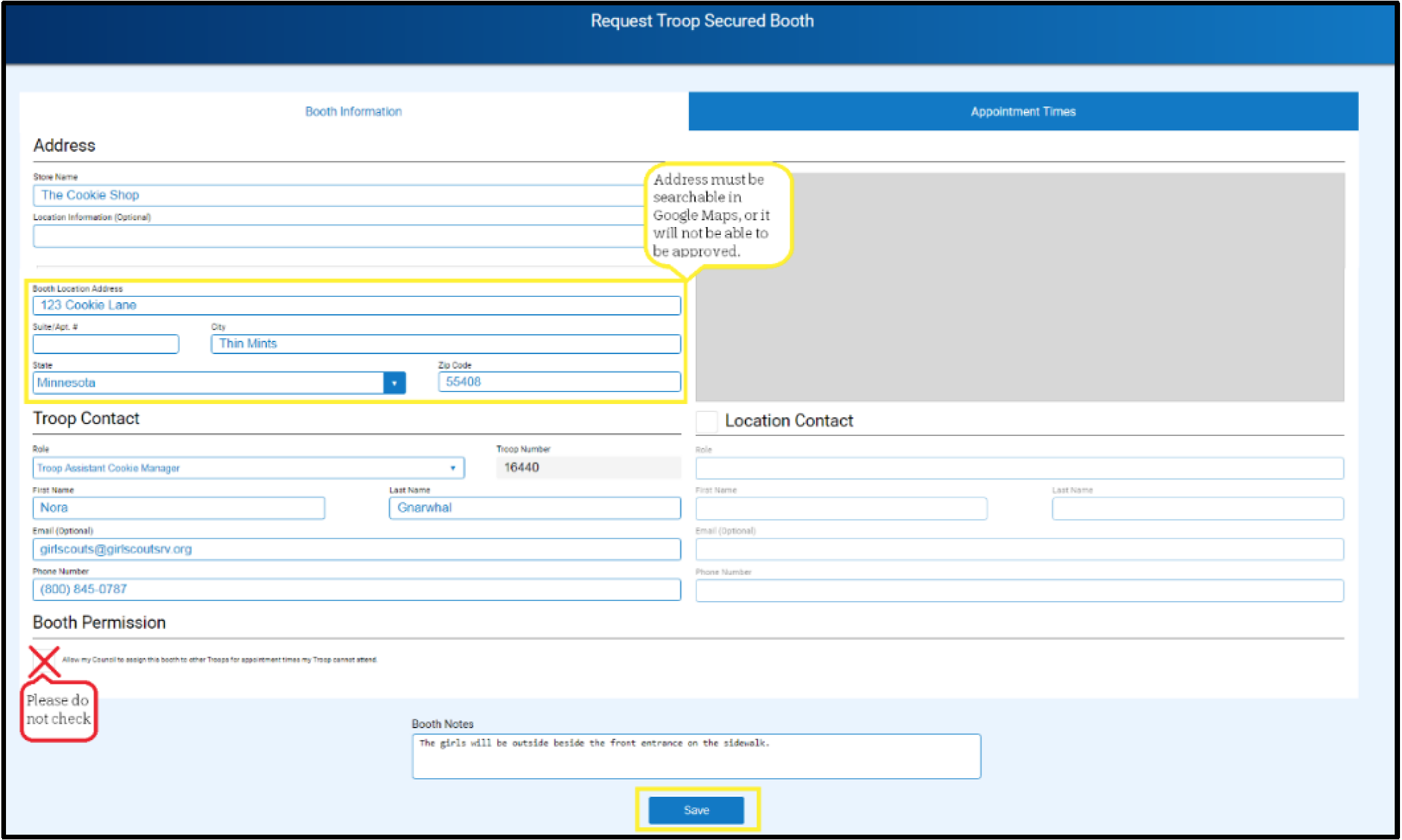
- Fill out the form (location contact information is optional) and click Save at the bottom of the screen.
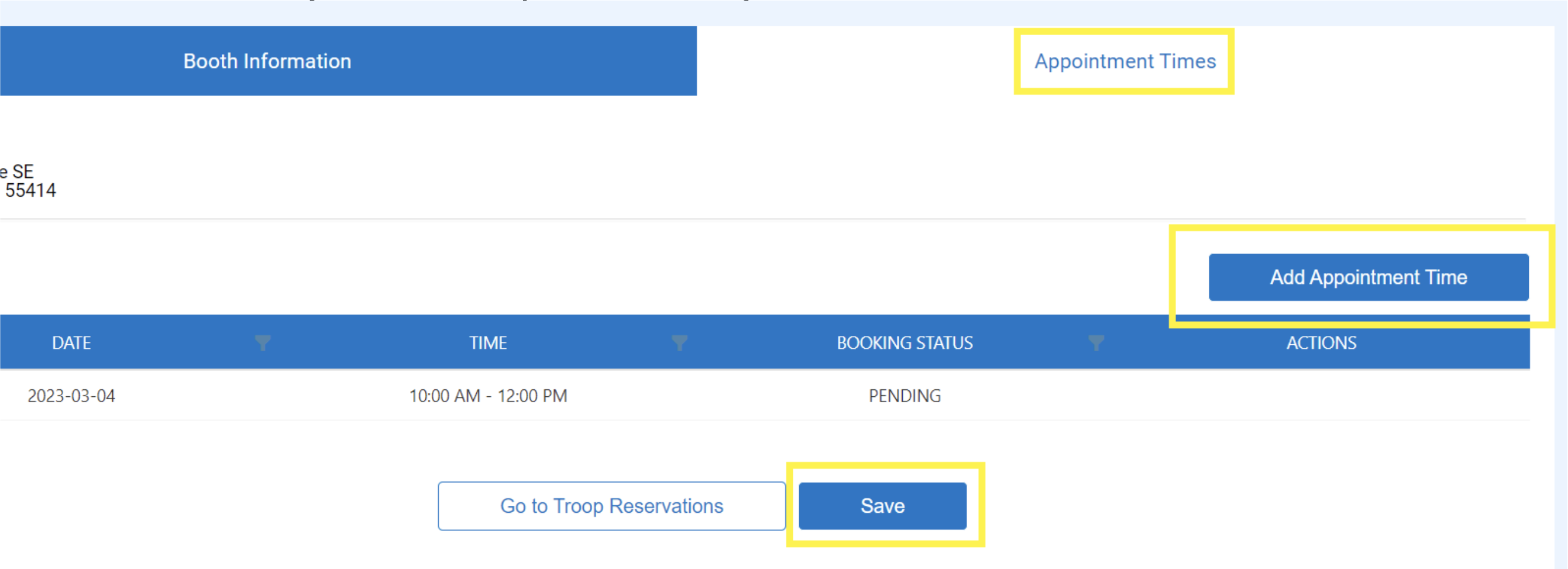
- On the next screen, click Add Appointment Time.
- Fill out the time and date imformation.
- Click Save.
- If you want to request multiple time spots, click Request Appointment Time again and refill the pop-up screen. Once all times have been entered for that location, click Save at the bottom of the screen.
- After you click Save, a green checkmark confirmation box will appear at the bottom of your screen.
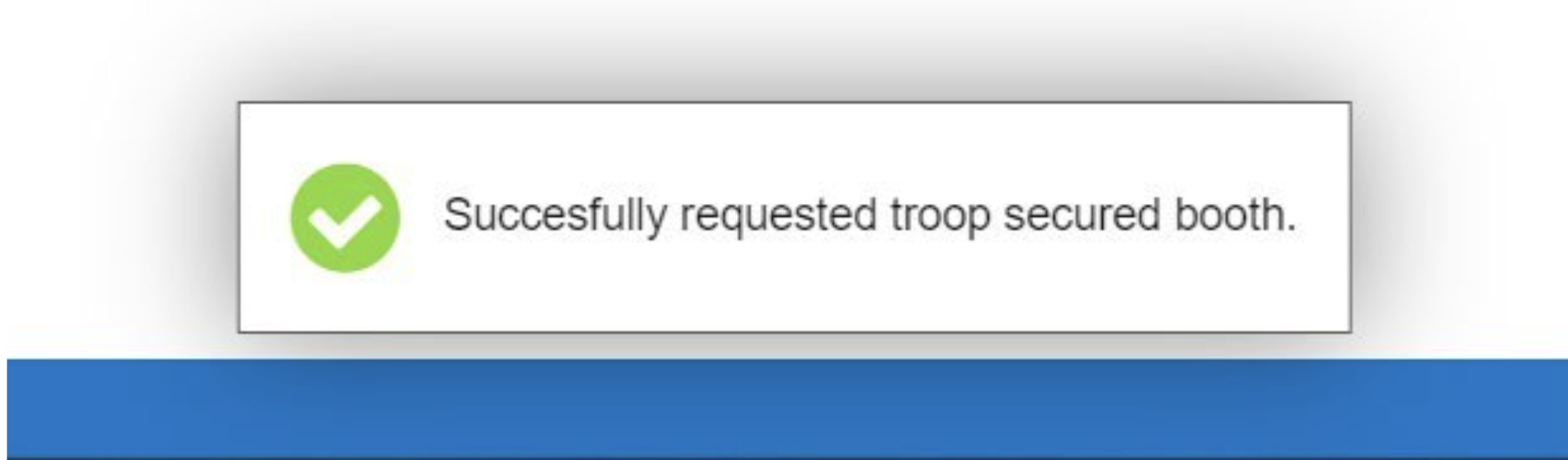
- To see submissions and their status, go to My Reservations under Booth on your dashboard.
- If you would like to enter additional times for this booth location after your initial request, select Booth Details.
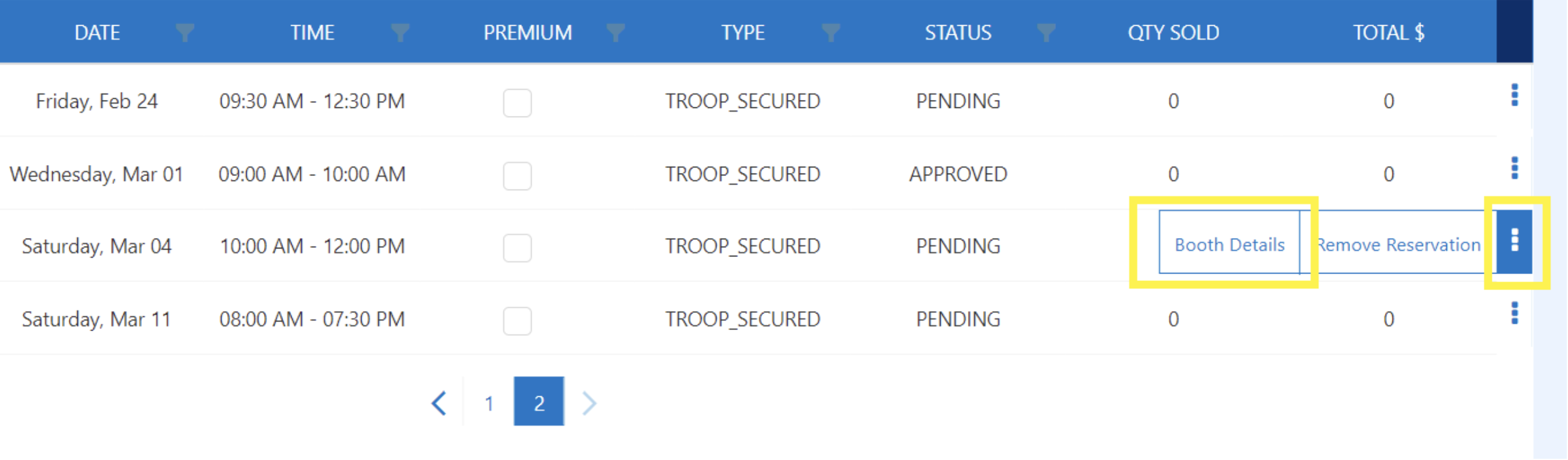
- You will then be brought to the Booth Information page for the booth you selected. You can either click Appointment Times next to Booth Information or scroll down and click Next. You will be brought to the same page that where you originally added appointment times. Click Add Appointment Time, fill out the date and time range, click Save. Once you finish adding your additional times, click Save at the bottom of the screen again and make sure you receive the green checkmark confirmation box (same as steps 4-7 above).
Video Instructions: Troop Secured Booths
Reviewing and Editing Troop Booths
After you have reserved a booth, you can review and edit using the following steps:
Log into Smart Cookies, go to the Booth tab, and select My Reservations.
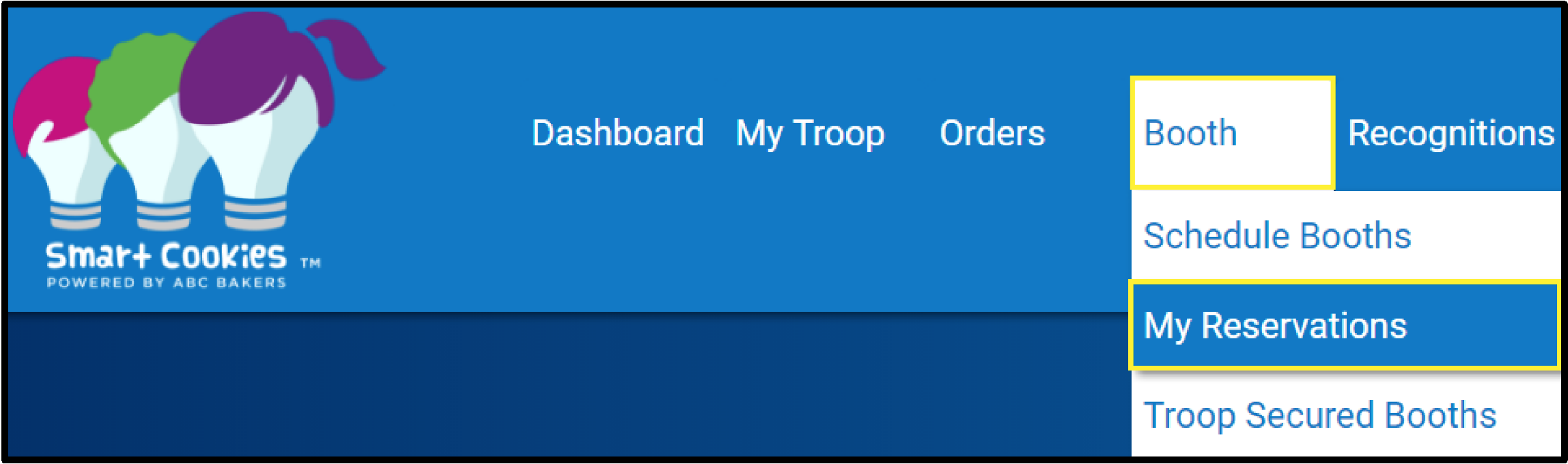
Use the Search feature to find the desired booth request (filters are located to the right of each heading or scroll through the list shown).
Scroll to the right using the scroll bar under the list of booths.
Note: This scroll bar will only appear when your mouse is hovering inside the list of booths .Click the three vertical dots on the far right. Here you will be able to see Booth Details, enter sales in the Smart Booth Divider, or Remove a Reservaion for council and troop secured booths.
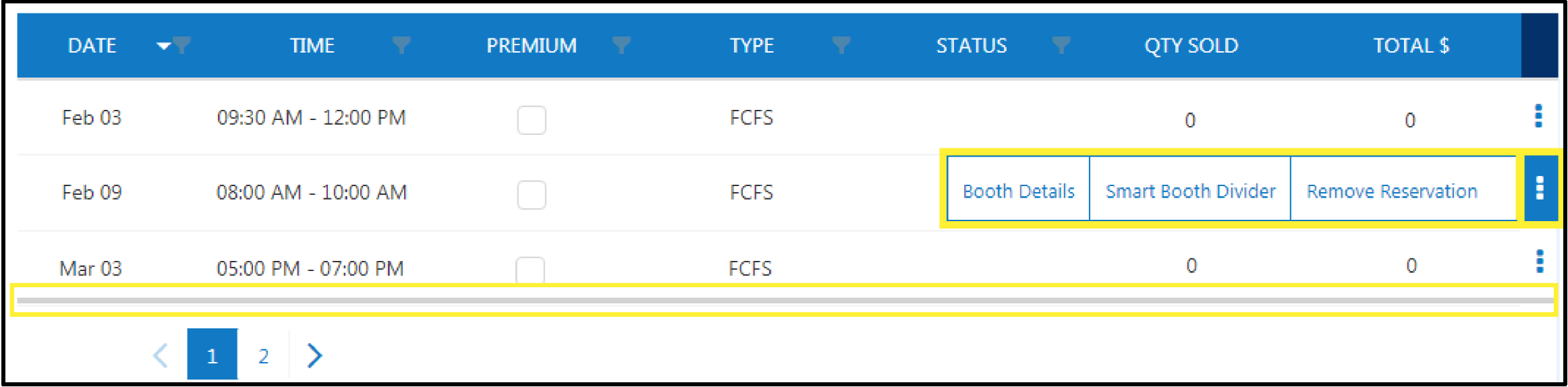
If you find that your troop will not be able to attend the booth, please cancel (Remove Reservation) as soon as possible. This opens it up for other troops to secure..
Also on this page, the Type column will tell you what type of booth you have scheduled, and the Status column will tell you the status of your lottery and troop-secured booths. To add more times to your troop-secured booth, follow the steps outlined in the previous section of this guide.
Using the Smart Booth Divider to Transfer Sales
The Smart Booth Divider is an easy way to distribute credit for booth packages sold to multiple Girl Scouts quickly and evenly. The Girl Scouts are not financially responsible for packages sold through the Smart Booth Divider, but they will be provided the credit to go toward their rewards. Using the Smart Booth Divider also provides Girl Scouts River Valleys with important data about booth activity that can be used for future booth sales.
- Log into Smart Cookies, go to the Booth tab, and select My Reservations.
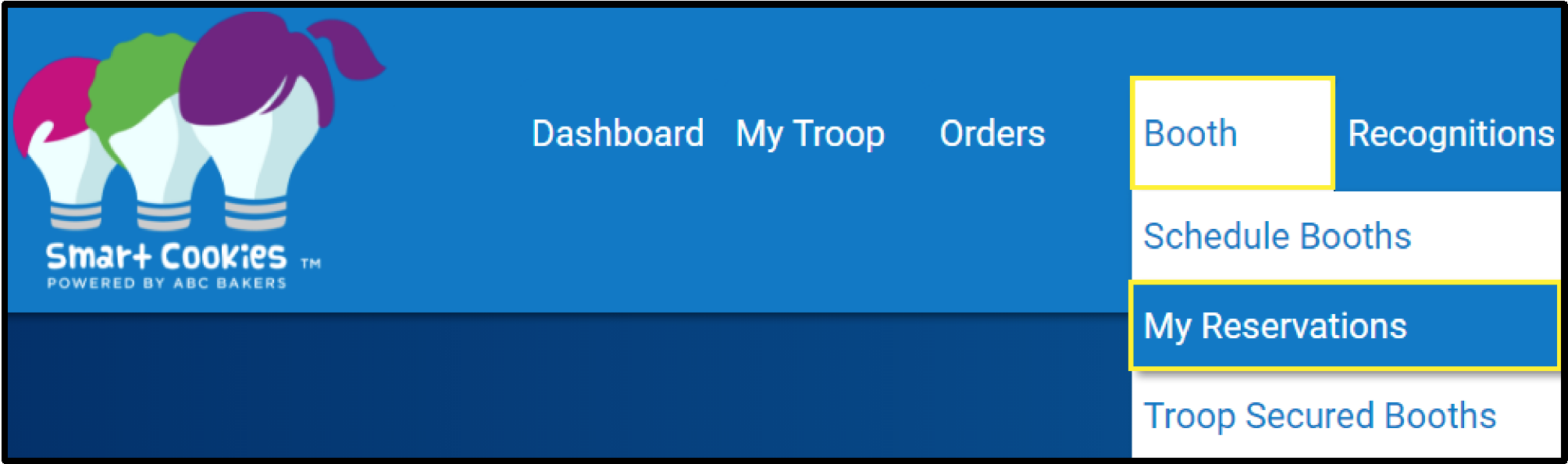
- Use the Search feature to find the desired booth request or scroll through the list shown.
- Scroll to the right using the scroll bar under the list of booths.
Note: This scroll bar only appears when your mouse is hovering inside the list of booth reservations. - Click on the three vertical dots on the far right to view booth details and select Smart Booth Divider.
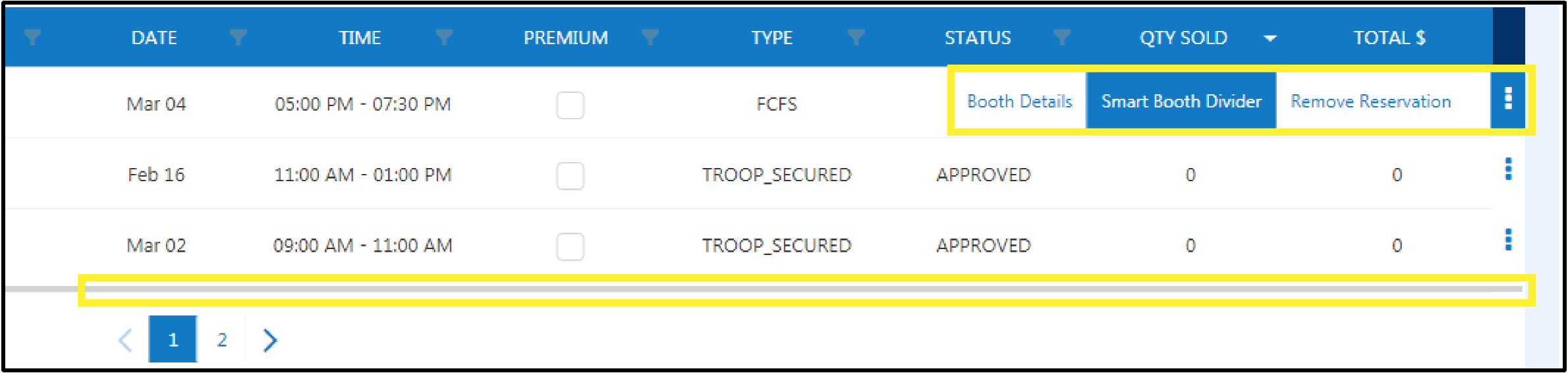
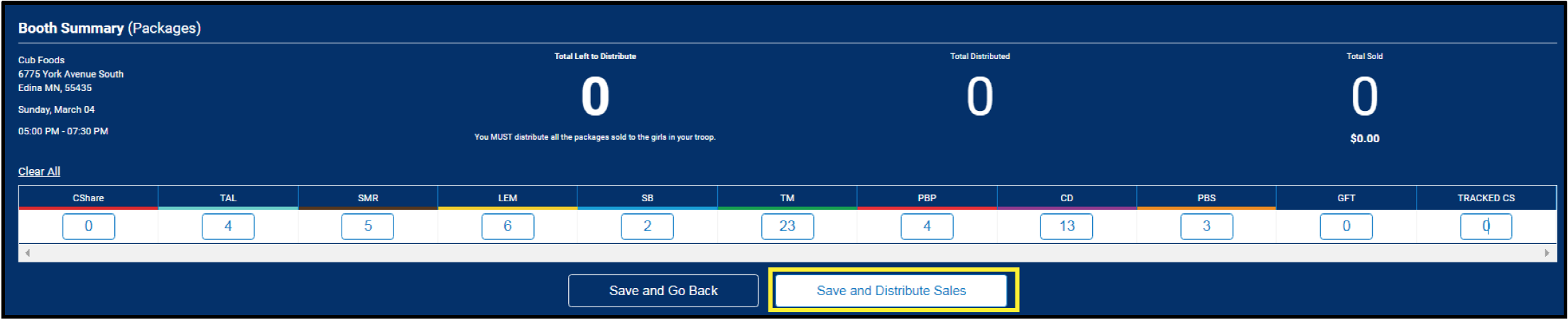
- Enter the quantities sold in packages by variety.
- Click the Save and Distribute Sales button.
- Select the Girl Scouts who sold at the booth. Click Continue.
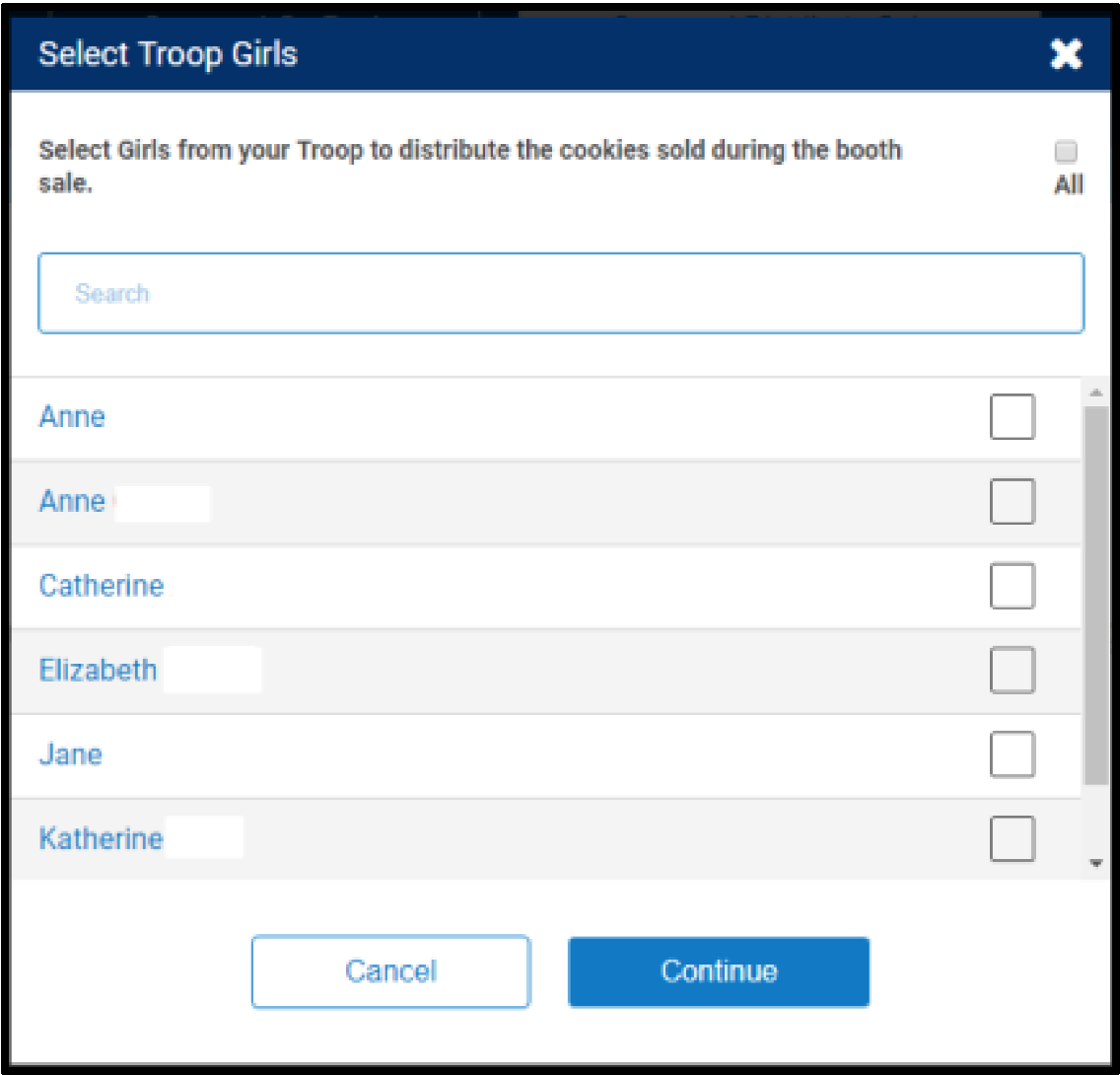
- The packages will automatically divide evenly between all individuals selected.
Note: If there are any varieties that could not be evenly distributed, they will be highlighted red. Manually distribute the remaining packages to girls, so each variety has zero packages left to distribute.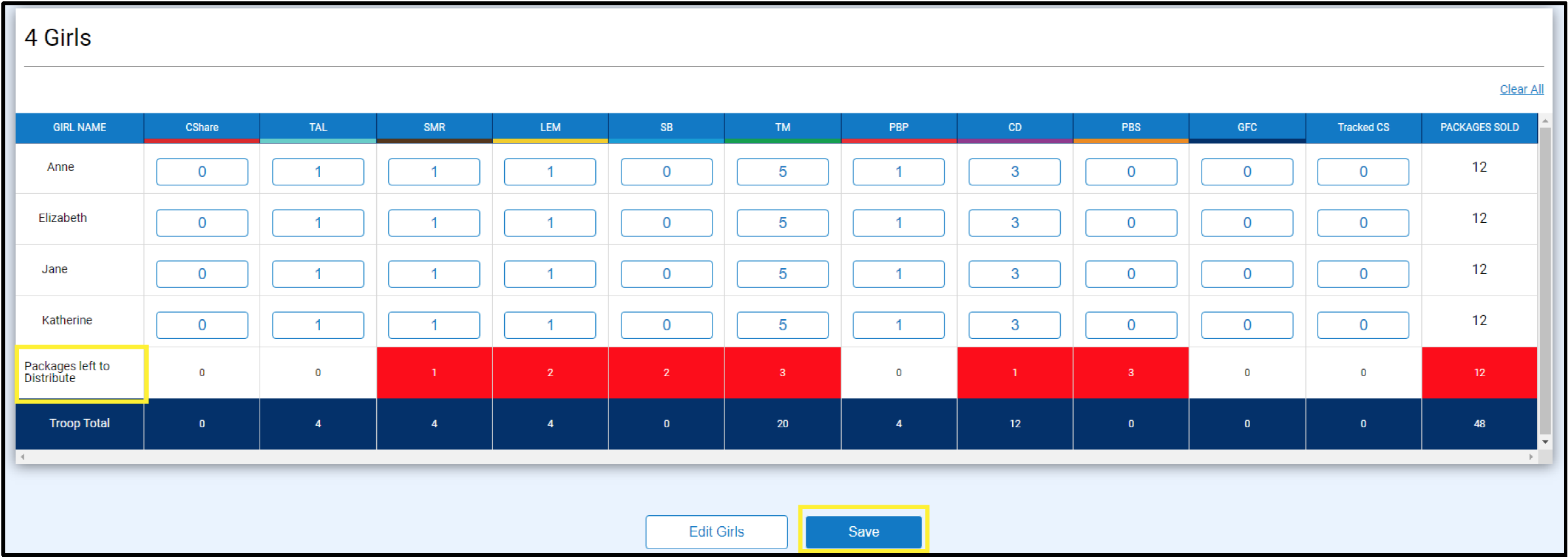
- Click Save.

- You will see a green check confirmation message appear. Smart Cookies will automatically transfer the appropriate quantity of each variety to the Girl Scouts and can be viewed on the Manage Orders page.
Note: If you don’t immediately see the confirmation message, allow the webpage some time to load before clicking Save again—clicking save multiple times can create duplicate transfers to girls.
Video Instructions: Smart Booth Divider
Managing Cookie Donations from Booth Sales
Use the Smart Booth Divider to enter the donations for the cookie booth. Enter the donations based on the option of the Cookie Share Program the troop is participating in:
CShare: These are donations made from council inventory (Virtual Cookie Share)
Tracked CS: These are donations made from troop inventory (Tracked Cookie Share)

For donations made from council inventory, no further action is required after you enter the # of packages in the CShare field and distribute between the Girl Scouts that participated in the booth. The credit will be given automatically to the Girl Scout. With using the Smart Booth Divider, Smart Cookies assumes you collected the $6/package at the booth, no further financial transaction is needed.
For donations made from troop inventory, you must also transfer the cookies that are being donated from troop inventory to the Girl Scout to give credit towards packages sold. You can choose to wait until the end of the sale to make these transfers when you have a better grasp on your leftover inventory. Follow these steps after you enter the # of packages in the Tracked CS Share field in the Smart Booth Divider and distribute between the Girl Scouts that participated in the cookie booth:
Go to Orders > Transfer Order then select the Troop to Girl as the type of transfer. Select the Girl Scout to transfer the cookies to. Enter the total by variety in the Booths Packages column. For example, if the Girl Scout has credit for 15 Tracked CS donations, you will transfer a total of 15 packages using the Booths Packages column.
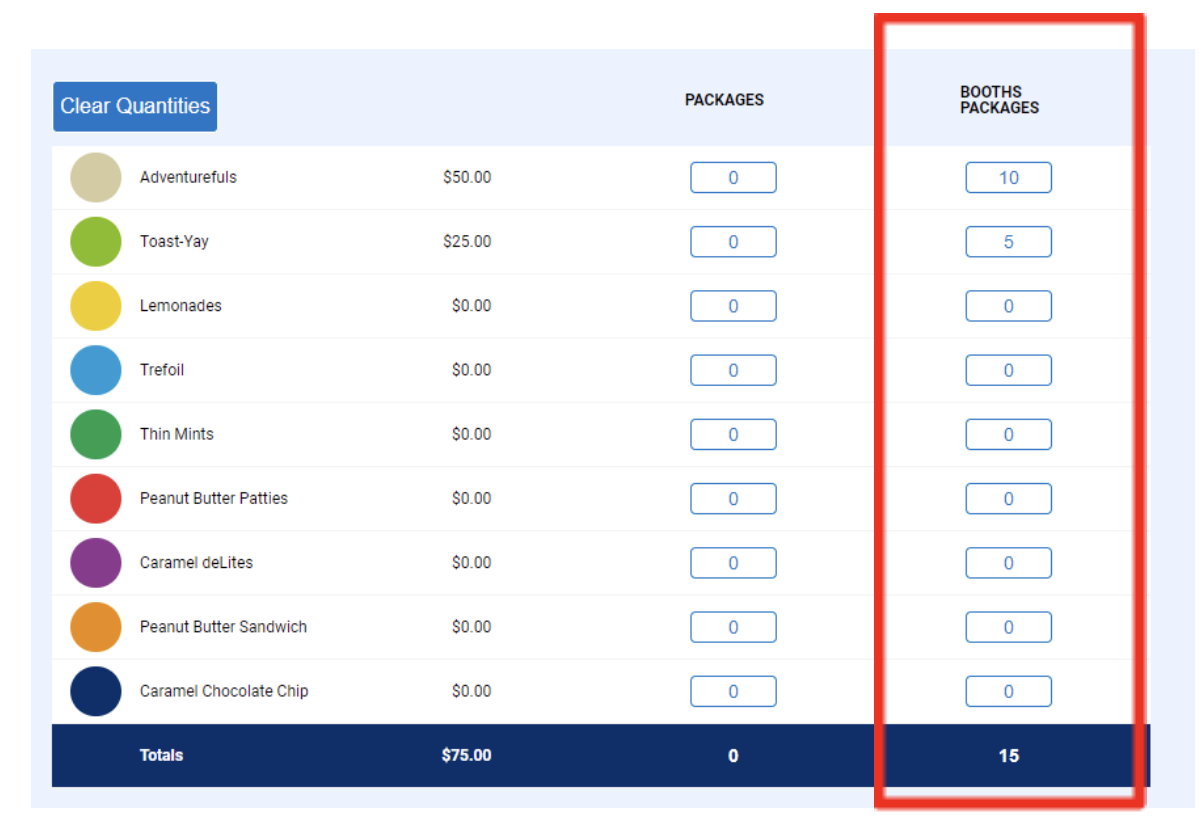
By using the Booths Packages column, this will increase the total # of packages sold for the Girl Scout, but it will not increase the financial responsibility for the packages.
Distributing Troop Site Sales (from Digital Cookie)
Once a troop has set up the Troop Site in Digital Cookie, you’ll have the option to offer online orders for pre-paid pick-up at an existing cookie booth location or offer delivery orders. Customers will pay online through the Troop Site sales link. We only recommend these sales for experienced troops. The Troop Ship-Only sales link is automatically activated once the site is set up. Follow the steps below to credit Girl Scouts for the packages sold using Smart Cookies.
Credit Girl Scouts for pre-paid pick up at an existing booth:
- View the pre-paid orders by running the Booth Credit Card Payment Export, filter for the location, date, and time.

- Once these orders are picked up, you must add these packages to the total sold to customers who purchased from the booth. For example, if you sold 5 TY, 5 TM, and 5 TRE in pick up orders, then 50 other packages. The total sold would be 65 packages that you will distribute using the Smart Booth Divider.
- Click the three dots next to the booth event, and click on the Booth Divider
- Use the Booth Divider to distribute credit for the booth event to the Girl Scouts in your troop.
Credit Girl Scouts for Troop Delivery Orders:
This type of activity is not very common, but it is an option in Digital Cookie. These sales are generated when the troop sets up the Digital Cookie site link to accept orders for local delivery.
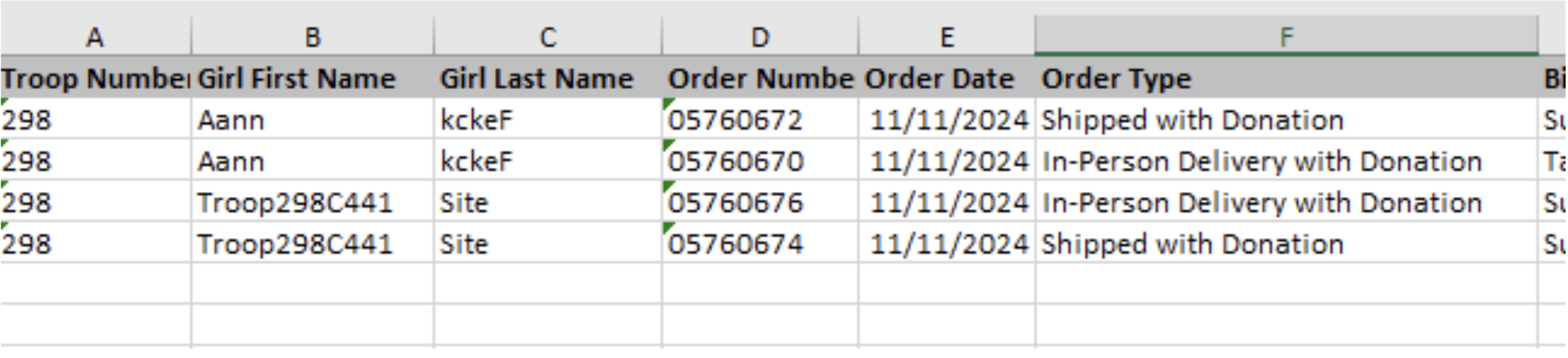
Digital Cookie Connection: To view the orders for delivery, run the All Orders Report, filter for orders with the first name of troop (your troop number) and last name “site.” These are the orders from the troop link.
Only orders approved by the site lead will transfer to Smart Cookies. View the orders in the Smart Cookies Booth Credit Card Payment Export Report and filter for delivery orders. You’ll view a Virtual Delivery in the Booth tab > My Reservations. In the Smart Booth Divider, allocate the packages sold to the girls. The booth will appear as Virtual Delivery. Once this has been completed, the cookies will be removed from the troop’s on-hand inventory:

Credit Girl Scouts for Troop Ship-Only Orders
All orders from the Digital Cookie Troop Ship Only Sales link will appear in Smart Cookies in the Orders tab > Troop Ship Orders. If your troop received orders, you would see cookies Pending Distribution. Click Distribute Orders to Girls. Select the Girl Scouts to transfer packages to, then click on Save. These packages have been pre-paid online with cookies shipped directly to the customer. No further action needed from the troop.
Digital Cookie
Taking Booth Credit Card/Venmo/PayPal Payments with the Mobile App
Download the Digital Cookie Mobile app from the App Store or Google Play. Volunteers wihout a Girl Scout will still have access to the mobile app.
- Log in to the Mobile App: Use the same email and password associated with your Digital Cookie account to log in. Access to the troop account is only available once the troop site has been properly set up.
- Select a Role: Select the Troop Role
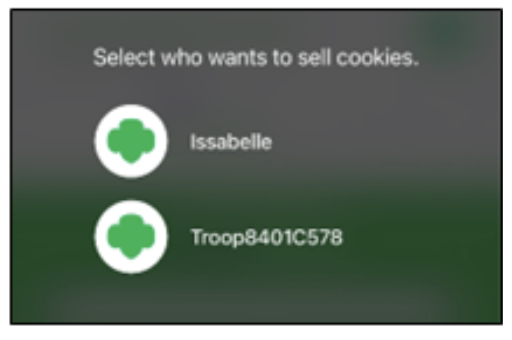
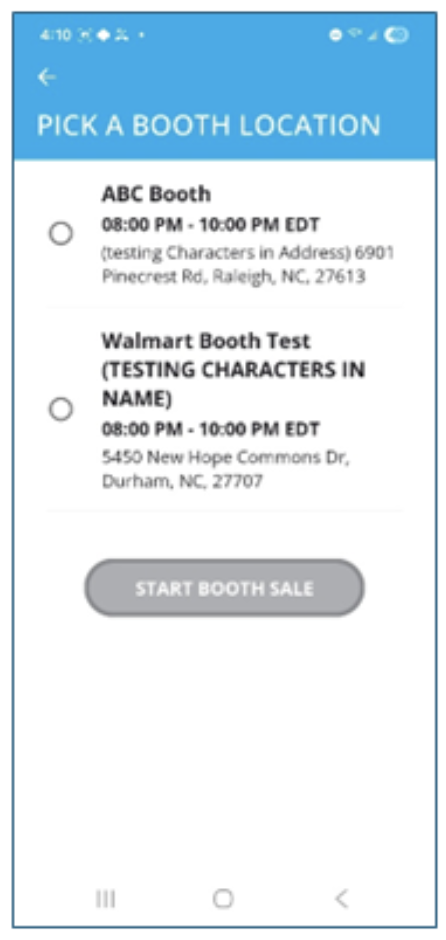
- Select Start My Booth Sale, select the booth and click on Start Booth Sale:
- Select cookie varieties and when complete, click on Checkout:
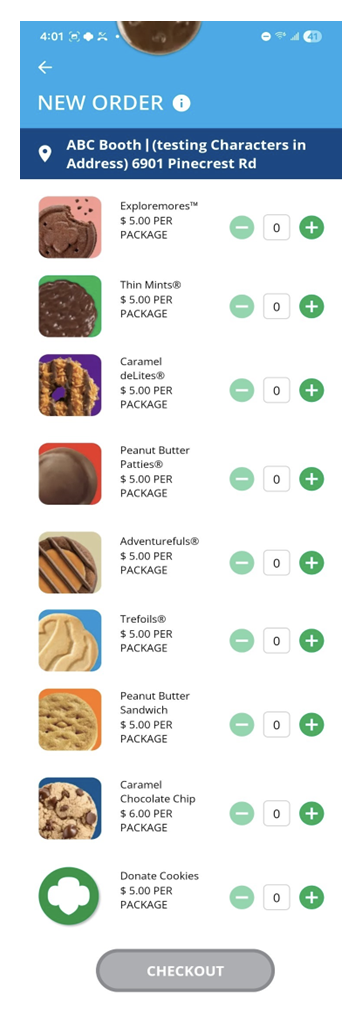
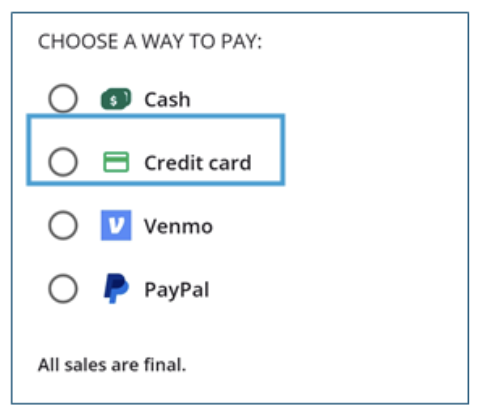
- Select how the customer would like to pay for the order then click on Place Order:
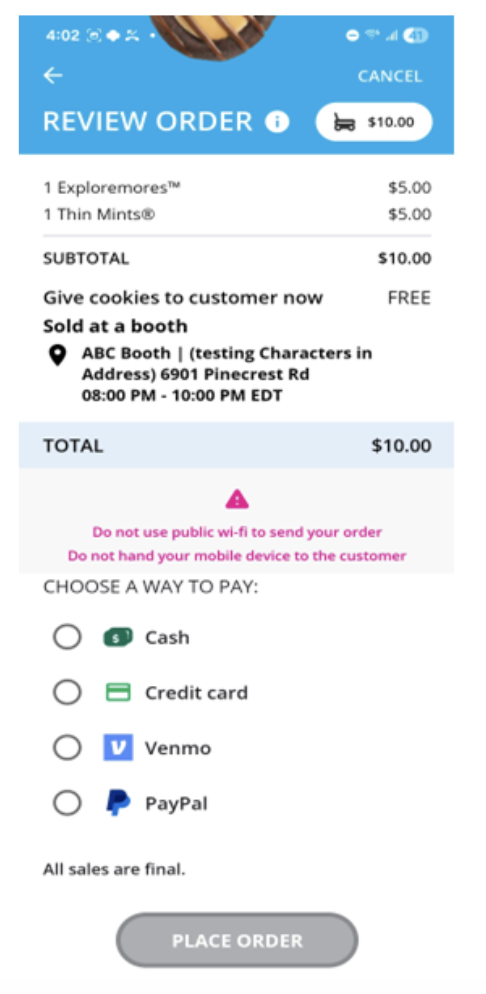
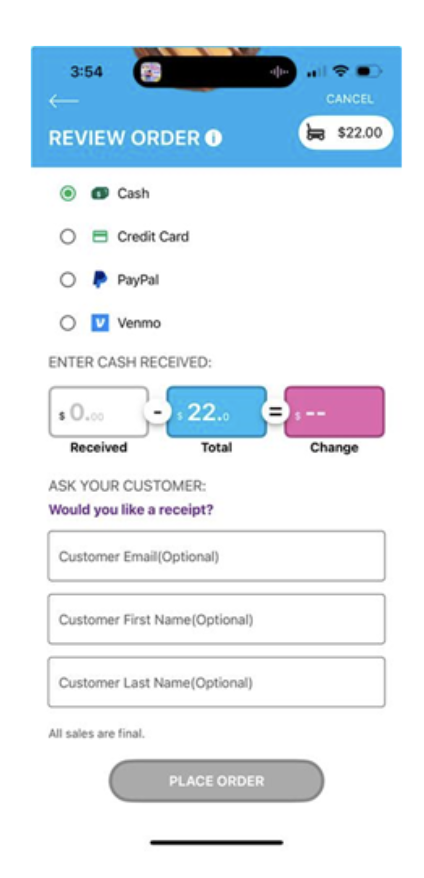
If the payment type is Cash, a calculator will pop up to help complete the transaction and calculate the change to give the customer. Customer information is optional. Click on Place Order when complete.
If the payment type is PayPal or Venmo, after clicking Place Order, a QR code will appear. Turn the phone around and the customer can scan the code with their phone to pay from their account.
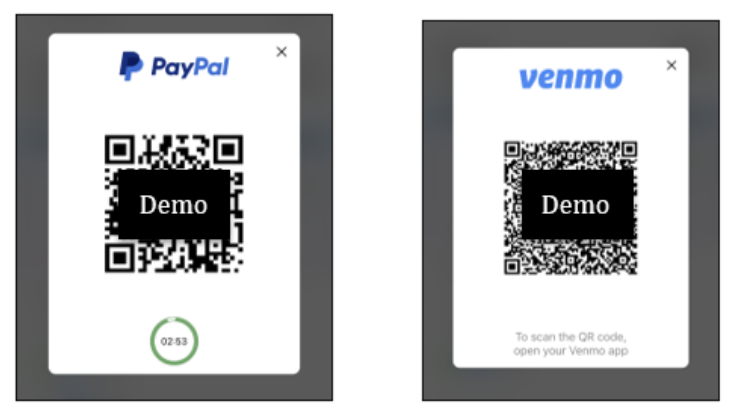
The customer will be taken to their PayPal or Venmo login page. Once logged into their account, they select how they want to pay and complete their purchase.
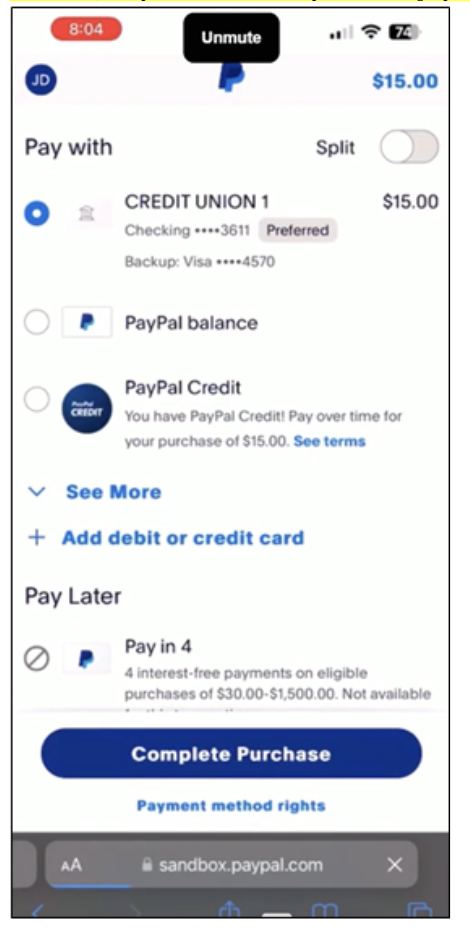
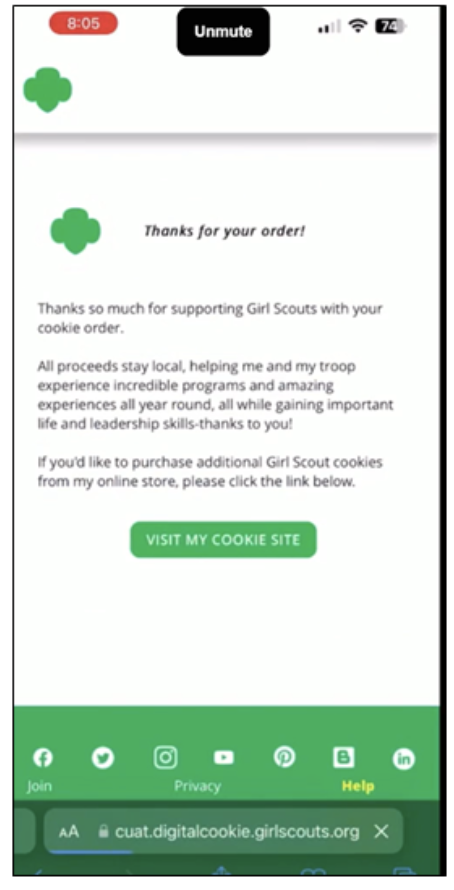
A confirmation screen will appear once the order is completed. Cookies should not be given to the customer unless you see a confirmation screen.
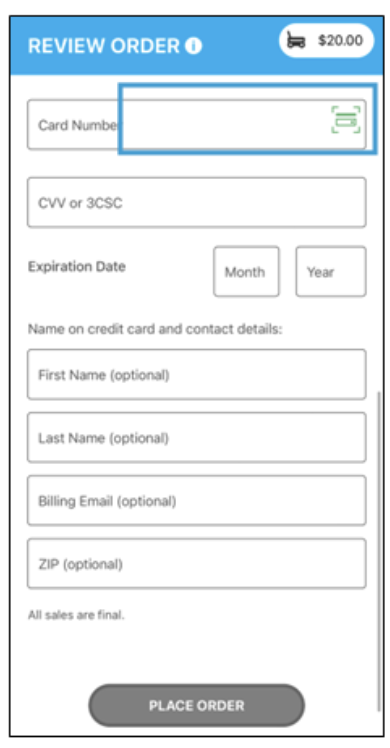
If the customer pays by credit card, enter the information from the customer’s credit card or use the scan card feature. Once the details are entered, customer information can be added if they wish to receive a receipt for their purchase. Click on Place Order to process the payment:
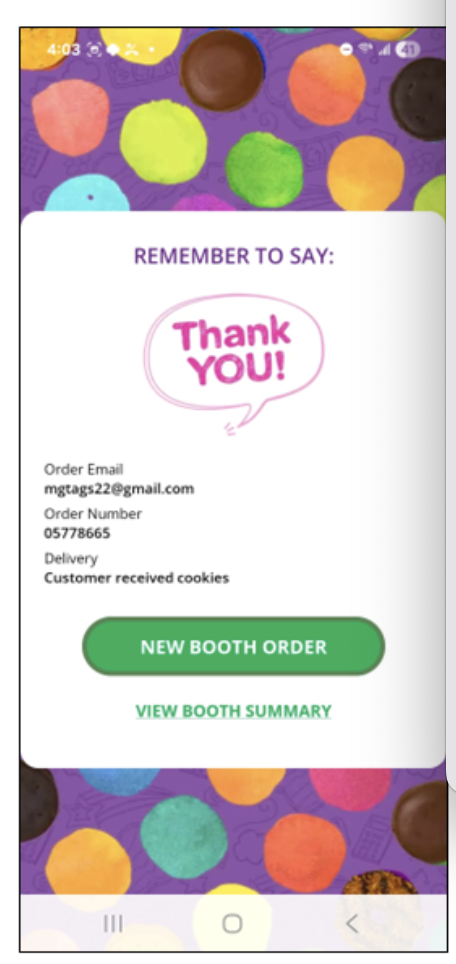
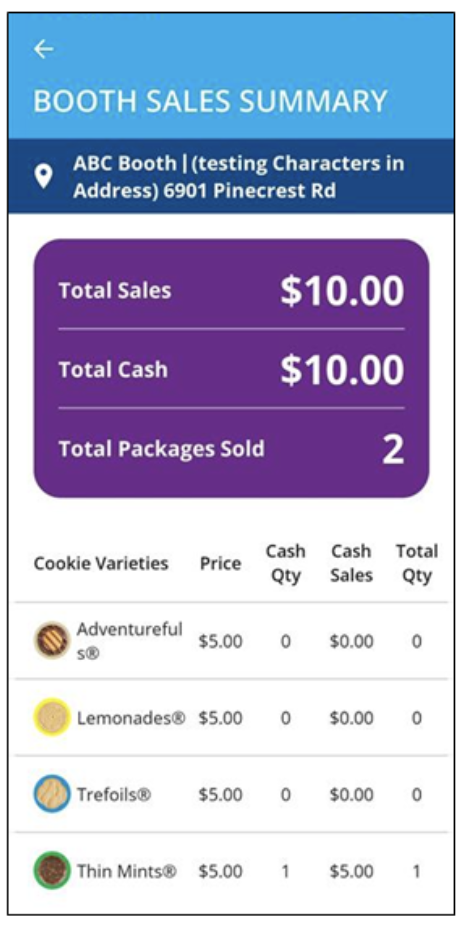
When orders are complete, a confirmation screen will appear, and New Booth Order can be selected to start another payment or choose View Booth Summary to see how many packages have been sold at the booth and the total money collected:
Digital Cookie Booth Payments Tip Sheet (PDF)
Video Instructions: Troop Mobile App
Viewing Digital Cookie Booth Credit Card & Mobile Payments
The All Order Data Report will provide you with a listing of all digital sales processed through the mobile app. You can filter for the Troop Site Name in the Girl First Name field, then further refine your search by date.
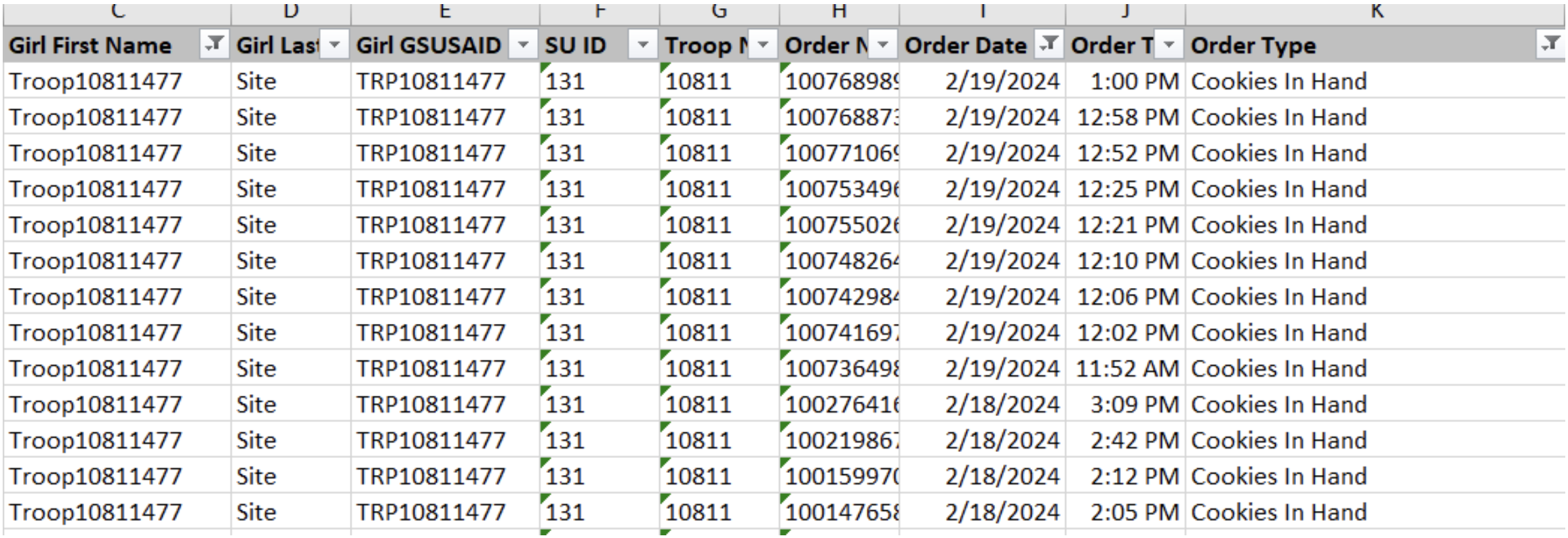
You can compare this report to your Booth Sales Credit Card Transactions Report in Smart Cookies, which will detail the booth location, date, and time. If any transactions are missing, it may be due to a Girl Scout taking a payment using their account instead of the troop account in the mobile app.
If it just a few transactions that were taken under a Girl Scout account, transfer the number of packages from the sales at the booth to offset her Digital Cookie sales in a T2G transfer in Smart Cookies. Whichever cookies you transfer to the girl to offset the Digital Cookie payments, don't include them in the Smart Booth Divider.
The Troop Booth Sales Report in Digital Cookie features all booth-specific sale, including cash and pickup orders, along with all mobile app sales.
Adding Pre-Paid Pick-up Orders at an Existing Cookie Booth (optional)
Troops have the option to add pre-paid orders for customers to pick up at an existing cookie booth location. This option is only recommended for experienced troops. The booth must be an approved booth (council or troop-secured) in Smart Cookies.

- From your Troop Volunteer role, go to Booth Pickup.
- Select an existing cookie booth from your list by clicking on Add Pick-Up Option.
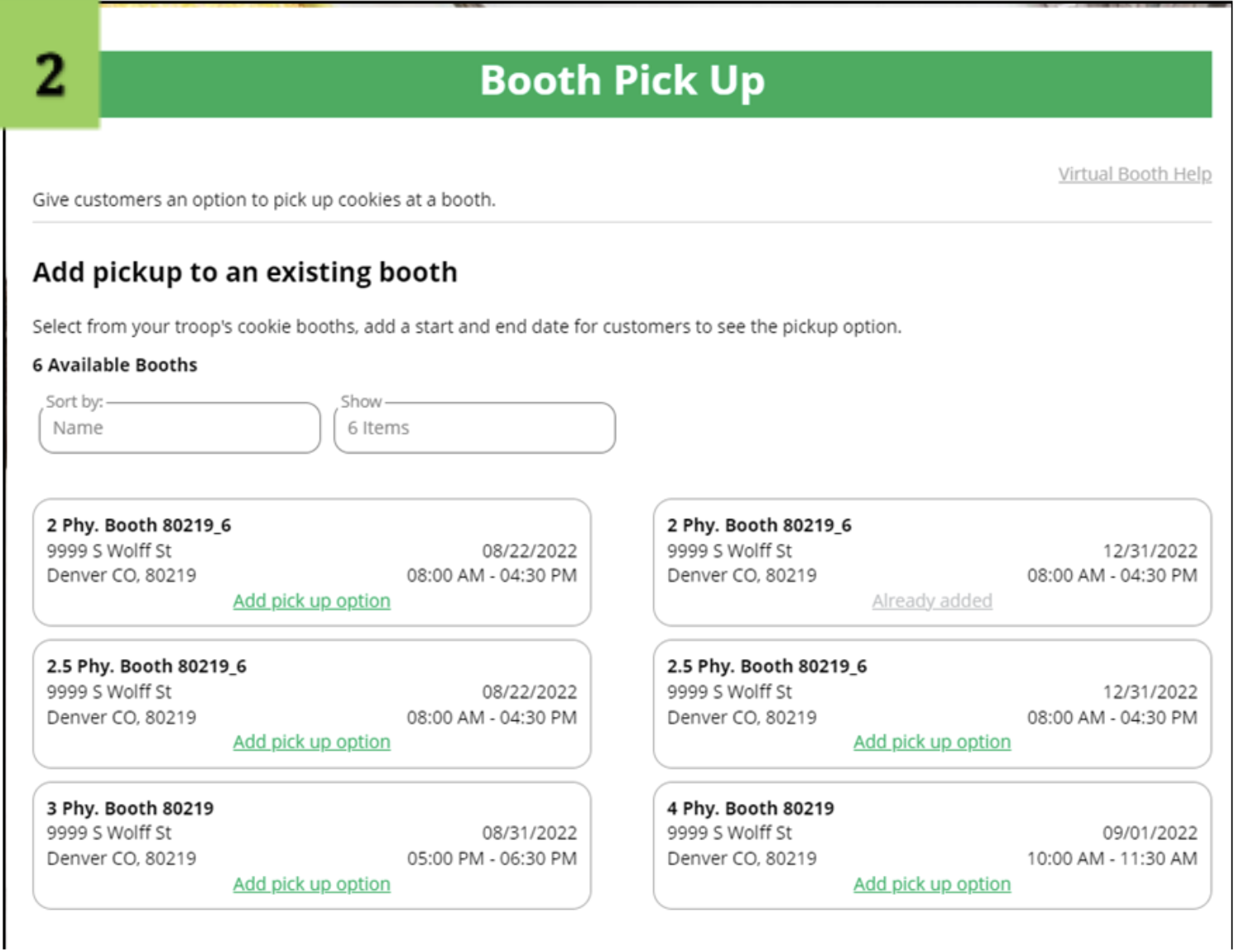
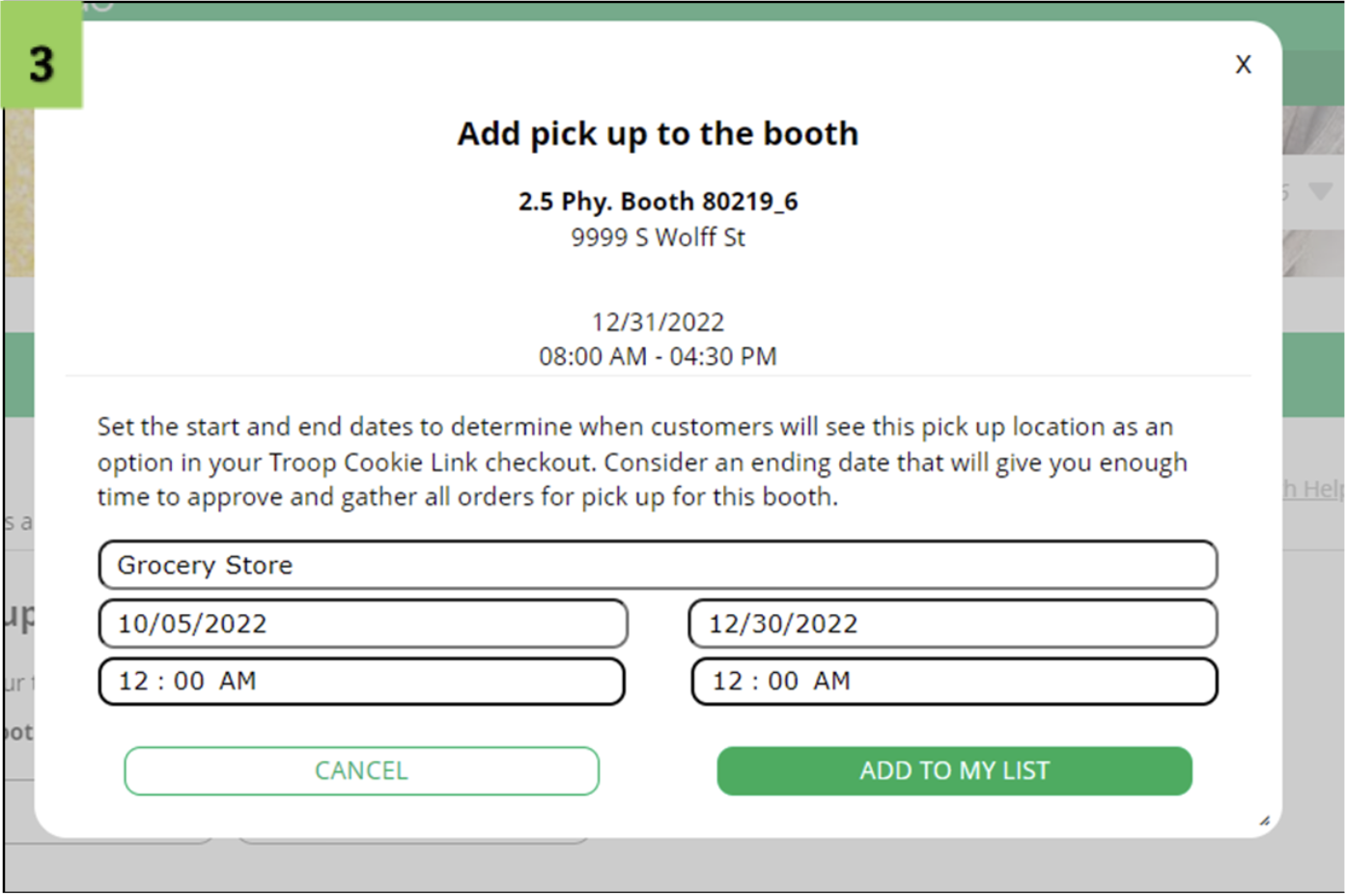
- Enter the details on the start and end dates of when customers will see this booth pick-up option in your Troop Site Link. Give yourself enough time to approve, pick, and pack orders for this booth location. If you need to edit or delete locatios, you can view your pick-up locations and edits or delete them. If you delete the booth in Smart Cookies, you must also delete the booth in Digital Cookie.
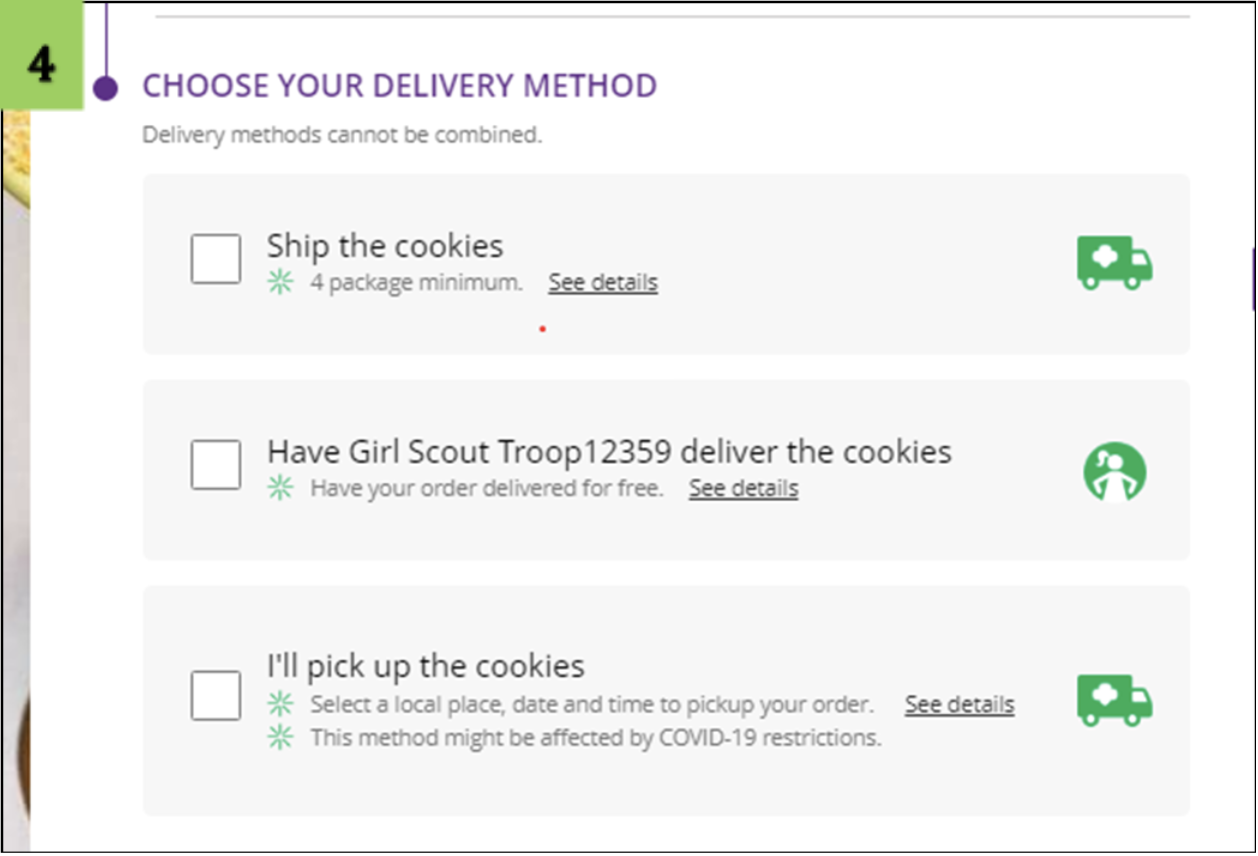
- Share the Troop Site Link, where customers will see the option for picking up their cookies at the booth location.
How to View Booth Pick-up Orders:
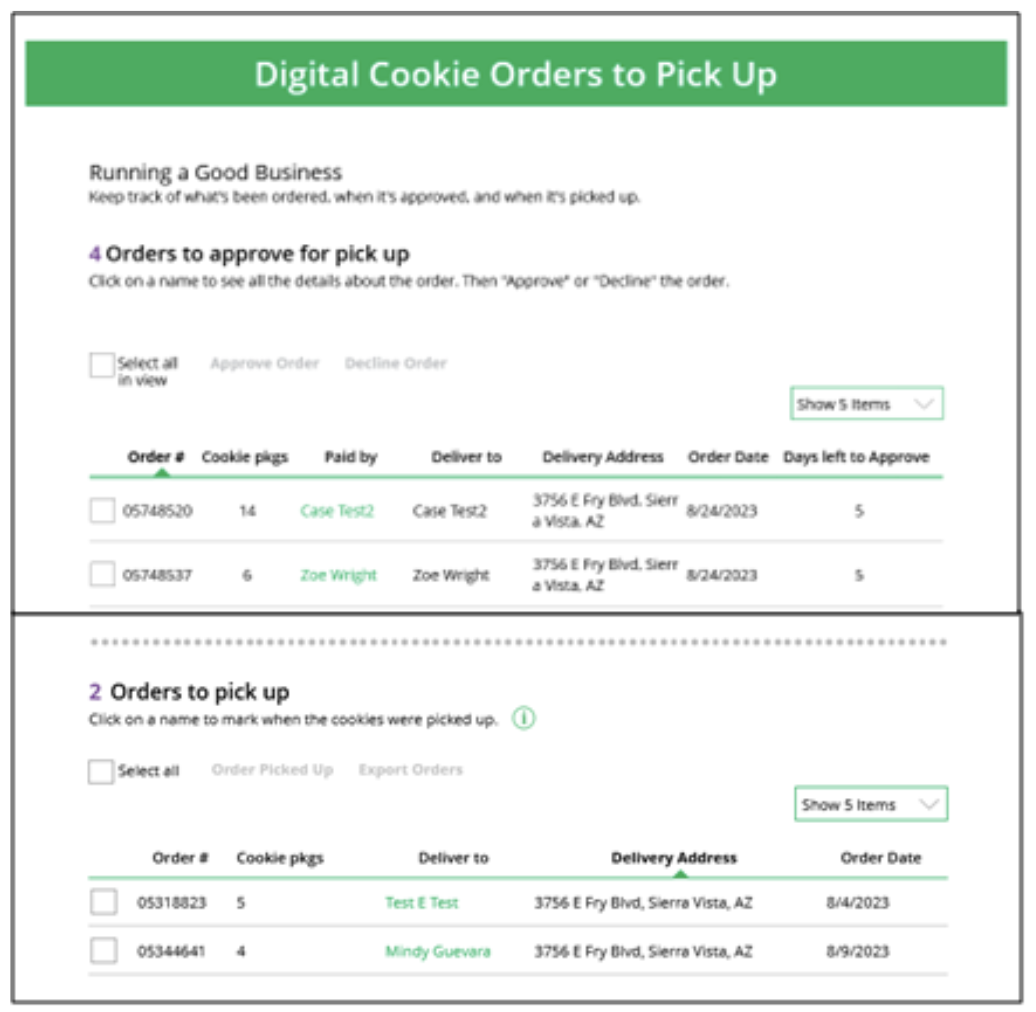
As customers order cookies to be picked up at your cookie booth, those orders will need to be reviewed and approved within 5 days of the order being placed. From the Troop Volunteer role, go to Troop Orders. Scroll down until you see the pick-up orders section:
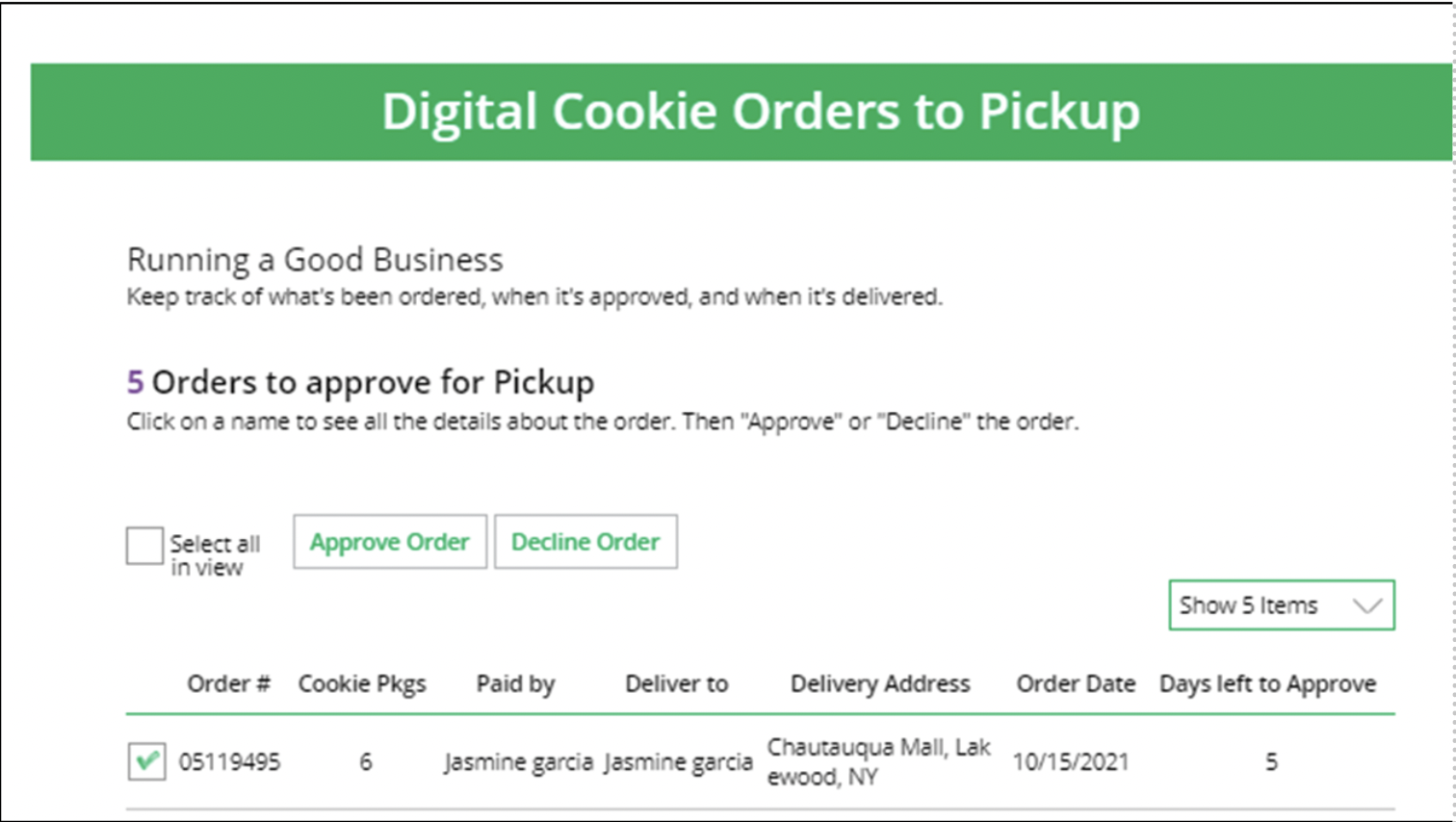
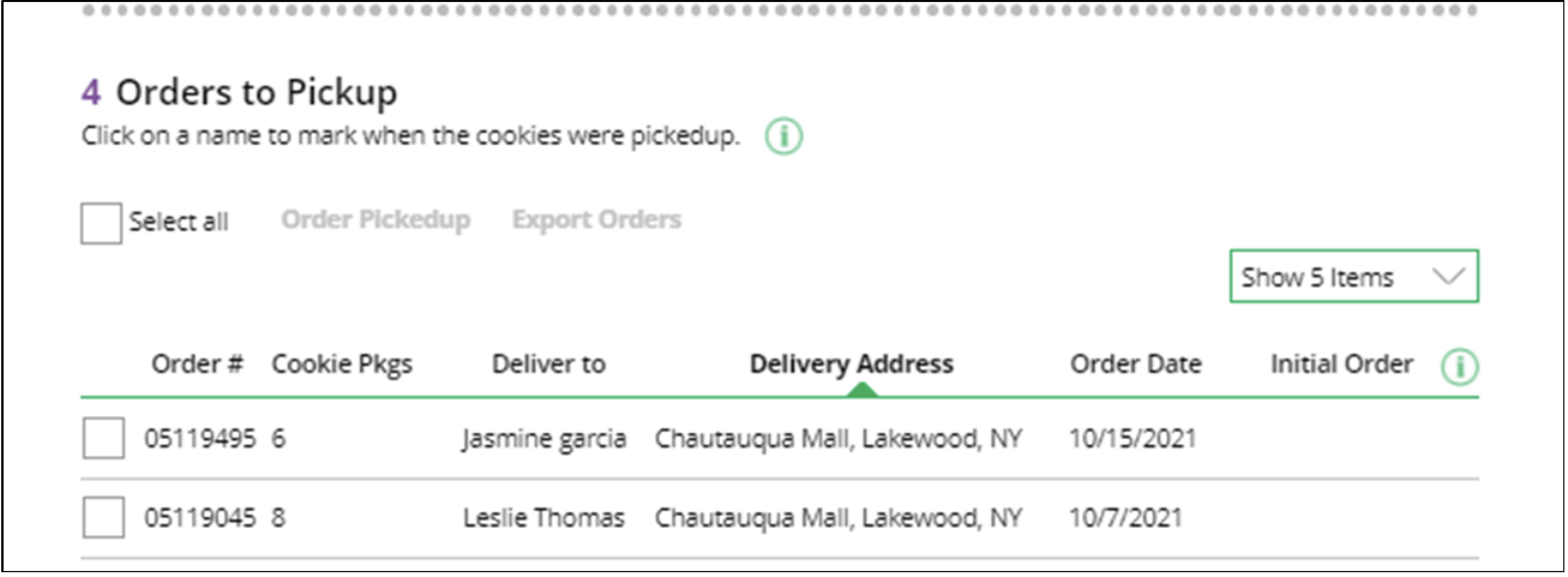
You can check the box in front of the customer order to approve or decline it. If you approve it, it will move into the “orders to pick up” section. You can export a list of all the orders to prepare for the booth sale. When the customer has picked up the order, mark the order as “order picked up” so it will move to that section.
If you have any issues that arise, such as a weather cancellation, you will be able to use the contact information for the customer to arrange for pick-up of their pre-paid order.
You will use the Smart Booth Divider in Smart Cookies to distribute these sales to participating Girl Scouts. You will add these sales to the other sales made in-person at the booth. See the Distributing Troop Site Sales from Digital Cookie instructions in the Smart Cookies section.
Video Instructions: Troop Pickup Orders
Printable instructions: Troop Pickup Orders Tip Sheet
Smart Cookies
Ordering Girl Scout Rewards
As the cookie sale comes to an end, it is time for Girl Scouts to choose their rewards! Each Girl Scout’s rewards eligibility is automatically loaded into Smart Cookies, but Troop leaders must create the recognition order and make the selections for girls. If a selection is not made by the deadline, the Girl Scout will be defaulted to Cookie Credits.
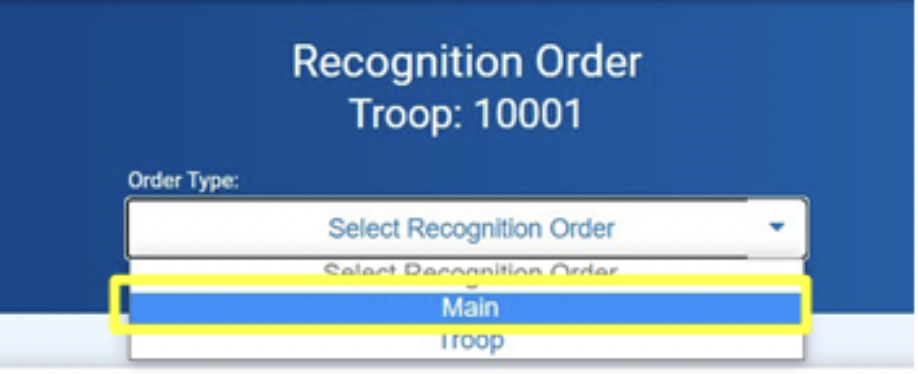
- Log into Smart Cookies, and select Recognition Order
under the Rewards tab.

- Click Recognition Order and choose
Main.
- You will
now see the main Recognition Order page. Any Girl Scout with this
symbol
 by
thier name requires a decision on which reward she would like.
Press the blue arrow to proceed.
by
thier name requires a decision on which reward she would like.
Press the blue arrow to proceed.
- Select the Girl Scouts rewards choice for
each level between the item and the Cookie Credit. Repeat this for
each reward level, until there are no more exclamation mark
symbols. Then press Save.
Note: Some rewards, such at t-shirts, require you to input the size before proceeding.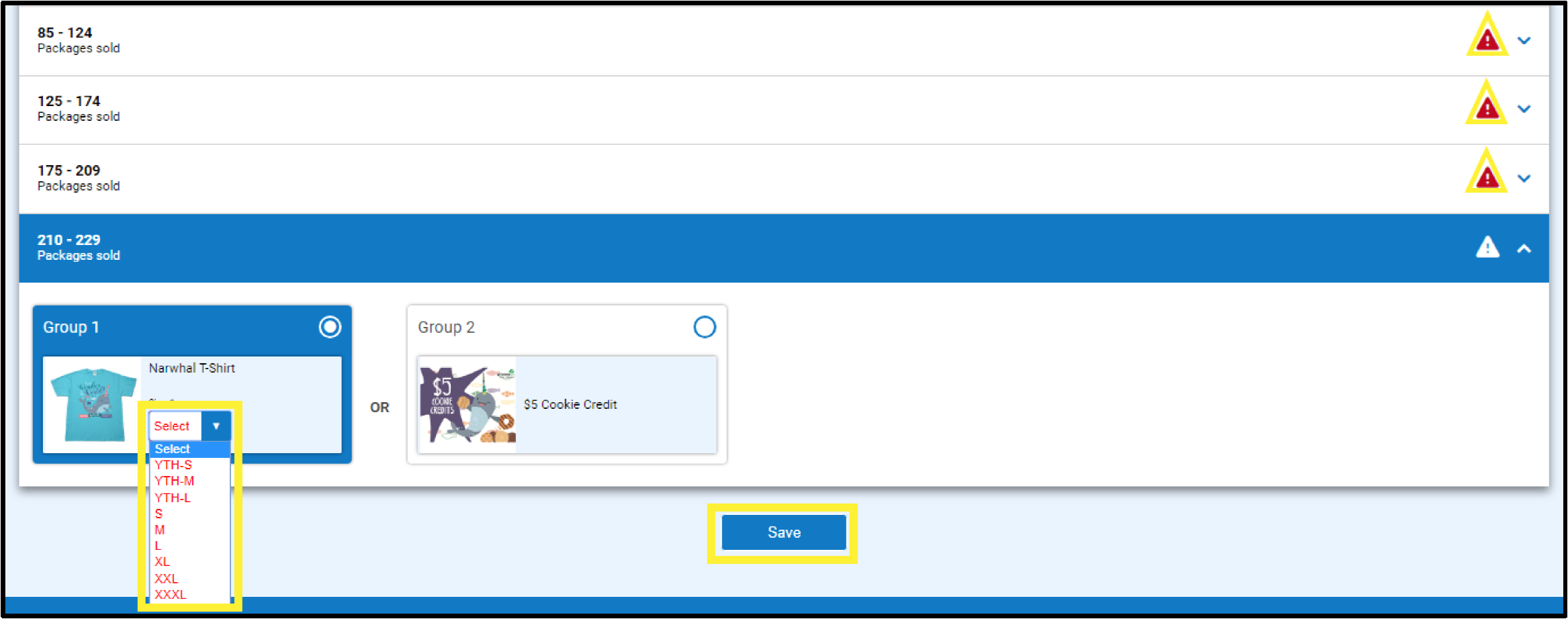
- If the Girl Scout has qualified for a
Donation Reward, select the Extras tab at the top of her
order page. This will show you her rewards related to donations
(both tracked and virtual). No additional steps are necessary for
the donation rewards.

- After the Girl Scout has completed all
selections, press Recognition Order at the top of the main
Recongnition Order page.
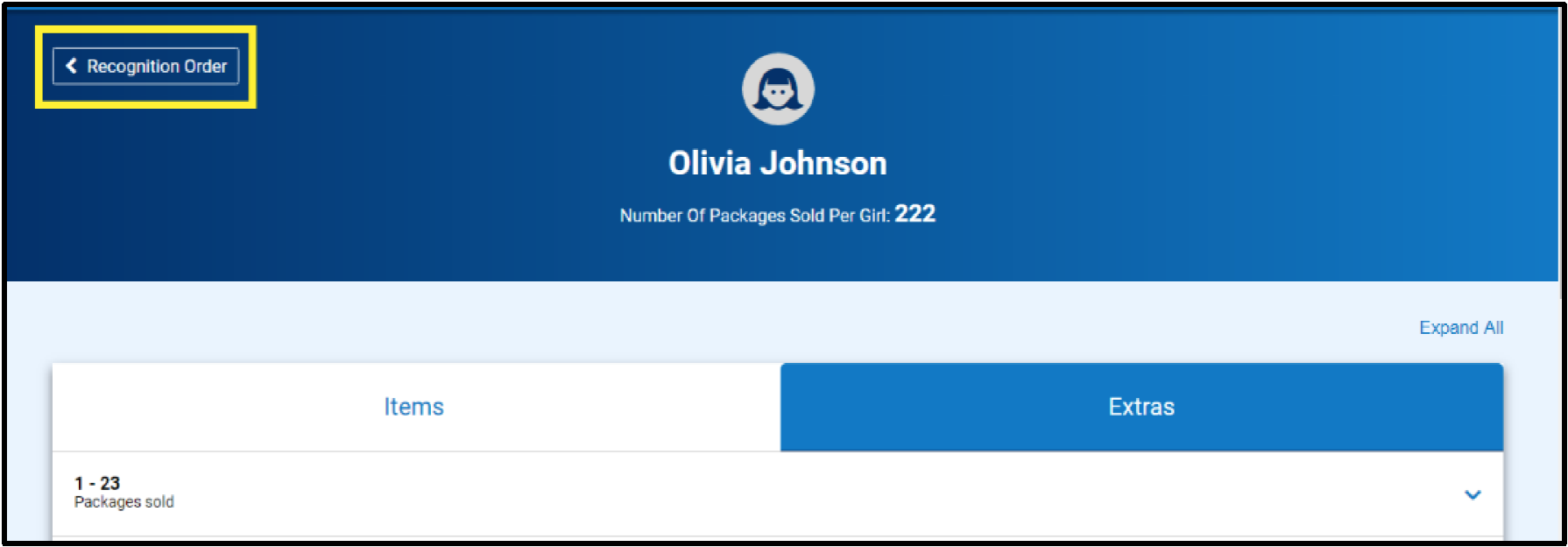
Repeat this process until all Girl Scout’s reward selections are complete. No need to submit or commit an order. To view all choices that need to be made for a girl, click on the Expand All text to expand all the drop-down arrows..
Cookie Crossover Patches and select patch programs are managed outside of Smart Cookies.
Video Instructions: Creating Recognition Orders
Ordering Troop PGA Rewards
Troops who reach a certain Per Girl Average (PGA) of packages sold will earn special rewards. These rewards can be ordered in Smart Cookies. If your troop did not reach a PGA of over 400, then no actions are needed. If your Troop did reach a PGA of over 400, follow these steps to order the items:
- Log into Smart Cookies, and select Recognition Order under the Rewards tab.

- In the drop-down menu under Select Recognition Order, select Troop.

- You will now see the Troop Recognition Order page. If you have not selected your Troop PGA Rewards yet, your Troop will have a red triangle symbol on the right side of the screen. Click theblue arrow next to the red triangle to start ordering your troop rewards. If there is not a redtriangle symbol on the screen, then your troop did not meet the PGA to earn these items. You don’t need to continue ordering troop rewards.
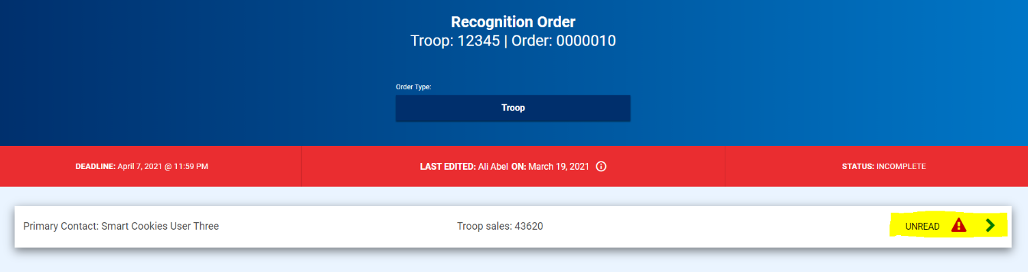
- On this page, you will see your Total Troop Sales, your number of Girls Selling, and your Average Number of Packages Per Girl Selling. For each level of the Troop PGA Rewards that your troop has reached, you will see a row with a red triangle symbol. If you do not see a red triangle symbol next to one or more of the rows, then no action is needed.
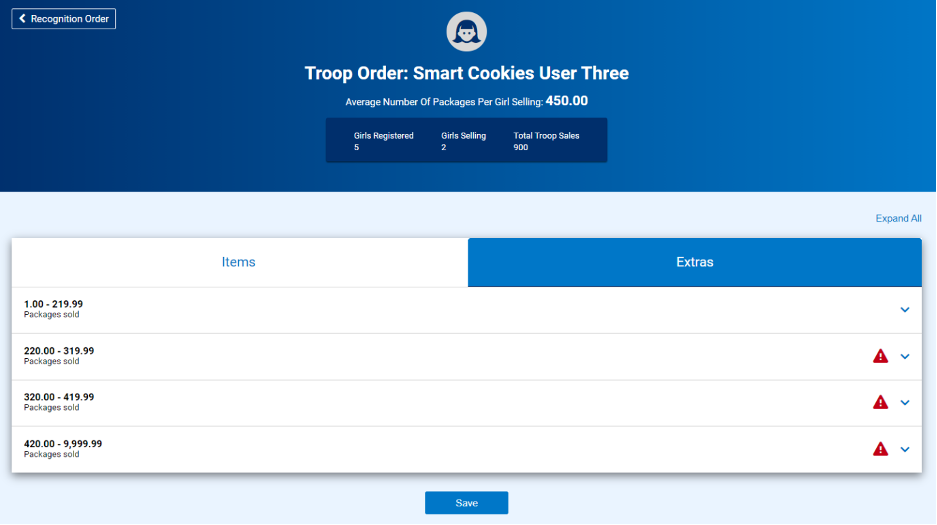
- Click the blue drop-down arrows to open each row. Enter the number of Girl Scout’s selling in your Troop plus 2 for the adults in the Troop (1/Juliette) in the red box.
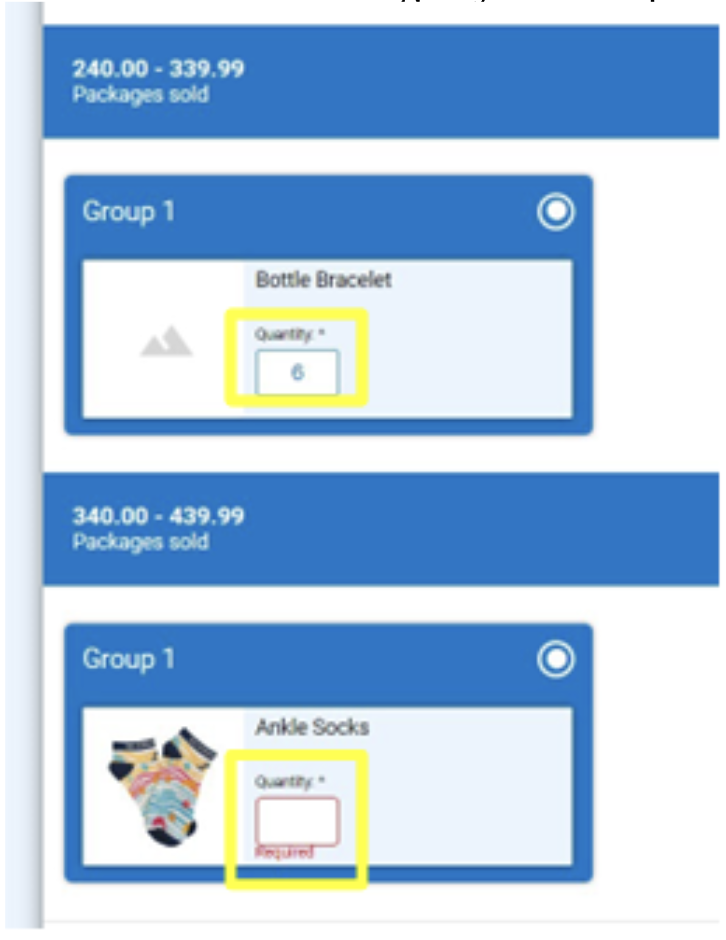
- Click Save at the bottom of this page. When you are finished with entering the Items and Extras, your Troop Recognition Order page will not have any red triangle symbols. No further actions are needed.
Smart Cookies
Reviewing the Reports Tab
Reports can be a helpful way to look at the data for your troop. This section includes a summary on helpful reports that your troop can use.
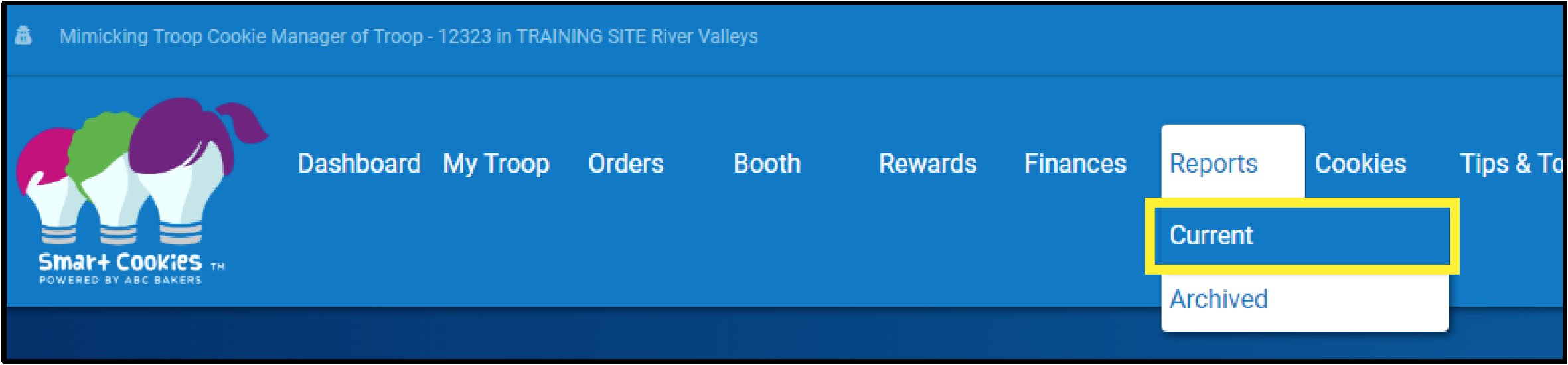
- Under the Reports tab, select Current.
- On the right, you will see a list of reports. Look for the report you need or narrow the list down by selecting a Report Category. When you find the one you are looking for, click on the report to select it.
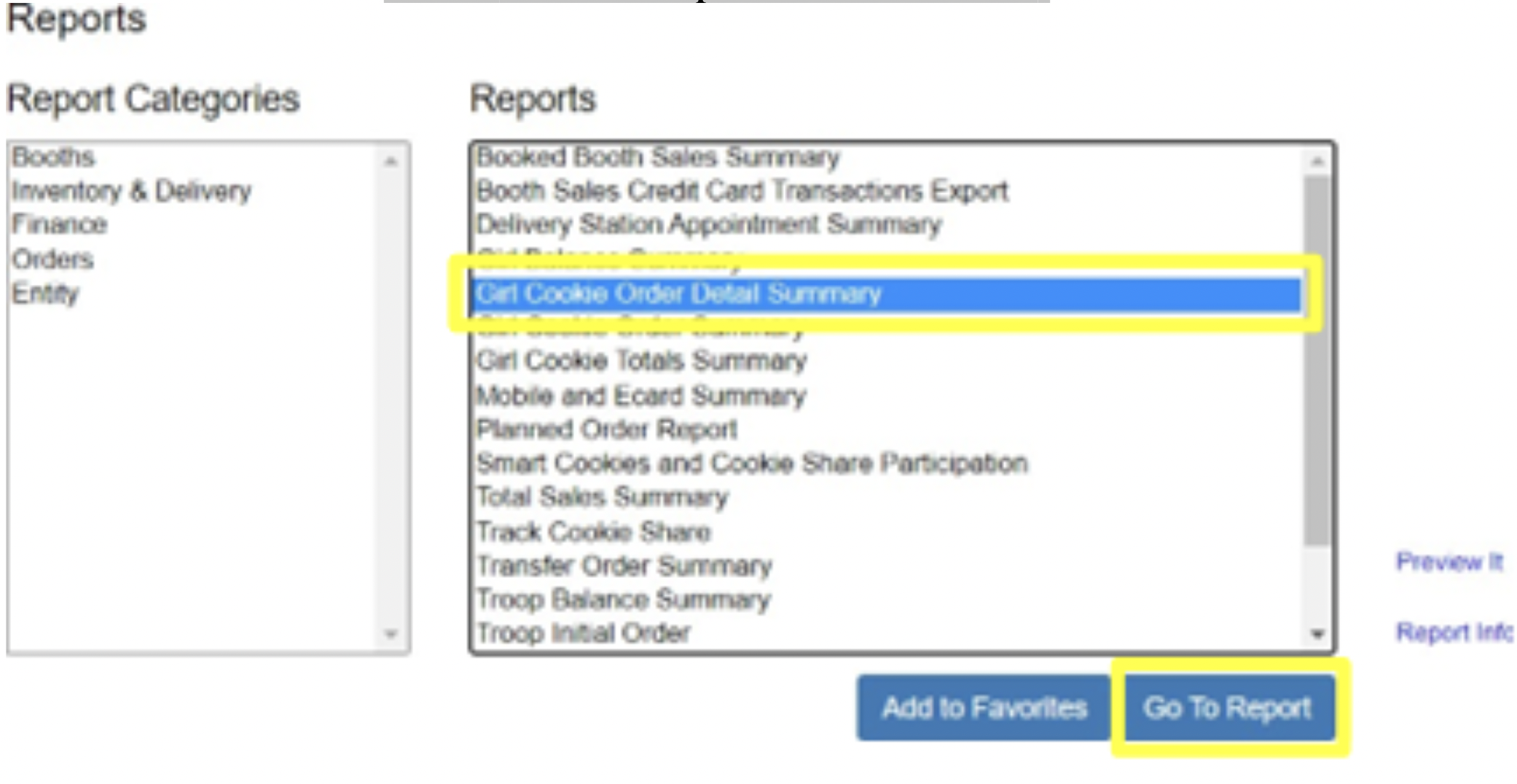
- Select Go to Report to receive a complete downloadable and printable version.
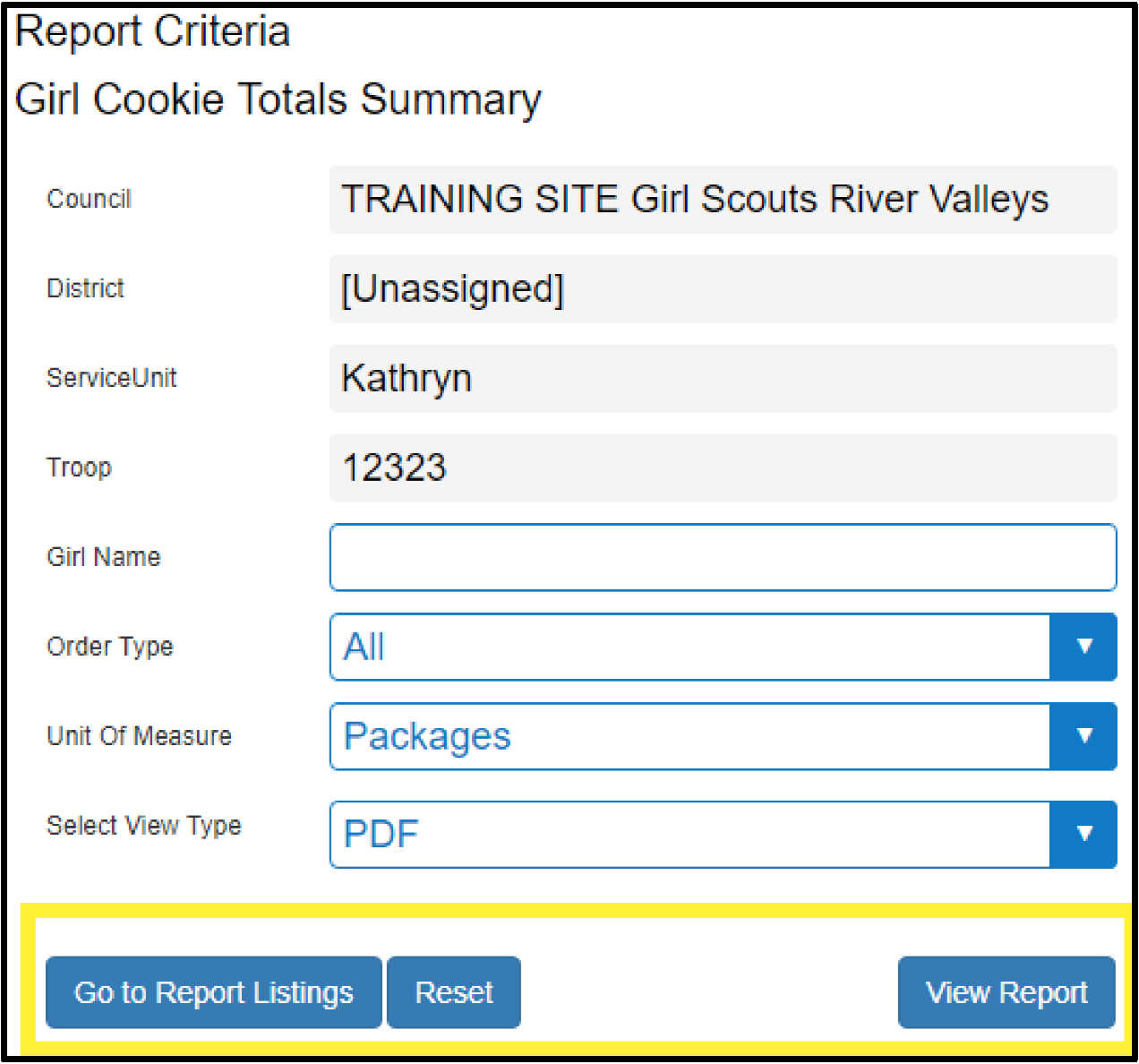
- Each report will have certain settings for you to select. You may want to add additional information if you are looking for a specific piece of information. Most commonly, you will want to select the Unit of Measure (packages for the most accurate numbers) and the View Type.
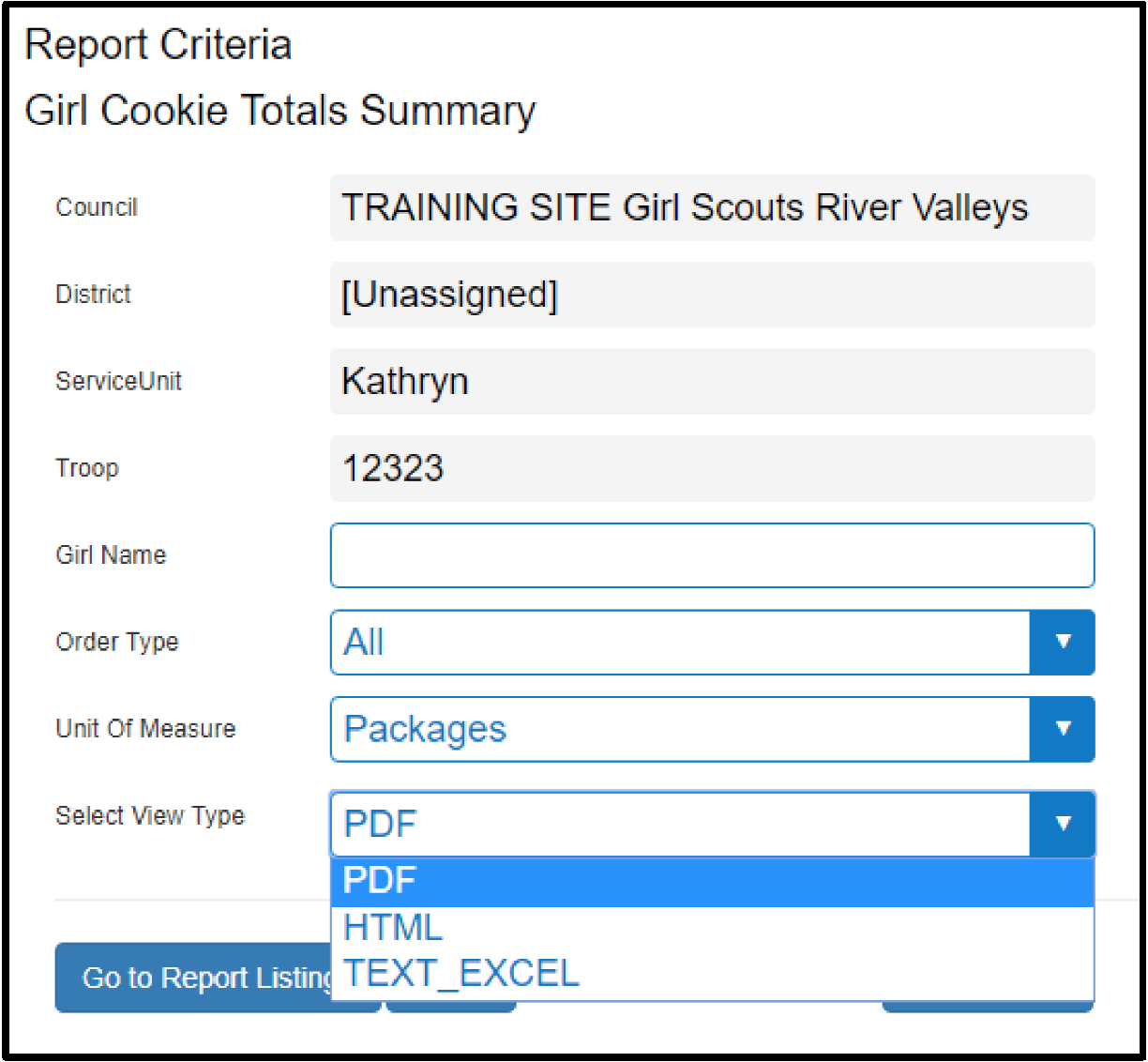
- Press View Report. Your report will open in a new page. When you are done, you may press Go to Report Listings to go back to the list of reports or Reset to clear out any settings you entered.
Highlighting Frequently Used Reports
Reports might be intimidating to a new user, but once you know what you’re looking for, they can give you a wealth of information about the cookie sale. Below is a list of some of the most used reports and what they can tell you.
Girl Scout Cookie Totals Summary
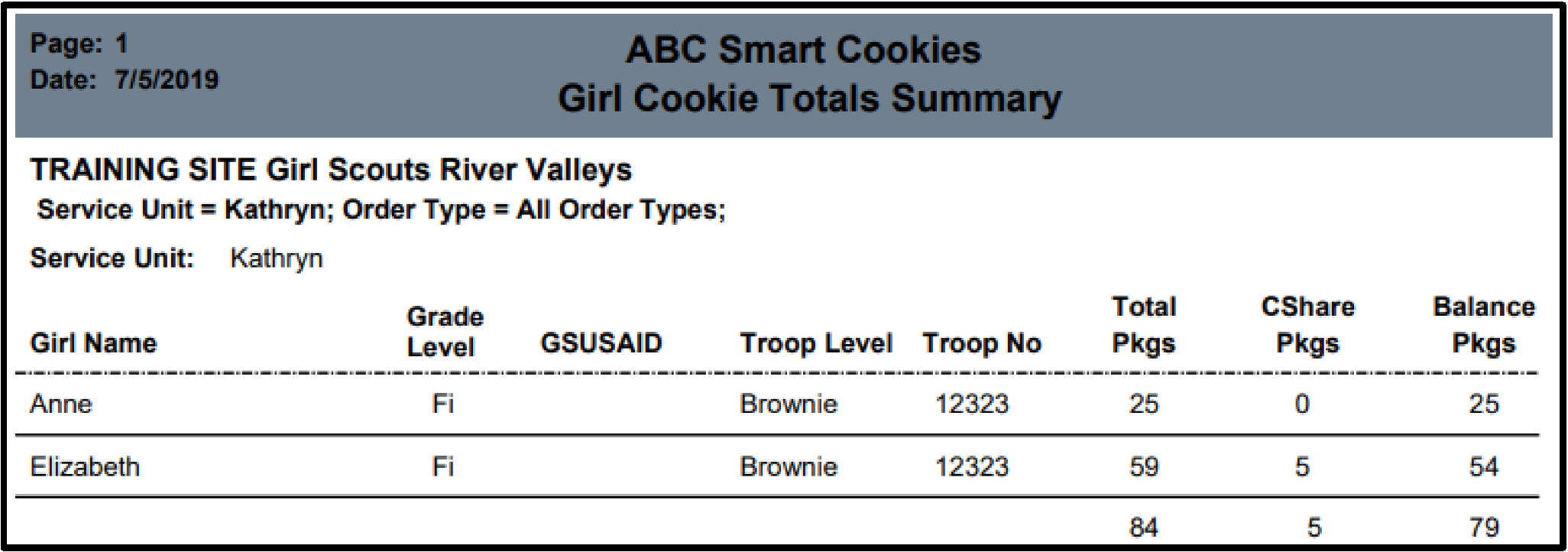
- Total Cookies that have been transferred to a Girl Scout, including Virtual Cookie Share packages.
- This is the number of packages that will be used to measure rewards eligibility.
Girl Scout Balance Summary
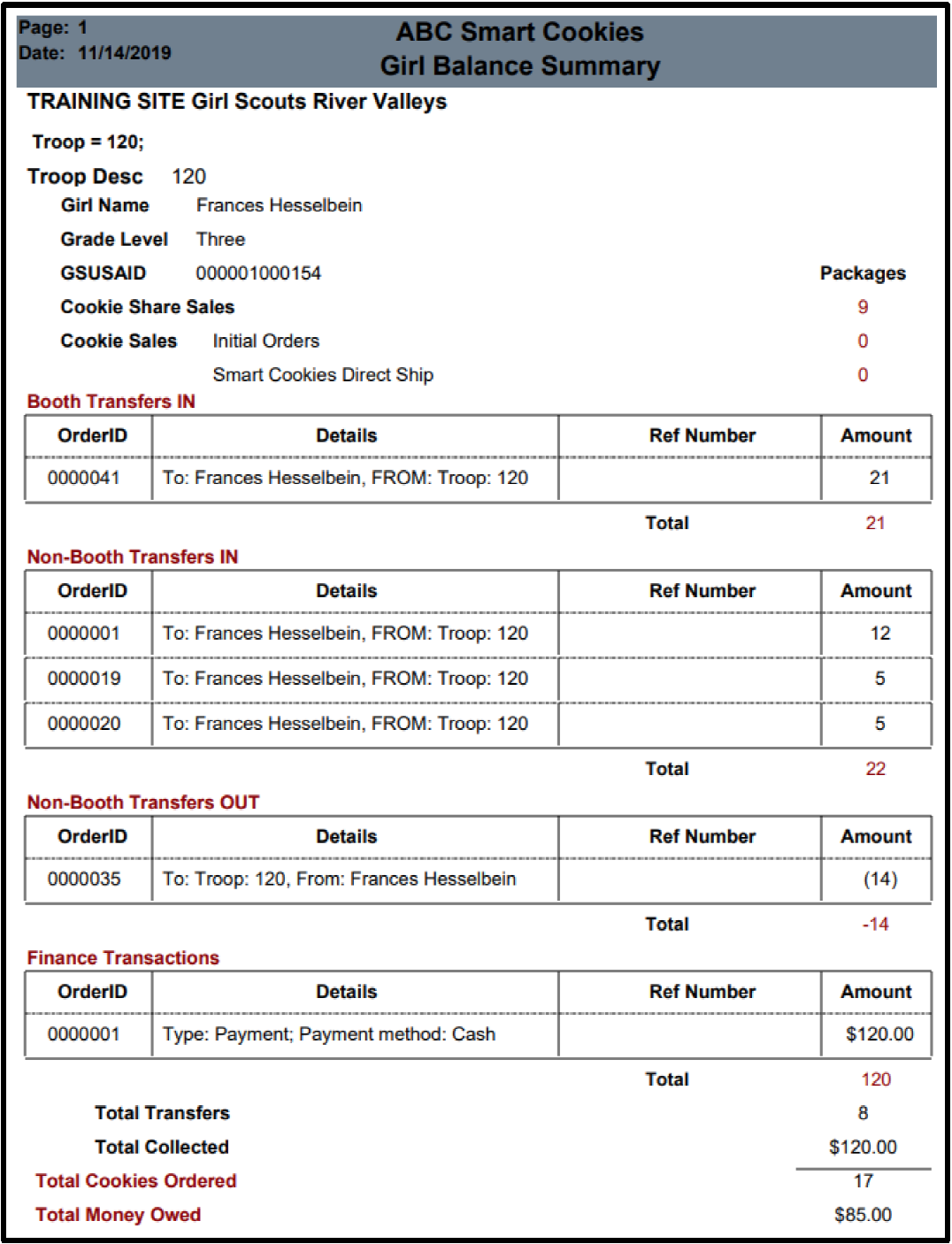
This is used to see how much money each Girl Scout owes the Troop for their cookies sold.
The top section is the girl’s information.
The middle section is where you can see the transfers in and out of the girl’s inventory. This girl had 43 cookies given to her (22 non-booth, 21 booth) and she gave 14 back to the Troop.
You can also see any finance transactions that have already been made. It looks like she paid the troop $120 already. You will also view all mobile and credit card payments from Digital Cookie on this report for each girl.
Troop On-Hand Inventory
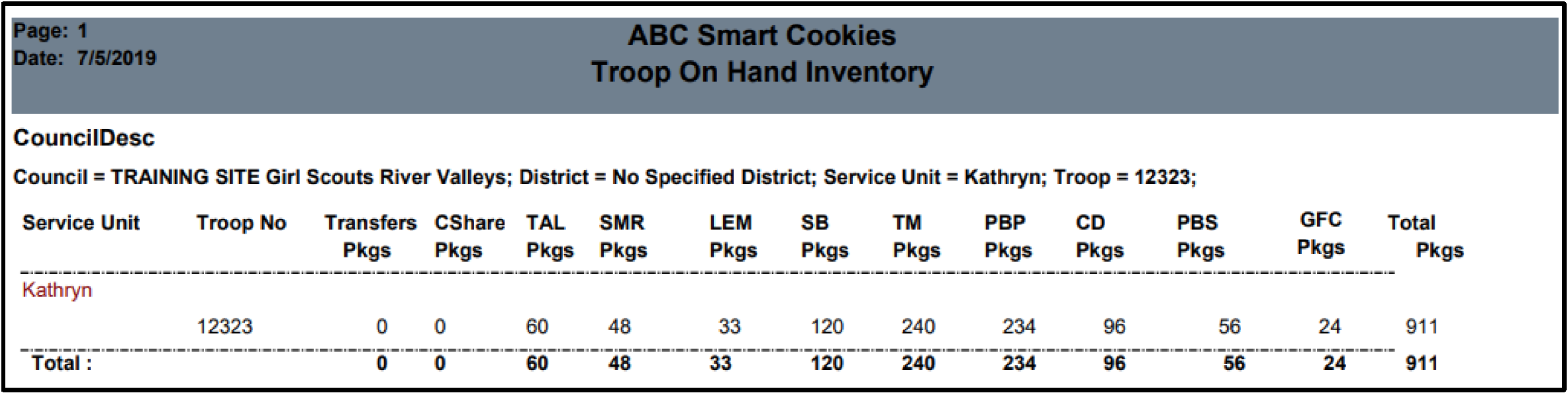
- Breakdown of cookies that the Troop has on-hand but has not yet distributed to Girl Scouts.
This report is a great way to see if everything has been tracked correctly in Smart Cookies. If the number of packages of each variety matches what you physically have on-hand, that is a good indicator that everything is accurate in Smart Cookies.
Track Cookie Share
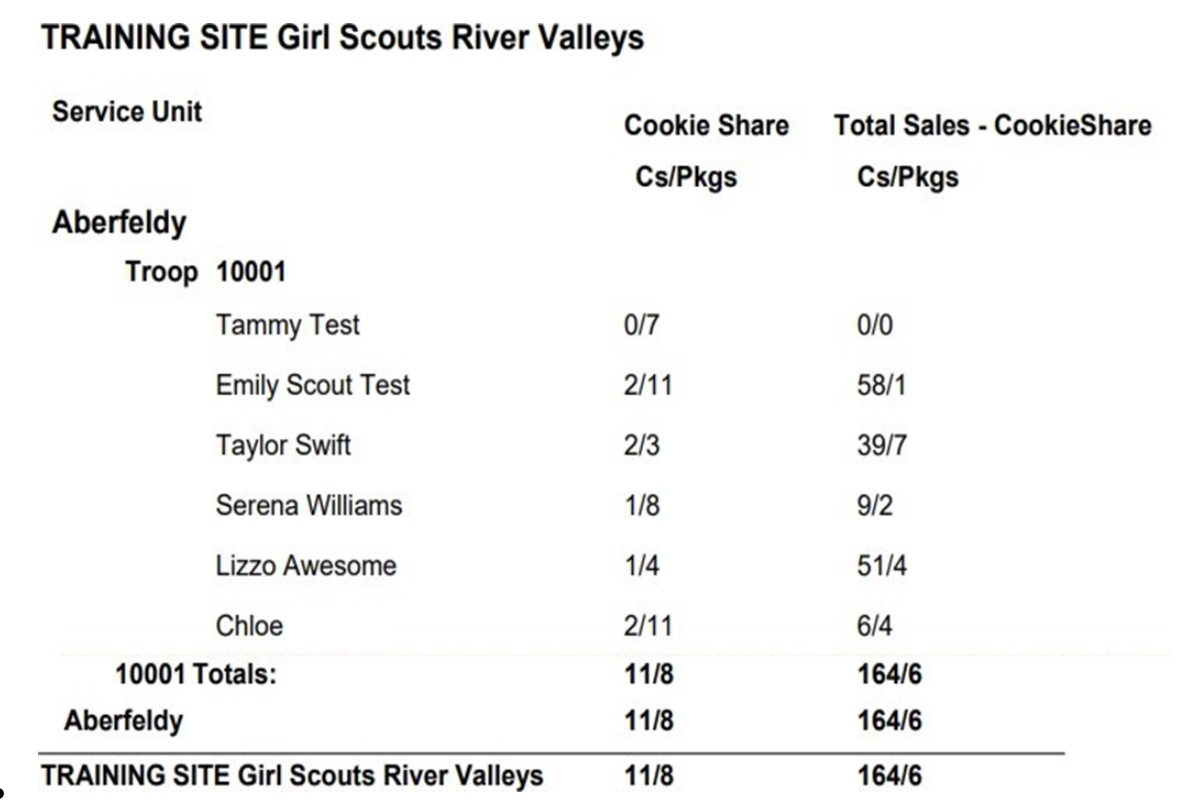
- Total packages donated from both donation programs
- Cookie Share Pkgs column shows total donations.
- To the right, you can see the sales minus what was sold through donation.
- These totals will be used to calculate the donations rewards.
Troop Balance Summary
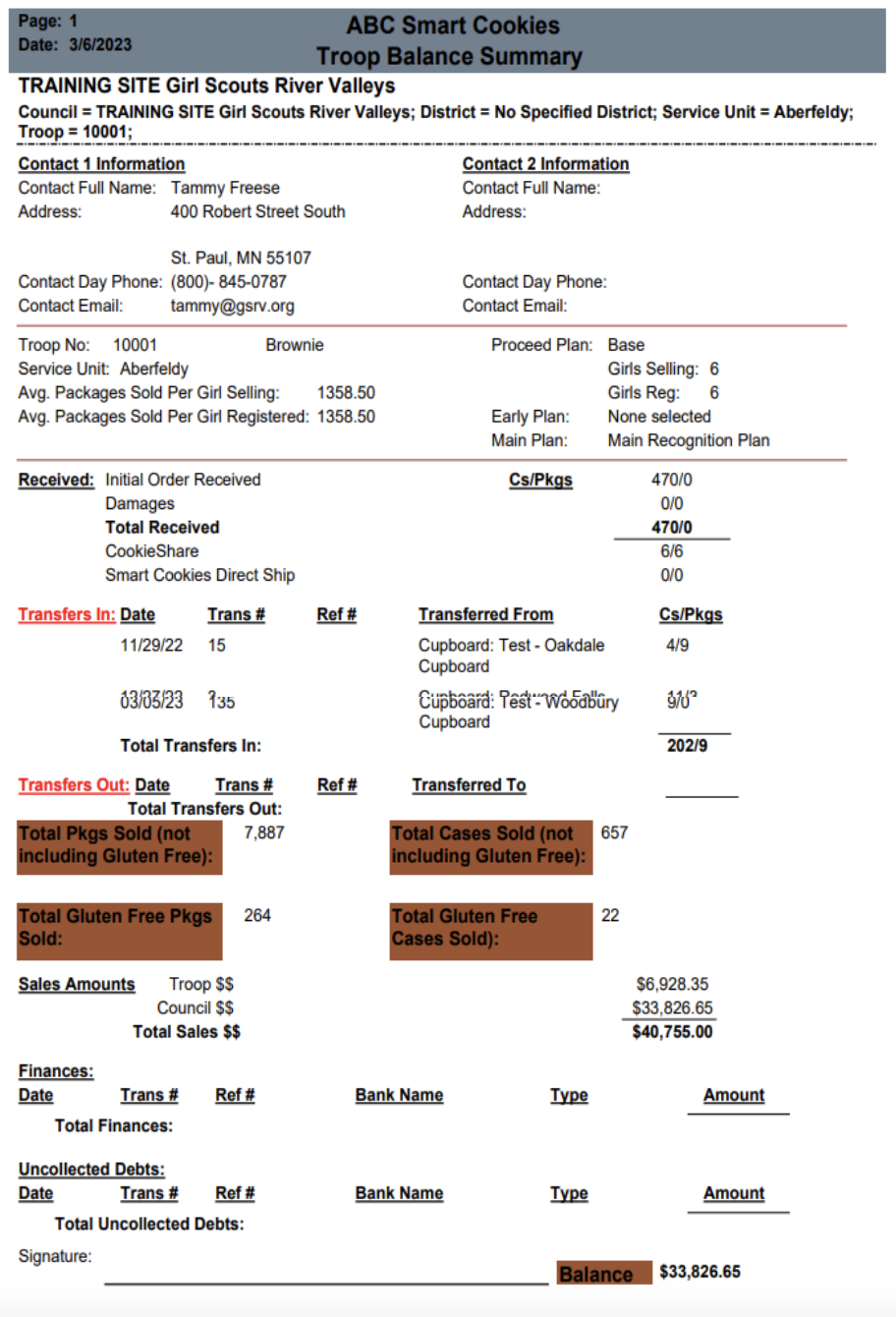
- Troop information is on the top half of the summary, including Per Girl Average, number of Girl Scouts selling, and troop proceed plan. The Avg. Packages Sold Per Girl Selling is used for troop PGA rewards.
- Orange squares toward the bottom show the total packages and cases sold. These numbers are used to calculate the sales amounts.
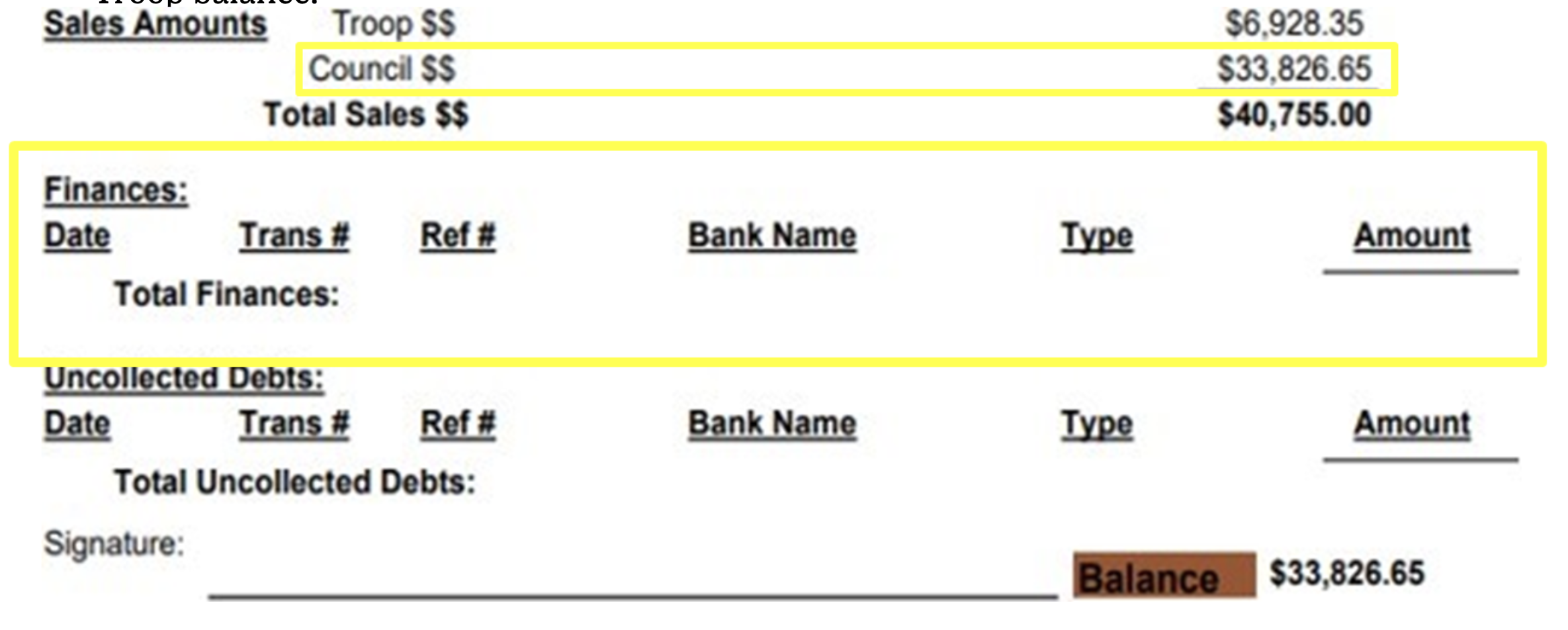
- The sales amounts are broken into Troop and Council Proceeds. The council dollars is equal to what the troop owes. The Balance is listed at the very bottom.
- Digital Cookies payments and council-initiated ACH’s will appear under finances and be applied to the balance due.
- This is a great report to check as the ACH deadline approached, to ensure your troop bank account matches this report.
- To figure out how much money should be deposited to the troop bank account, you would subtract any Digital Cookie payments from the Total Sales $$.
How to figure out how much cash/checks should be collected from families and deposited to troop account
$2,850 Total Sales $$
-$30 Digital Cookies Payments (girl delivery credit card)
$2,820 Amount of cash/cash that should be collected from families and deposited to troop account
Troop Proceeds (After ACH withdrawal from troop account troop proceeds should left in account)
$2,820 Amount of cash/check deposited in troop account
-$2,345 Amount of ACH withdraws from account for balance owed to council
$475 Amount should be left in account which equals troop proceeds
Council Proceeds (digital cookies and ACH)
$30 Digital Cookie Payments (girl delivery credit card)
$2,345 Council-initiated ACH with
$2,375 Amount equal to Council $$
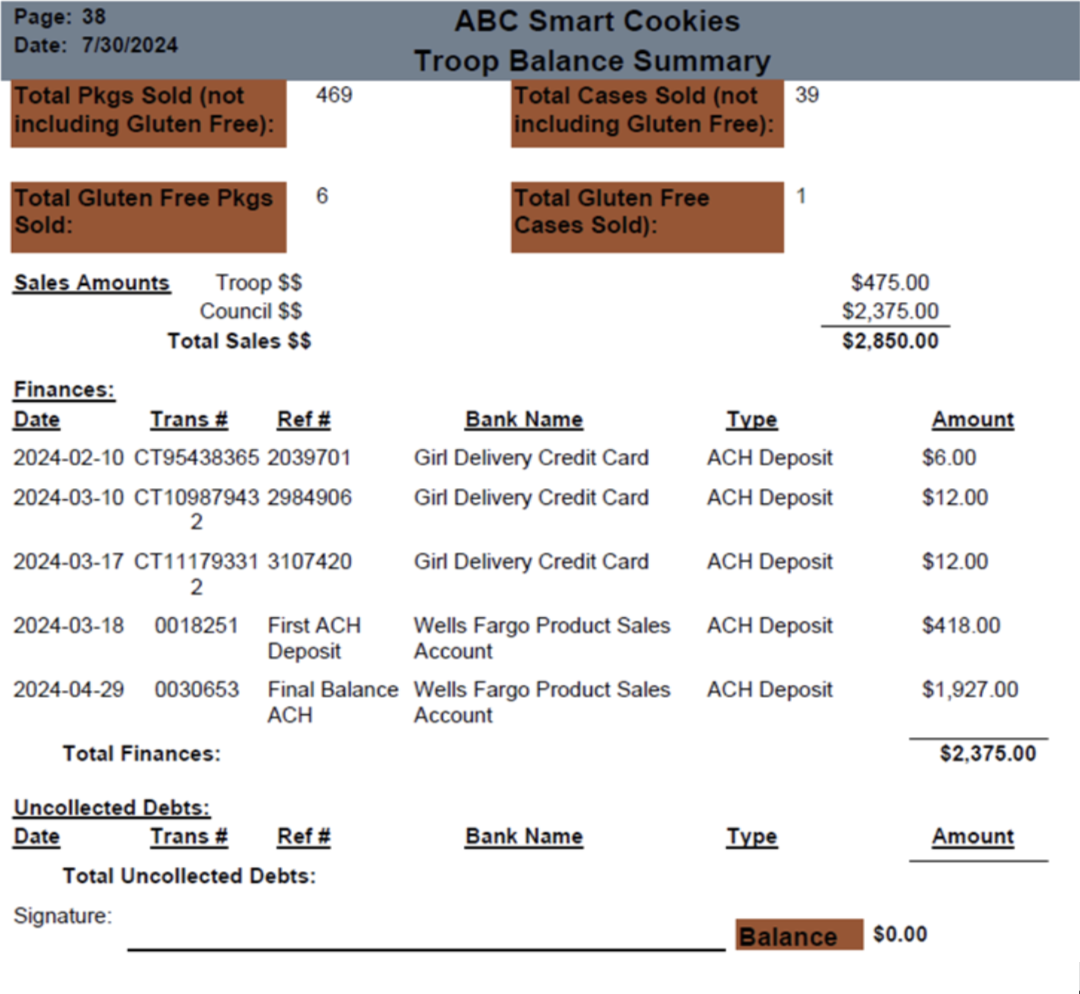
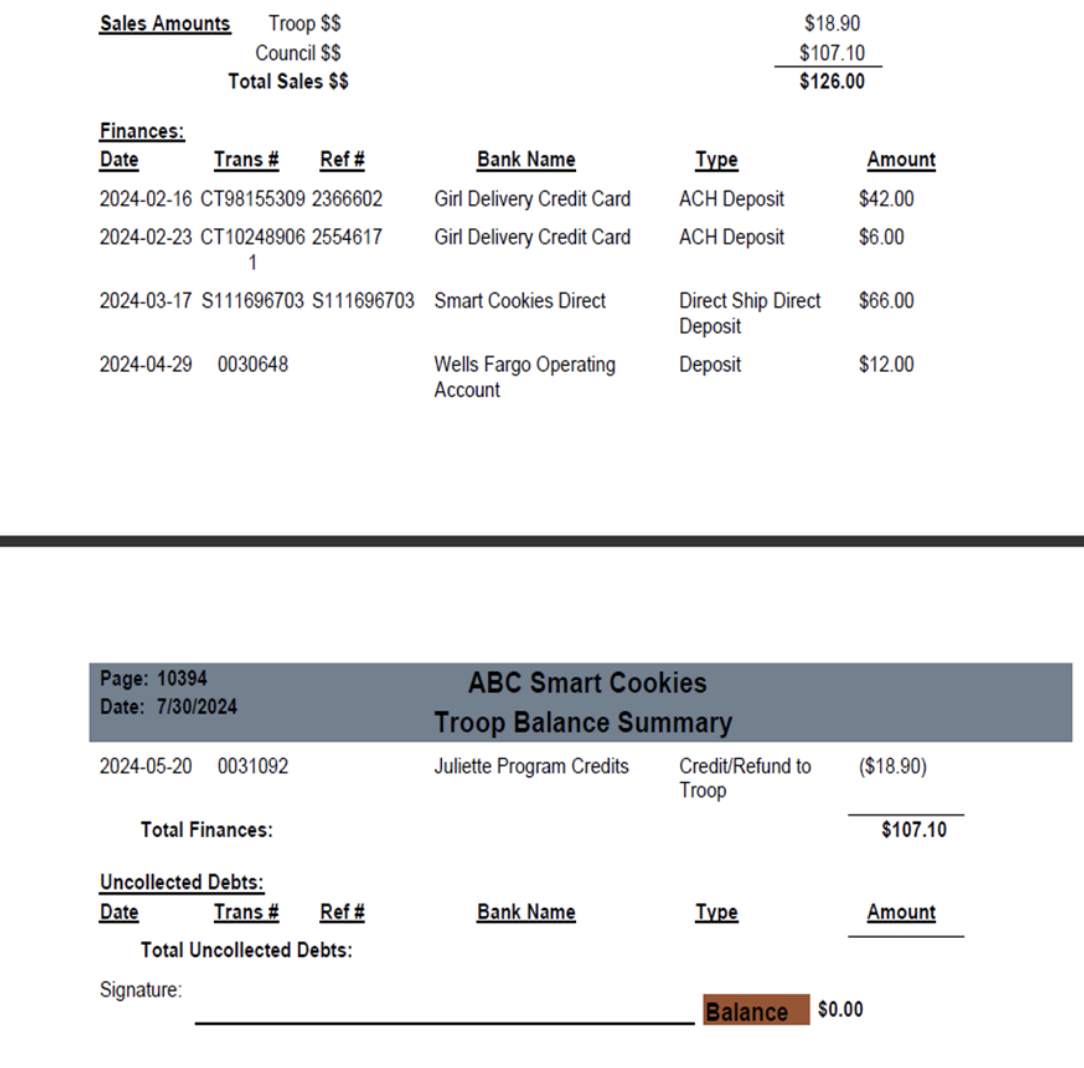
Understanding Troop Balance Summary Report for a Juliette Troop (Individual Girl Scout)
Juliette Girl Scouts cannot have a bank account, so they are given deposit slips encoded with the Juliette Troop Number to deposit all their cookie money into River Valleys Walls Fargo Account.
Juliette’s must deposit ALL cookie money including troop proceeds, the entire $6 per package sold. In Smart Cookies the Troop Balance Summary Report will show the amount of the Total Sales. The Total Sales must match the amount in the Total Finances. The Total Finances is the total of all the deposits made at Wells Fargo and Digital Cookie payments.
After all your deposits are made, the amount in the Balance should be a negative amount of Troop $$.
For this example, the Juliette had $126 in Total Sales so that is the amount that should be shown in the Total Finance line which would leave the Balance Box with a balance of ($18.90).
With this example the balance is showing zero because the Juliette Program Credits were sent to Juliette and so we reflect that in Smart Cookies to zero out the balance. You can see a financial transaction the the Juliette Program Credits were credited to troop.
Reconciling Report in Smart Cookies & Digital Cookie
Digital Cookie
Reviewing the Orders Tab, All Order Data & Troop Booth Sales Report

From the Troop Volunteer role, you can access the Troop Orders tab. This tab allows you to search for all orders credited to the troop or a Girl Scout in the troop from sales made through a sales link.
You can search in many ways, including by order number, date range, status, or using customer information:
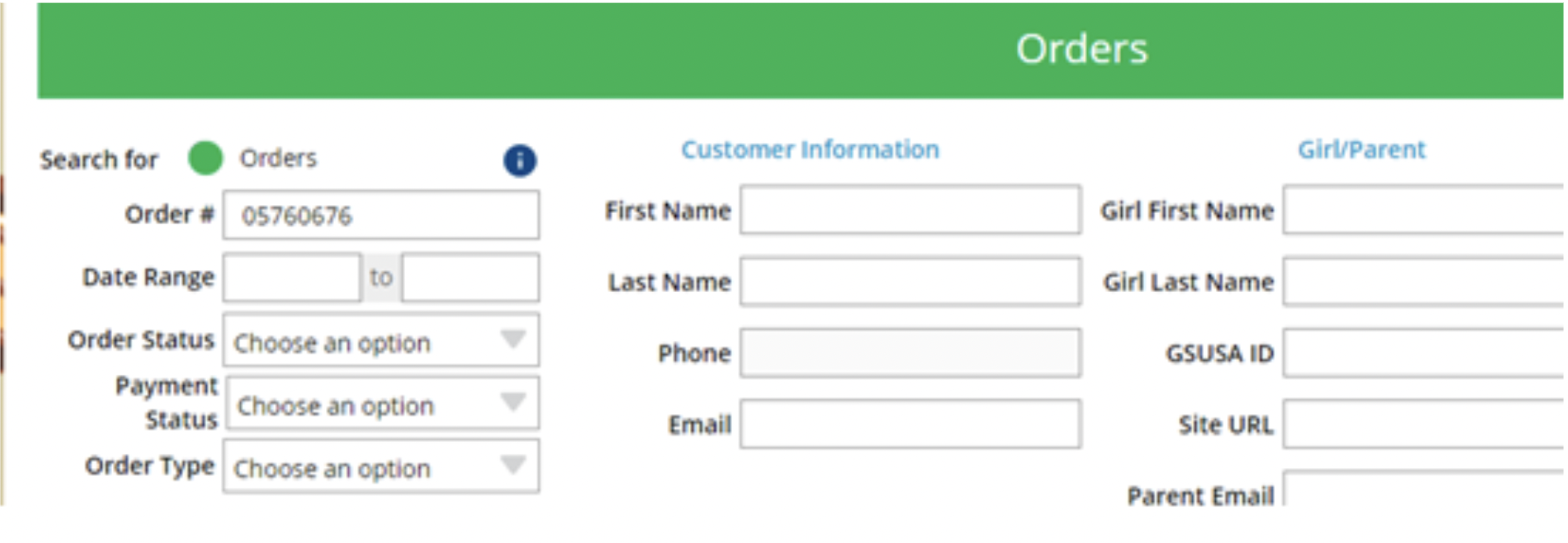
You can click on any of the linked information on this page to bring up more information on the order. You can also export a report of all orders from this tab.
From the Troop Volunteer role, you can access the All Order Data Report, which is found on the Troop Dashboard.
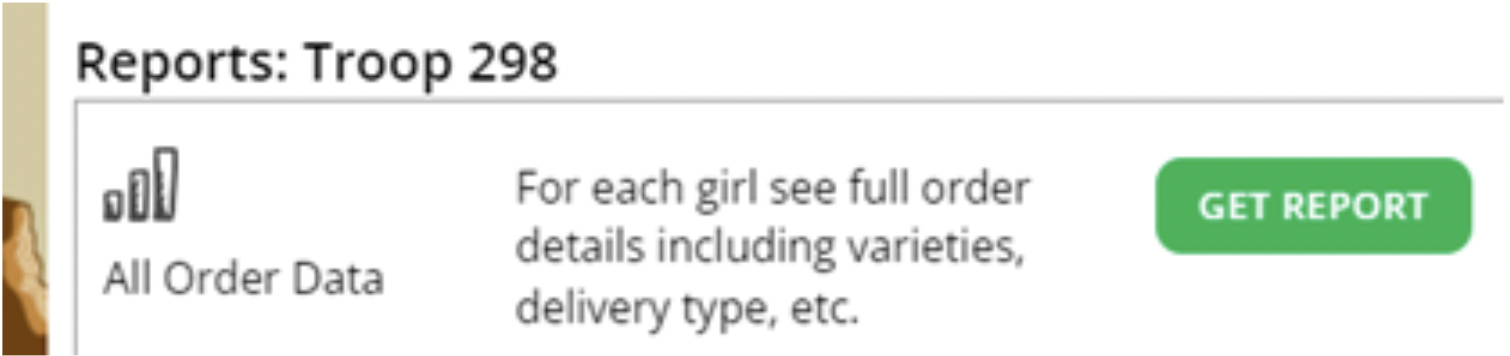
Scroll to the bottom of the page:
Click on Get Report to download the report.
You will see all Digital Cookie orders, from the Girl Scout orders to Troop Site Orders. From here, you can filter for information from types of delivery, types of orders, and details for each Girl Scout.
Access the Troop Booth Sales Report to assist in reconciling your cookie booths. Click on Get Report to download the report.

Smart Cookies
Cookie Booth Credit Card/Venmo/PayPal Payments
Tracking Girl Scout Finances
As Girl Scout’s collect cookie money, they will turn it into the troop. Credit Girl Scouts with these payments in Smart Cookies to keep track of the girls’ balance owed. The Girl Balance Summary Report shows you how many cookies each Girl Scout has sold at booths and individually, and you can see how much money she owes the troop. No action is needed to credit girls with credit card/Venmo/PayPal payments made using Digital Cookie or the mobile app. These payments will automatically be credited to the girl in Smart Cookies.
To track girl deposits:
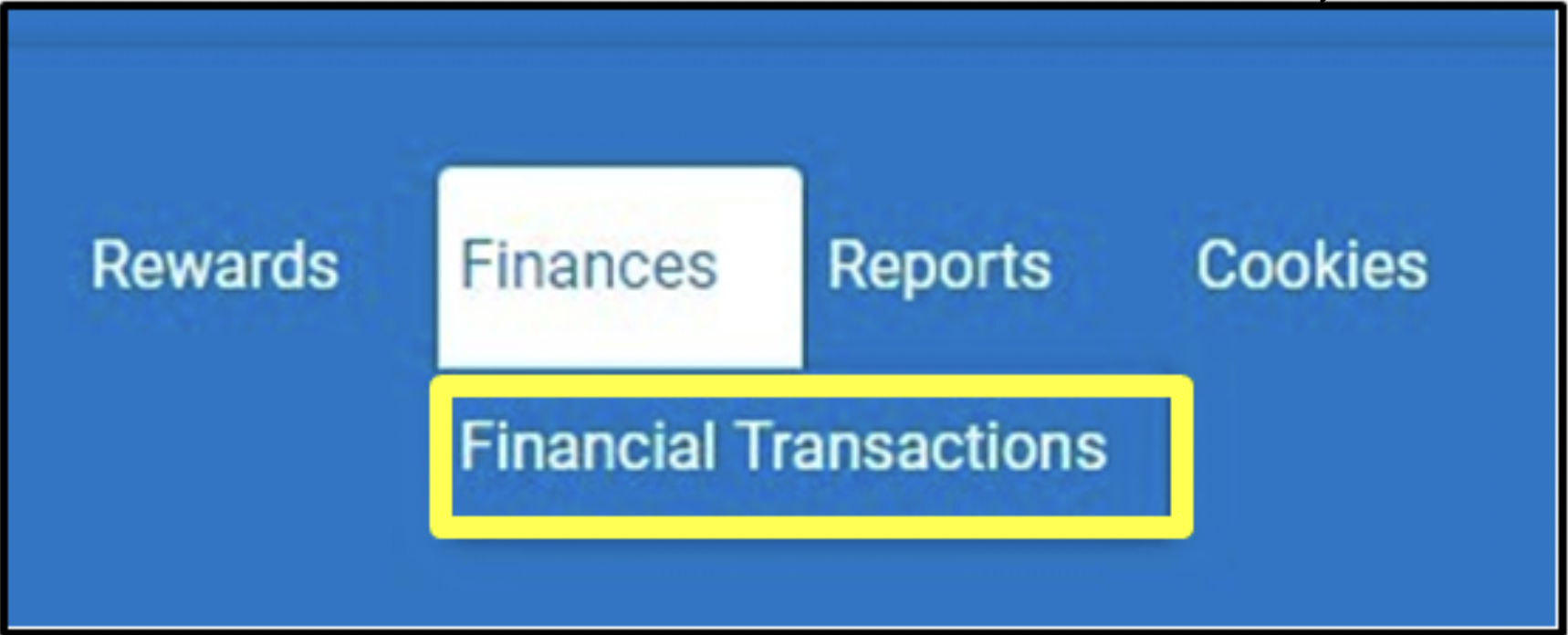
- On the Finances tab, click Financial Transactions.
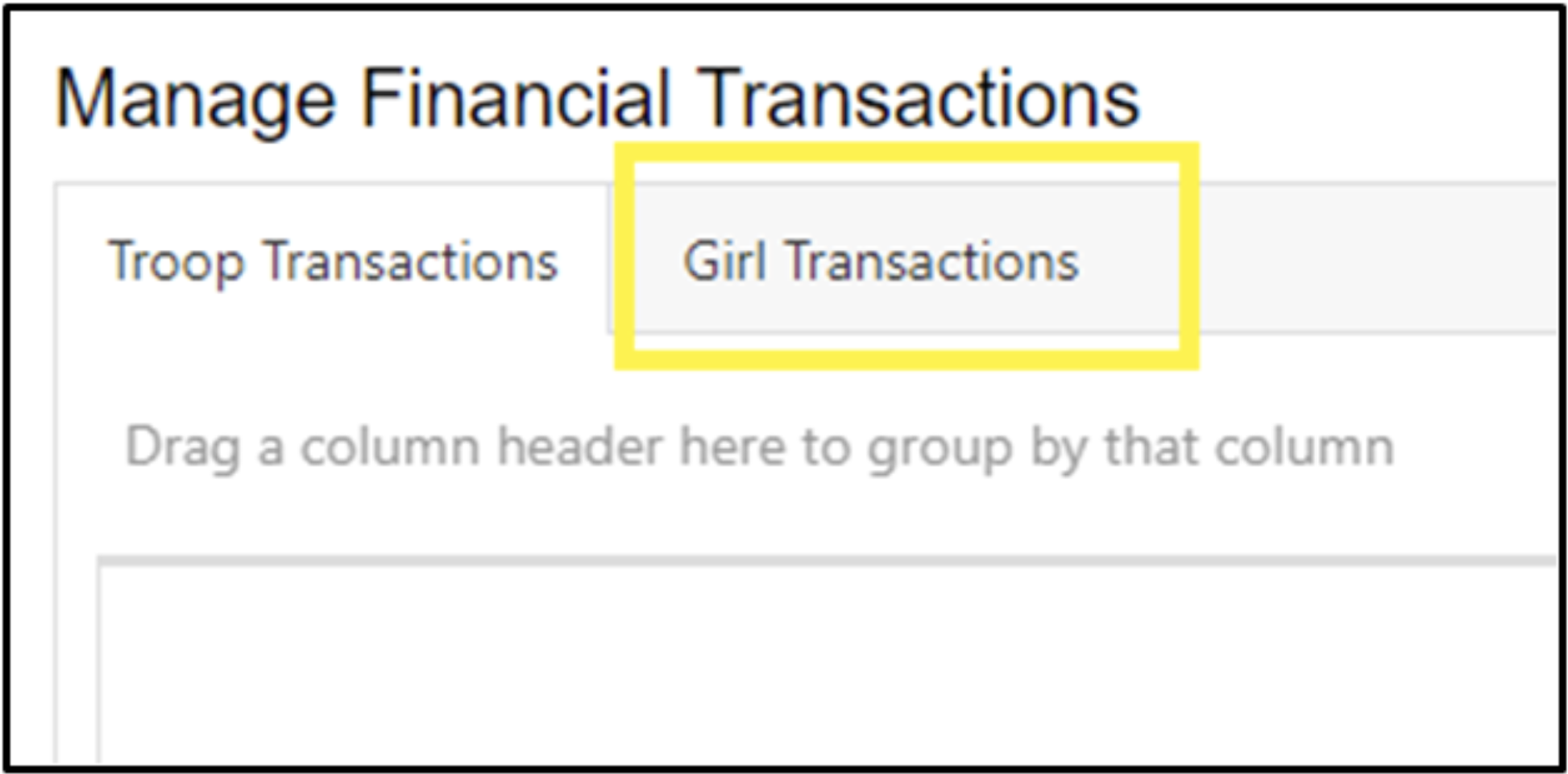
- Select the Girl Transactions tab. The Troop Transactions tab will display your ACH transactions, and girl credit card. Cash/check deposits you make into the troop account are not visible in Smart Cookies.
- Click Add Girl Transaction in the bottom left corner.
- Enter in the required information: Girl, Type, Payment Method, Transaction Date, and Amount. If you have any additional information, you may add it in the notes as well. Press Save.
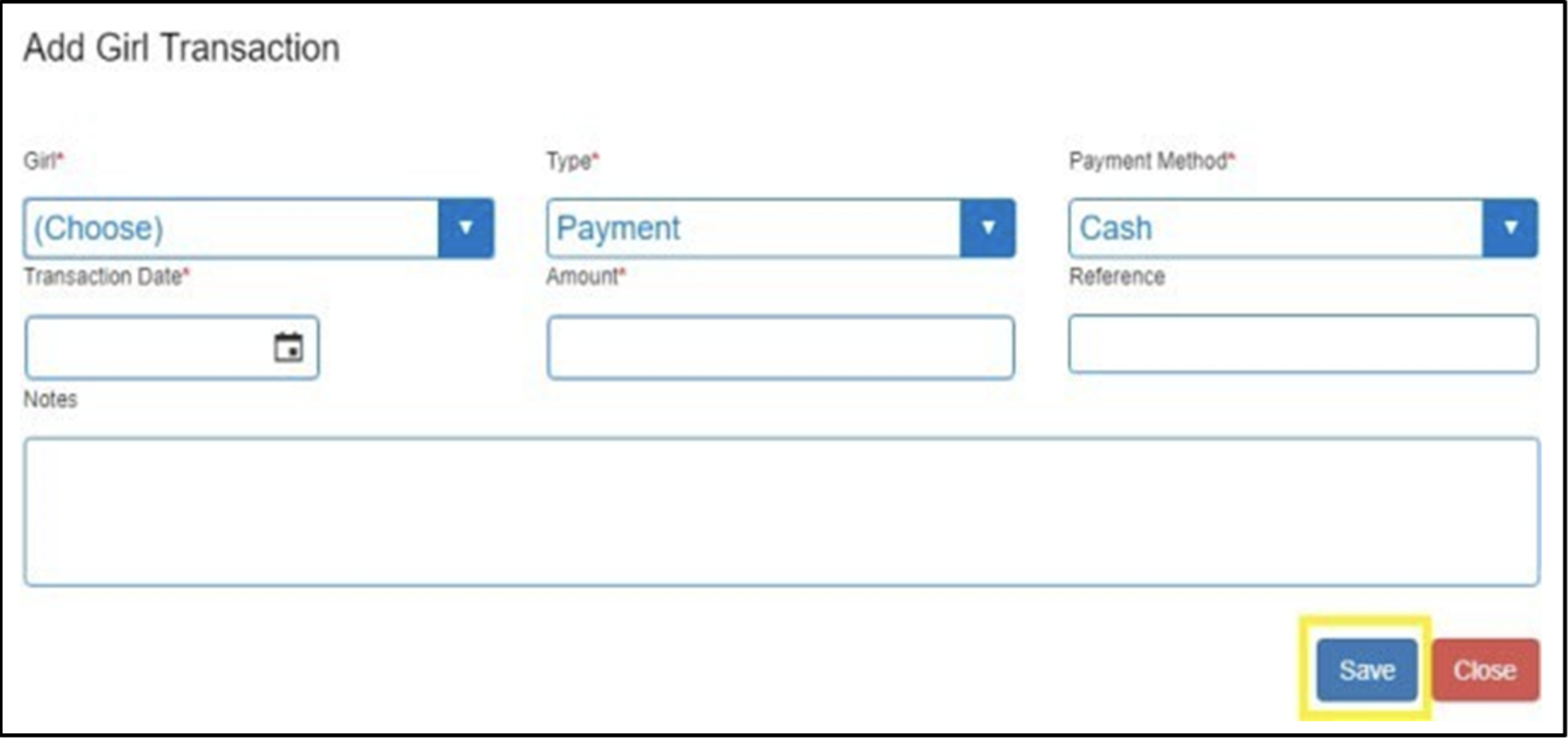
- For each deposit a Girl Scout makes, you should see a line item listed. You can edit or delete any transaction on in the right column.

Tracking Troop Finances
When the troop deposits money into the bank, you do not add a financial transaction in Smart Cookies. Keep track of your cookie deposits in a spreadsheet or using the deposit tracker on Cookie Central. These instructions will show how to find your total packages and dollars sold, proceed rate, and balance owed. To do this we will look at the report Troop Balance Summary. Download this report in packages as a PDF.
Total Packages Sold
Look for these four packages on the report:
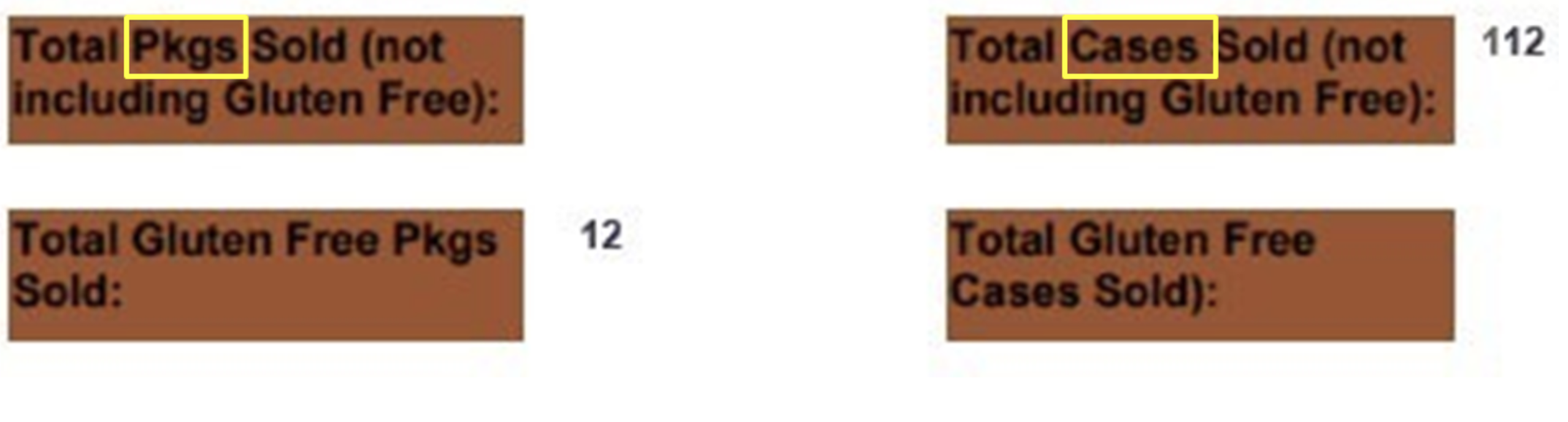
On the left is total packages sold, and the right is the total in cases. Add up the total packages sold + Total Gluten Free packages to get your total packages sold. There are 12 packages per case. This Troop sold 1,356 packages: 12 GF packages + (112 cases x 12 packages)
Total Dollars Sold
You can see the total Sales $$ in bold. This equals the total packages sold X $6.
Proceed Rate
Troops earn $1/package in proceeds. For Senior/Ambassador troops that opted out of rewards, they will earn $1.05/package.
Balance Owed
The balance is listed on the very last line of the report. The balance is calculated by taking the Council $$ from the sales amounts and subtracting anything listed under the Finances section.
The Finances section tracks any money that River Valleys has already collected from the Troop. Any time a Girl Scout or troop takes orders via credit card/Venmo/PayPal through Digital Cookie, the money is automatically put into the Girl Scouts River Valleys bank account. The report will auto-adjust to give you your troop proceeds back for these sales. Also included in the finances section is any money already collected by Girl Scouts River Valleys through the first ACH. The balance owed is the Council Proceeds minus any money you've already paid us.
You should check your bank receipts to ensure you have deposited an amount that matches the troop balance.
Juliette Balances
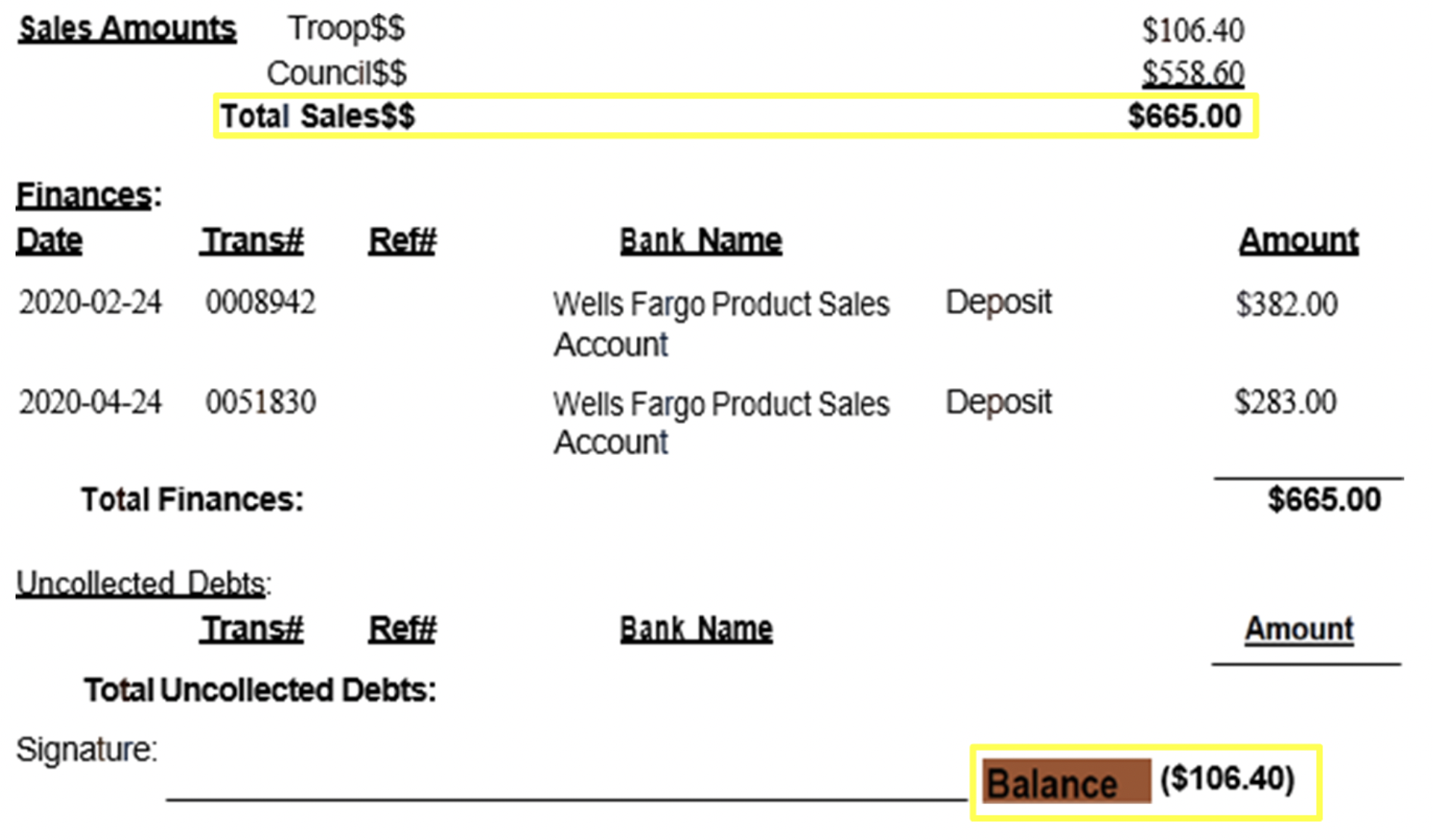
Juliettes deposit all cookie money into the Girl Scouts River Valleys Wells Fargo account using special encoded deposit slips that they receive. The deposit amount must equal the Total Sales $$ ($665 in the example below).
The Balance amount at the end should equal a negative of the Troop $$ (-$106.40 below). Which means that River Valleys owes Juliette Program Credits to the Juliette troop. Juliettes earn proceeds in a range according to packages sold. The ranges will be emailed to all Juliette mentors.
Digital Cookie
Refunding an Order a Girl Scout Can’t Deliver
In your Troop Volunteer role, you will have the ability to refund in-person delivery, pickup, and donation orders to customers.
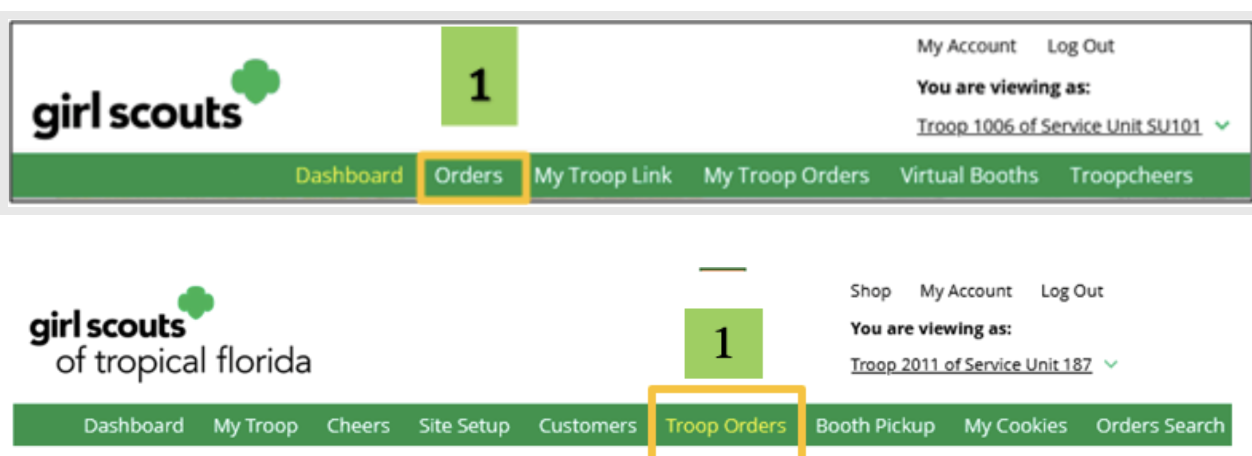
1. Start by navigating to the Troop Orders tab on your troop dashboard.
2. On the Troop Orders tab you can look up orders a few different ways. Select one of the lookup options, selecting more than one can cause the results to not appear properly. The recommended lookup options are:
- Order number
- Customer email address
- Parent email address
- Girl name (first and last)
- Customer name (first and last, min 2 letters)

3. The Order Details page includes all order information including customer details. At the top, next to payment status will be a Refund button.
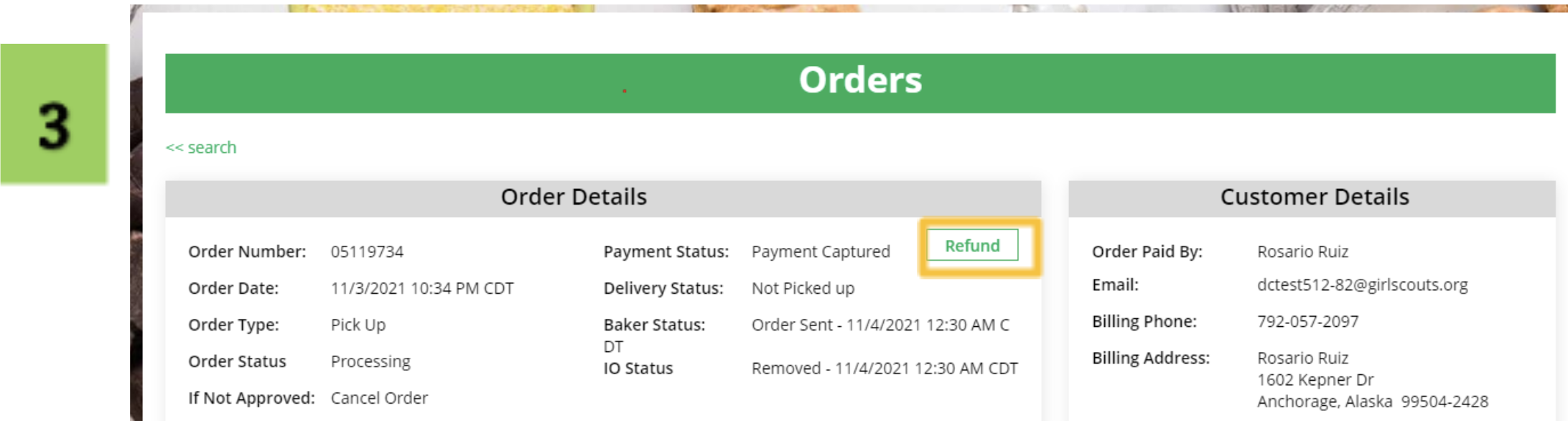
Clicking the Refund button will bring up another screen and you need to click Full Refund to continue with refund.
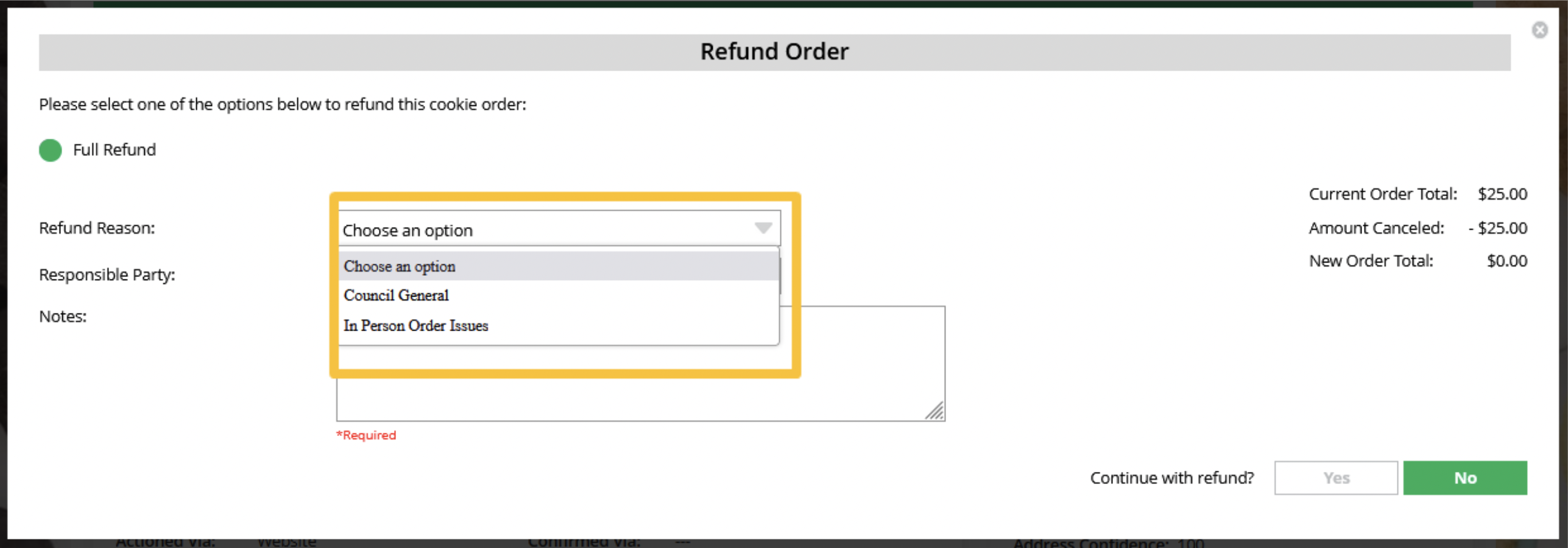
You will select an option for refund reason. Then, add information to the notes section so that if anyone looked at this order in the future they would know why the refund was made.
Once all the information has been completed, click Yes to continue with the refund. At that point, the automated process to refund the consumer will begin. Depending on the customer’s bank, it can take a few weeks until their bank will show the refund on their account.
To verify the refund went through, you can scroll to the bottom of their order details and see “refund_follow_on” in the “Payment Transactions” section and see the date the system processed it. If you receive an error, contact Digital Cookie Customer Support for assistance.
Video instructions: Troop Refunds
