You are leaving girlscouts.org for a website opened by an external party. You will be subjected to the privacy and security policies of the website

Using Looker
Looker is an online tool that core community/area volunteers can use to access real time membership data for their community/area. Looker replaces our previous method of distributing rosters through bi-weekly emails. Now community/area volunteers can log in any time to view data on all current Girl Scout members in their area. New memberships and updates to current membership data sync overnight and will appear in Looker the following day.
Accessing Looker
All currently registered, core Community/Area volunteers have access to Looker. Looker can be used from any computer or electronic device with internet capability. The tool can be accessed at https://girlscouts.looker.com/login/email.
How Do I Set Up My Looker Account? 
Troubleshooting Looker
Navigating Looker
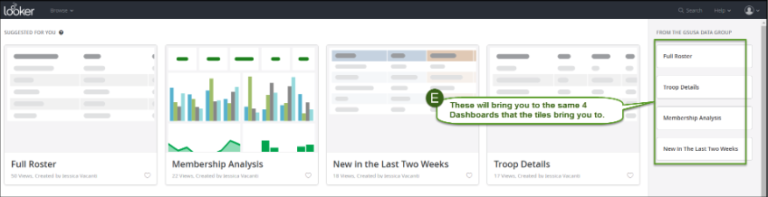
Always click on the top left hand side of any screen to return to Looker’s ‘Home’ page where each of the four dashboards and sidebar can be accesed.
Full Roster Dashboard
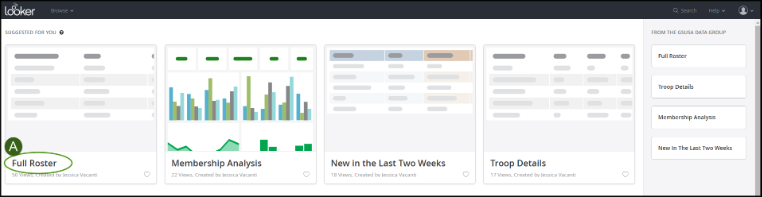
Full Roster – Location on Home Page
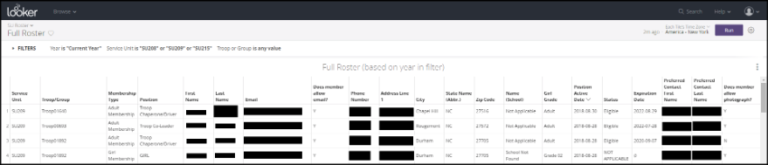
Full Roster – Dashboard
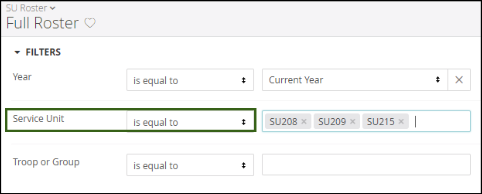
Full Roster Page Filters
- You can filter on year (October 1-March 31: filter by Current year or Last Year. April 1-September 30: filter by Current Year or Next Year).
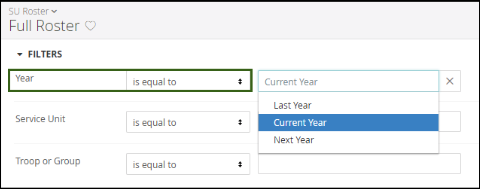
- You can filter on community/area (one or more depending on roles held).
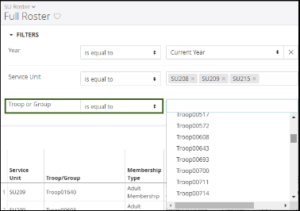
- You can filter on troop or group.
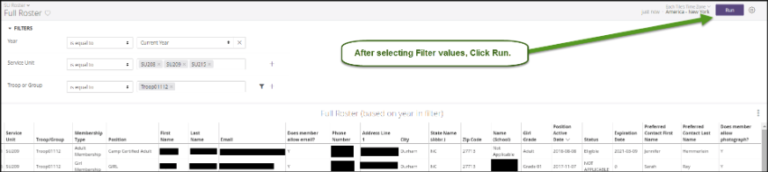
- Click RUN to see filters applied.
Member Analysis Dashboard
Member Analysis – Location on Home page
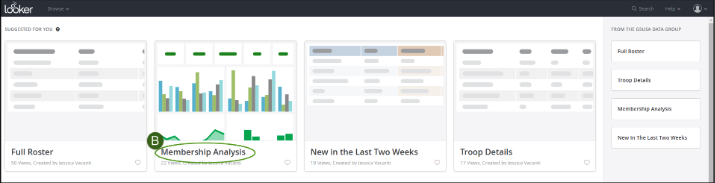
Member Analysis – Page Filters
Note: Filters are the same as the filters on the Full Roster Dashboard.
- You can filter on year (October 1-March 31: filter by Current year or Last Year. April 1-September 30: filter by Current Year or Next Year).
- You can filter on community/area (one or more depending on roles held).
- You can filter on troop or group.
- Click RUN to see filters applied.

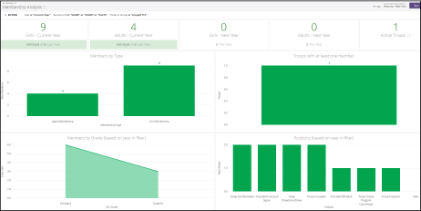
New in the Last Two Weeks Dashboard
New in the Last Two Weeks – Location on Home page
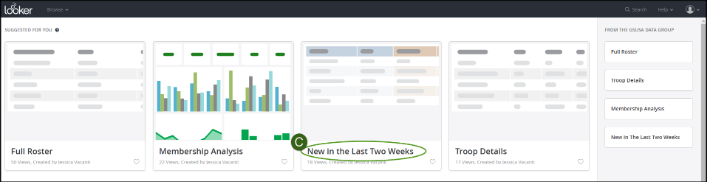
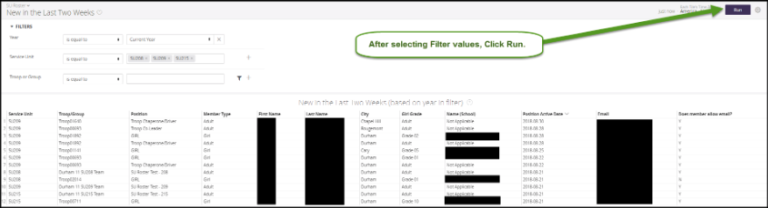
New in the Last Two Weeks – Page Filters
Note: Filters are the same as the filters on the Full Roster Dashboard.
- You can filter on year (October 1-March 31: filter by Current year or Last Year. April 1-September 30: filter by Current Year or Next Year).
- You can filter on community/area (one or more depending on roles held).
- You can filter on troop or group.
- Click RUN to see filters applied.
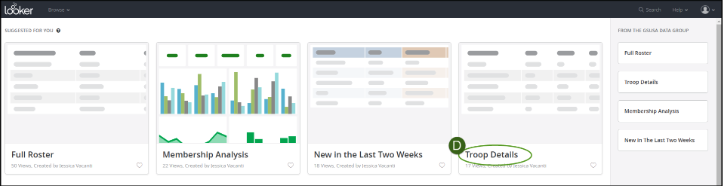
Troop Details Dashboard
Troop Details – Location on Home page
Note: Filters are the same as the filters on the Full Roster Dashboard.
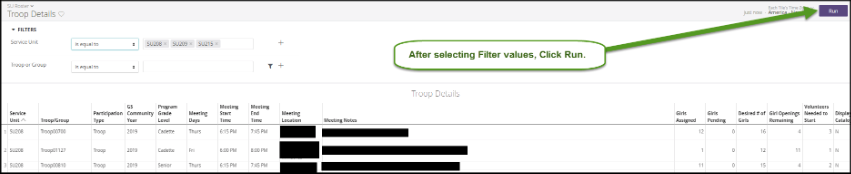
Troop Details – Page Filters
- You can filter on year (October 1-March 31: filter by Current year or Last Year. April 1-September 30: filter by Current Year or Next Year).
- You can filter on community/area (one or more depending on roles held).
- You can filter on troop or group.
- Click RUN to see filters applied.
Sidebar
On the right-hand side of the Home page you will see a sidebar with four sections. Each section will bring you to the same four dashboards that the tiles will bring you.